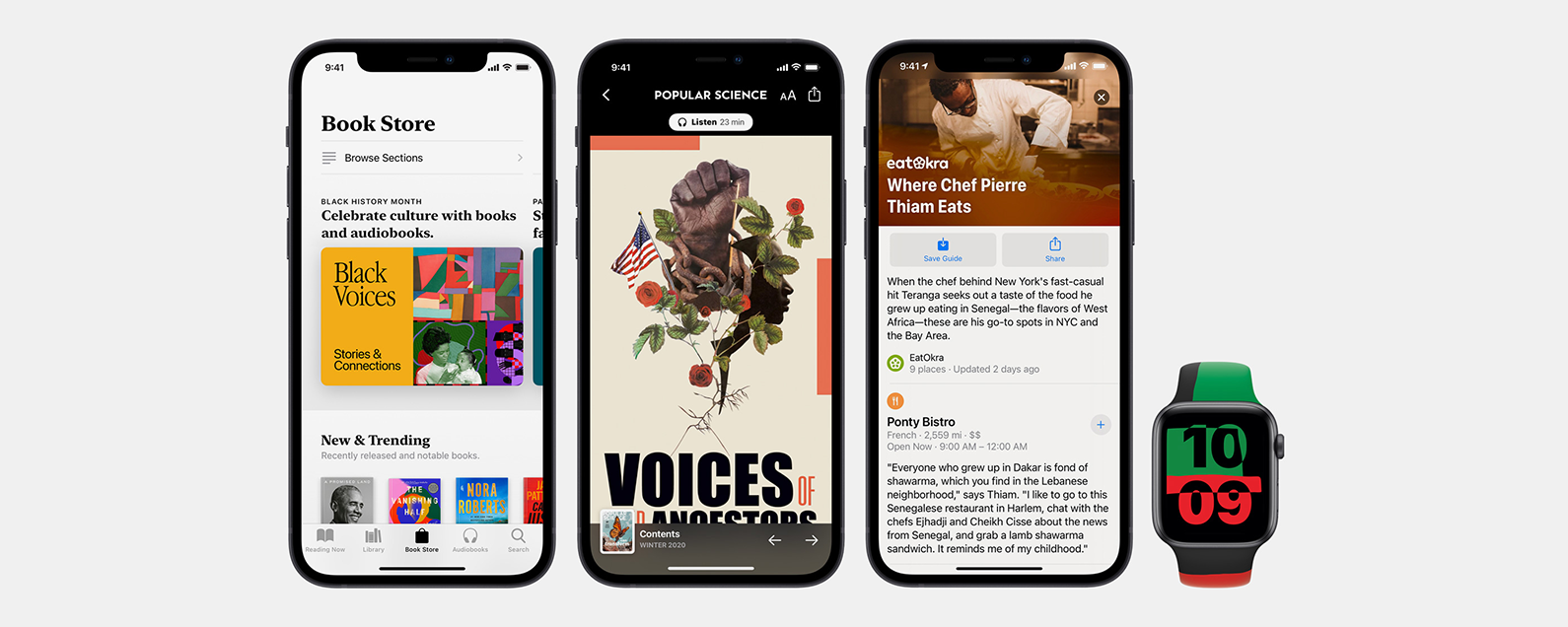
February is Black History Month, so Apple is celebrating by offering curated content featuring Black creators across all their platforms. From Music, to News, to even a Black Unity Apple Watch band collection, here are all the different features Apple is promising.
Jump to:
* Games & Discussions in the App Store
* Playlists, Videos, & More in Apple Music
* New Guides in Apple Maps
* Essential Stories in Apple TV
* Curated Topics in Apple News
* Reads by Black Authors in Apple Books
* Shows in Apple Podcasts
* Black Unity Collection for Apple Watch
* Themed Workouts in Apple Fitness+
* Today at Apple: New World Program
* Hometown Campaign Shot on iPhone
Games & Discussions in the App Store
The first thing Apple is highlighting, of course, is what's going on in the App Store. According to Apple's Newsroom, we should be able to find a Black History Hub in the App Store, where we can entertainment, gaming, and social justice apps by Black developers. You'll also be able to find stories by and conversations with Black developers, including creators from prominent game design companies such as Zynga. Unfortunately, the hub is hard to find, tucked away in the Apps tab, only found after a significant amount of scrolling. Still, there's a lot of good content in there so it's worth the exploration.
Playlists, Videos, & More in Apple Music
The Apple Music app is rich with content by and honoring Black artists. You can find playlists, videos, essays, and more, featuring Black artists, directors, authors, influencers, and musicians all month long. Apple Music Radio and Apple Music TV are in on the project, offering an in-depth experience, with many options to enjoy the content. These collections are right at the top of my Apple Music Browse screen, making it much easier to find and engage with than what the App Store is offering. Featured music genres include jazz, soul, blues, R&B, pop, hip hop, and more.
New Guides in Apple Maps
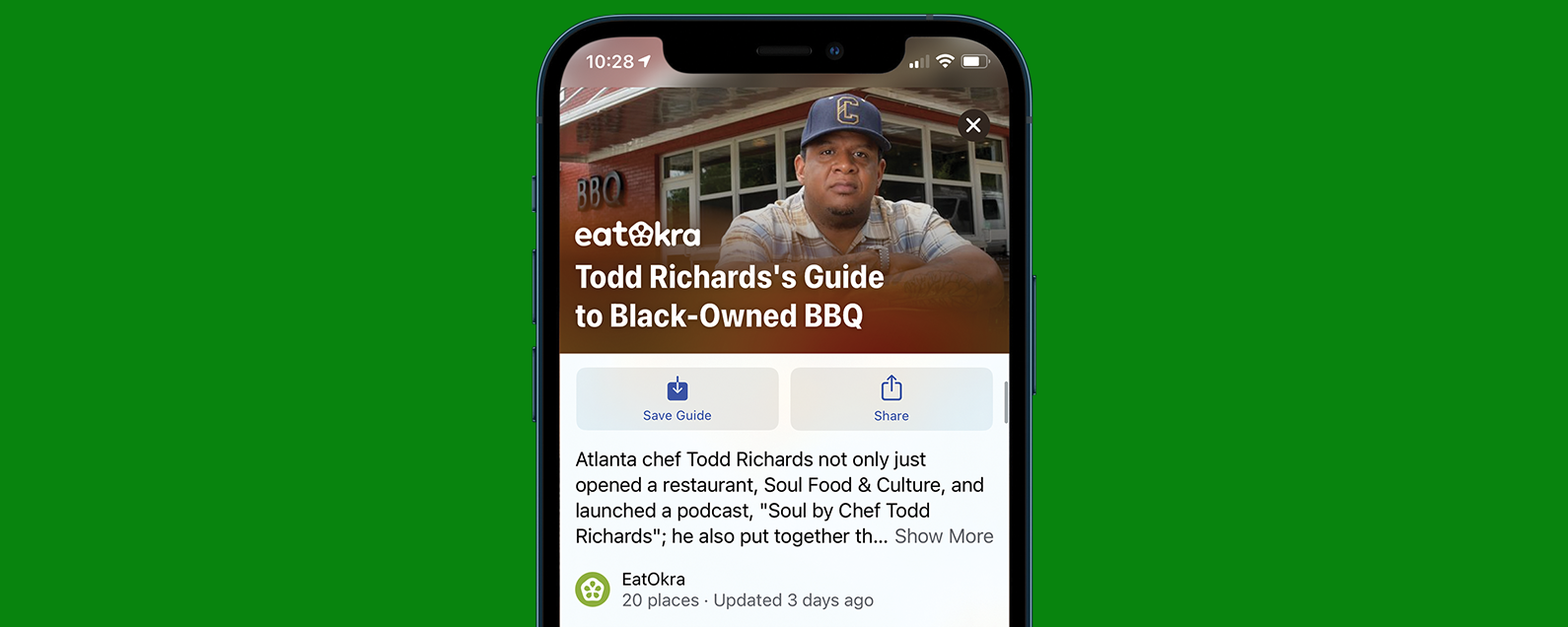
Partnering with Black-owned business directory app EatOkra, Apple Maps now offers curated guides to select cities, directing you to Black-owned restaurants in that area. If you want more options than just what the Apple Guides have to offer in terms of location (it is currently pretty limited), download the EatOkra app and enjoy a directory of Black-owned restaurants in many different communities.
Essential Stories in Apple TV
The Essential Stories on the Apple TV app this month will take a look at all the different dimensions of the Black family and how they are represented in movies and on TV. The collections will highlight diverse Black families, from classic TV icons to LGBTQ+ chosen families. The stories explore all the different aspects of family and community, and the feature also includes original art by Jon Key. This is right at the top of your app when you open it, making these stories an easy choice.
Curated Topics in Apple News
Apple news is highlighting some of the best journalism around race in America. With a mixture of educational and opinion pieces, there's a lot to dive into even just in the basic version, but News+ is offering additional audio articles celebrating the Black experience. You can also explore the Racial Justice Spotlight, offering anti-racist education, mental health resources, and more. You'll have to find these in the Following tab, as the Today view will still focus on today's news stories, but the Black History Month topic is easy to find.
Reads by Black Authors in Apple Books
You can explore books by Black authors and audiobooks narrated by Black authors in Apple Books this month. In the Book Store tab, across the top you will find different collections, celebrating culture, history, and new authors. You can find features of authors discussing their work, read author profiles, see spotlighted titles, and read many different types of books and genres, all by Black authors.
Shows in Apple Podcasts
Podcast listeners can rejoice in the rich variety of Black History Month podcasts Apple Podcasts has to offer. With powerful Black voices including Michelle Obama herself, shows cover history, celebrations and interpretations of Black families, as well as modern day pursuits of social justice. As of today, at least, the Black History Month collection is right on top of the Browse tab, and all the featured shows seem to be part of it as well. It's easy to find, and easy to browse.
Black Unity Collection for Apple Watch
Of course, Apple couldn't let this opportunity slide without a chance to sell more products. Still, Apple's offerings this month seem thoughtful and sport beautiful designs by Black artists and allies. They've introduced the new Apple Watch Black Unity Collection, including a limited-edition Apple Watch Series 6 (starting at $399), a Sport Band ($49) in the Black Unity design, and a Unity watch face, all inspired by the colors of the Pan-Africa flag. According to Apple, "As part of this effort, Apple is supporting six global organizations to help advance their missions in promoting and achieving equality and civil rights in the US and around the world: Black Lives Matter Support Fund via the Tides Foundation; European Network Against Racism; International Institute on Race, Equality and Human Rights; Leadership Conference Education Fund; NAACP Legal Defense and Educational Fund, Inc.; and Souls Grown Deep."
Themed Workouts in Apple Fitness+
Apple Fitness+ curated a collection of Black History Month themed workouts led by Black instructors, featuring music from Black artists in workout playlists. The first Time to Walk workout in February will feature reflections on resiliency and social justice by author Ibram X. These too are easy to find, featured right at the top of the screen. Don't have Fitness+ yet? Here's how to sign up for Apple Fitness+.
Today at Apple: New World Program
Today at Apple partnered with It's Nice That to bring virtual learning sessions and tutorials "focused on exploring the power of creativity to bring about change." The program is called New World and will includes sessions where Black creators discuss their process and inspiration, and hold demonstrations of certain aspects of their technique. Curator and writer Kimberly Drew will moderate these sessions which will include director, photographer, and filmmaker Joshua Kissi, typographer Tré Seals, and educator and artist Shan Wallace. It's open for everyone to join and you can join the New World Program here.
Hometown Campaign Shot on iPhone
For the month of February, Apple's Shot on iPhone Campaign "Hometown" will feature 30 Black photographers, capturing images of their hometown through their own vision. The hometowns span both coasts, with cities including New York and L.A. and many other cities and towns. Topics: Apple TVApple WatchAppsNewsMaster your iPhone in one minute a day: Sign up here to get our FREE Tip of the Day delivered right to your inbox.
http://dlvr.it/RsNBPj
Latest Cell phone i-Phone,Samsung, Nokia, Motorolla, T-Mobile Sprint Latest Models info and News
Wednesday, February 10, 2021
Samsung Expands OnGo Certified CBRS Lineup
Samsung Electronics today announced that its latest Citizen Broadband Radio Service (CBRS) solutions have been awarded the OnGo® Certification from the OnGo
http://dlvr.it/RsNBPc
[Expanding Accessibility with Samsung] ② Audio
A television is a portal that can connect us to the world. As the amount of diverse content users have access to continues to grow, the range of entertainment
http://dlvr.it/RsNBP6
Tuesday, February 9, 2021
How to Zoom In & Out When Taking Selfies on an iPhone
Taking selfies has become an essential function of modern smartphones. There are many tips and tricks to achieving the perfect selfie, including getting the framing just right. When navigating the front camera by hand, it can be useful to learn to zoom in and zoom out in selfie mode. Zooming in is not only possible using the back camera, but also the front.
Related: Mirror Image Photos? How to Flip a Picture on an iPhone
Jump to:
* How to Zoom In & Out Using Photo Mode
* Why Can’t You Zoom In or Zoom Out Using Portrait Mode?
How to Zoom In & Out Using Photo Mode
There are two iPhone camera modes that allow you to take selfies using the front camera, Portrait and Photo Mode. The only one that allows users to zoom in and zoom out is Photo Mode. To learn more about taking selfies with an iPhone, sign up for our free Tip of the Day newsletter.
* Open the Camera app.
* Tap the circular arrows to switch to selfie mode.
* Tap the diagonal arrows at the bottom center of your screen to zoom out and to zoom in.
* You can also place two fingers on the screen. Pinch your fingers together to zoom in and move them apart to zoom out.
Why Can’t You Zoom In or Zoom Out Using Portrait Mode?
Portrait mode has a particular way of focusing on the subject and blurring the background. The optimal Portrait Mode photo requires a specific distance between the phone and the subject. A zoom function would interfere with the requirements needed to produce the desired effect without distortion. Topics: How-ToCameraMaster your iPhone in one minute a day: Sign up here to get our FREE Tip of the Day delivered right to your inbox.
http://dlvr.it/RsJCpf
How to Use Your iPhone as a Webcam
As more work goes virtual, you want to make sure you have a good webcam for all of your meetings. Webcams can be expensive, so it's natural to wonder if you could just use your iPhone as one, in addition to everything else it does. Turns out, the answer is yes! Using an iPhone as a webcam for your Mac can be a little complicated, but it is doable. Here's how.
Jump to:
* How to Use Your iPhone as a Webcam
* Apps That Allow You to Use Your iPhone as a Webcam
How to Use Your iPhone as a Webcam
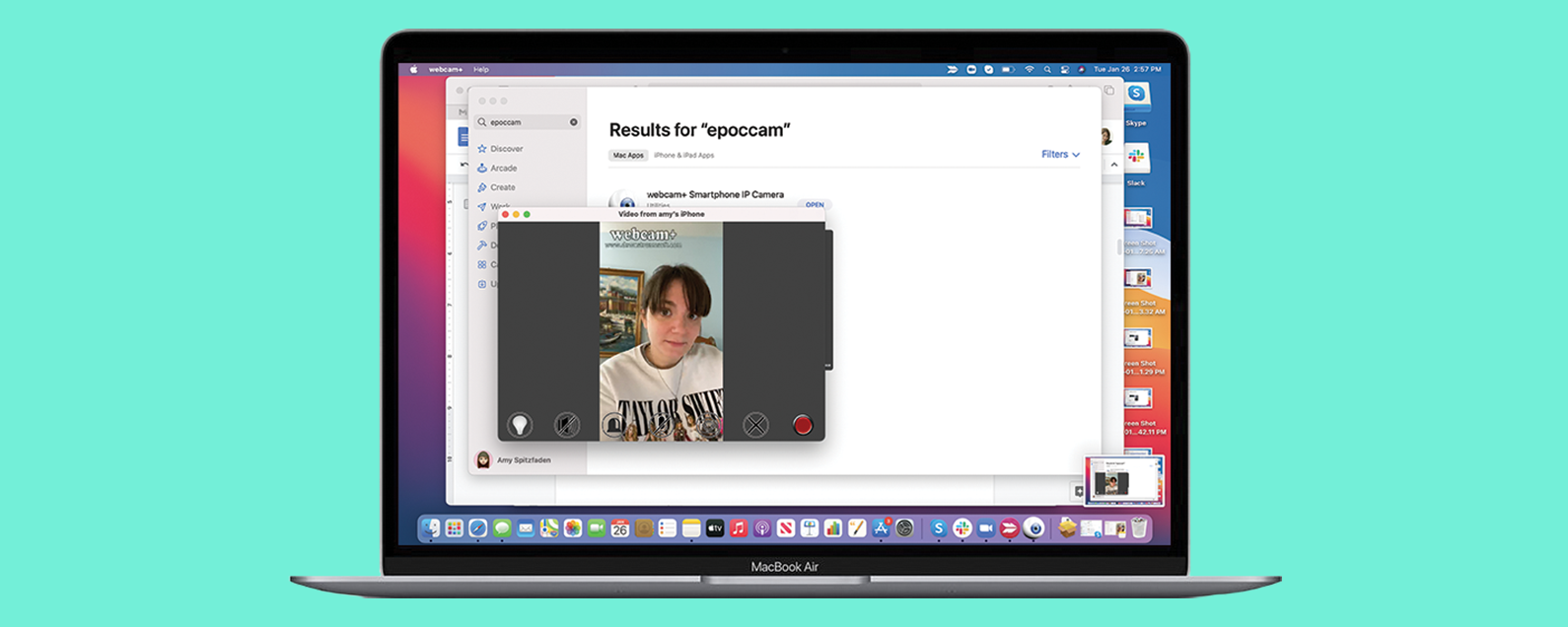
If you want to use your iPhone as a webcam, the best thing to do is to download an app like Webcam+. There are other programs available, but I had the best luck getting Webcam+ to work on both my Mac and iPhone; plus, it's free, so this is what we'll be using for this example. For more tips on how to synchronize your Mac and iPhone, check out our free Tip of the Day!
* Download the Webcam+ app on both your Mac and your iPhone (or iPad if that is what you'd rather use). Make sure they are both on the same wireless network or within Bluetooth range.
* Launce Webcam+ on your Mac. You will see a window showing that it's searching for a compatible iOS or iPadOS device.
* Open Webcam+ on your iPhone.
* Your device should show up on your Mac. Click on it.
* Your iPhone will turn into a webcam.
To use the webcam for video chat etc., you'll have to go into the video chat app or program's settings and choose Webcam+ as the webcam when the program is open and running. This is not a perfect method, though, as not every app or program will recognize the app's camera as an option.
Which brings us to our next point.
Related: Buyer's Guide 2020: Mac Gear
Use Apps That Allow You to Use Your iPhone
Although using your iPhone as an external camera when you're on your Mac can be very useful, but the options are imperfect and can get expensive. So, whenever you can, I recommend using your iPhone or iPad for the calls or programs you need a webcam for. This may be frustrating if you need to take notes, but you'd have to prop your phone up separately from your Mac anyway, so it's really not much different than using it as an external webcam, except you'd have to look to the side to see your screen instead of at your computer. You can also set up your iPad like a laptop, giving you the option of the iPad webcam and a better work setup. Topics: How-ToMaster your iPhone in one minute a day: Sign up here to get our FREE Tip of the Day delivered right to your inbox.
http://dlvr.it/RsJCpZ
How to Use the Apple Maps App to Find Black-Owned Restaurants
The EatOkra restaurant app has teamed up with Apple to create a guide in the Maps app. Now, you can find black-owned restaurants all around the country, including NYC, New Orleans, Seattle, Portland, Detroit, and more.
Related: iPhone Life Proudly Supports Racial Justice
How To Find Black-Owned Restaurants Near You on Your iPhone
We've written about the best apps to support black-owned businesses and get politically involved. We've also created a roundup of apps from black developers. For more great, free content, check out our Tip of the Day. Now, let's use the Maps app to find black-owned restaurants!
* Open the Maps app.
* Tap the Search field.
* Scroll down and tap the EatOkra guide.
* Scroll down to peruse the guide. To find more black-owned restaurants near you, download the EatOkra app.
* Tap Save Guide so you can refer to it whenever you like, or Share to send it to a friend.
Topics: AppsHow-ToTip of the DayMapsMaster your iPhone in one minute a day: Sign up here to get our FREE Tip of the Day delivered right to your inbox.
http://dlvr.it/RsJCnh
Friday, February 5, 2021
[Video] Introducing SmartThings’ Latest Innovative Features
Along with the revolutionary Galaxy S21 series, this January’s Galaxy Unpacked 2021 introduced a bolstered and expanded Galaxy ecosystem experience for users
http://dlvr.it/Rs4gsh
Thursday, February 4, 2021
How to Make Your Apple TV, HomePod, or iPad a HomeKit Hub
The Apple HomeKit Hub gives you control over your smart home appliances using your Apple devices. You can make your Apple TV, HomePod, or iPad a HomeKit hub to give yourself more flexibility. Here’s how to set up each device as a HomeKit Hub in just a few simple steps.
Jump to:
* How to Make Your Apple TV a HomeKit Hub
* How to Stop Your Apple TV from Being a HomeKit Hub
* How to Make Your HomePod a HomeKit Hub
* How to Use an iPad as a HomeKit Hub
How to Make Your Apple TV a HomeKit Hub
Your Apple TV can be a handy HomeKit Hub if you use it often. Here's how to set your Apple TV as the Hub in your Home:
* Open Settings on your Apple TV.
* Select Users and Accounts.
* Make sure that you're signed in to iCloud.
* Once you are signed in to iCloud, your Apple TV will automatically become a HomeKit Hub.
How to Stop Your Apple TV from Being a HomeKit Hub
If you want to switch to a different Hub, you'll need to stop your Apple TV from being the Hub.
* Open Settings on your Apple TV.
* Select AirPlay and HomeKit.
* Scroll down to Home Hub.
* Select the name of your home to disable it.
* When your Apple TV is no longer the Hub, your home will say "Disabled."
How to Make Your HomePod a HomeKit Hub
Just like the Apple TV, the HomePod will automatically be a Home Hub upon initial setup. You can set up a new HomePod using the Home app. If you have multiple HomePods, only one can be a Home Hub.
* Open the Home app on your iPhone.
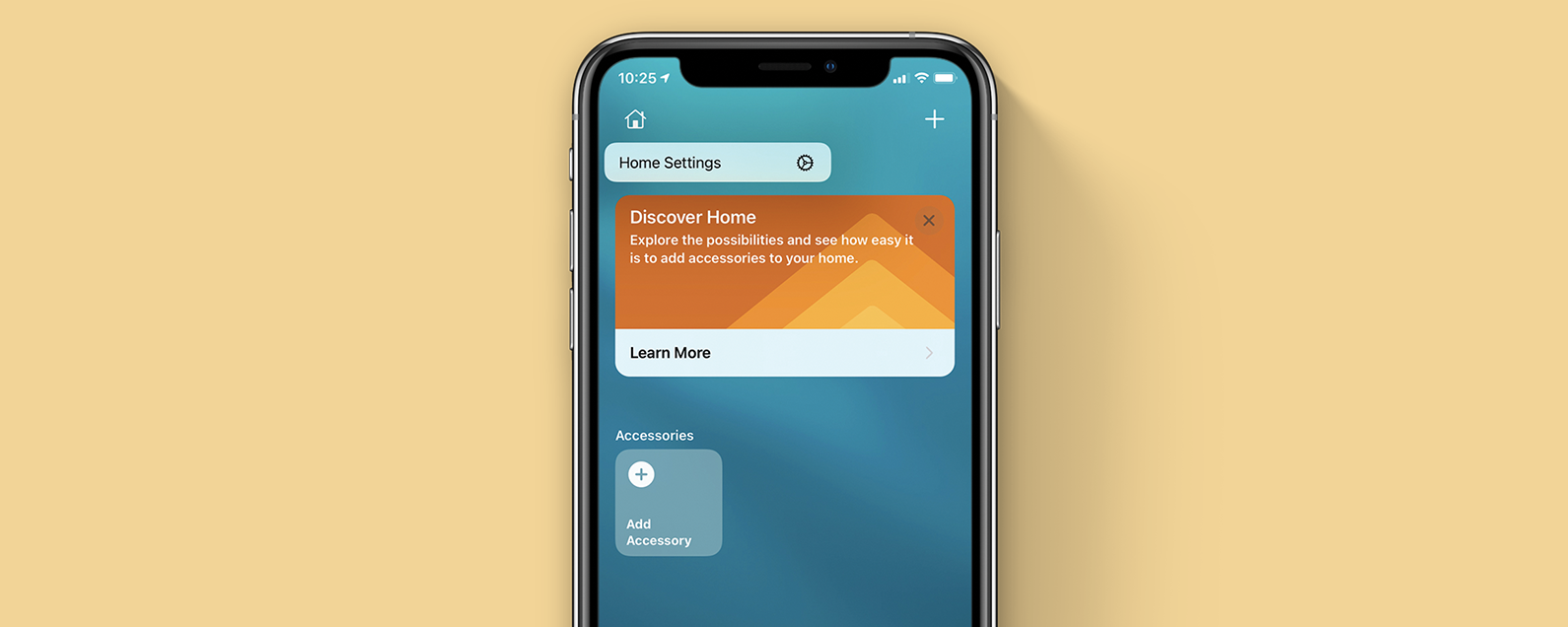
* In the Home tab, tap the Home icon in the upper-left corner.
* Select Home Settings.
* Scroll down and tap on Hubs & Bridges.
* The HomePod marked as Connected is the Home Hub while the one(s) marked as standby are not.
* If you need to change the Hub, tap on the HomePod of your choice to set it as the new Hub.
Related: How to Add a Smart Home Accessory to HomeKit
How to Use an iPad as a HomeKit Hub
You can set your iPad as your HomeKit Hub, which is especially handy if you tend to carry your iPad around with you as you move throughout the house. Follow these steps to set your iPad as the Hub:
* Open the Settings app on your iPad.
* Tap on your name and make sure you’re signed in to iCloud.
* Tap iCloud.
* Scroll down to Home and make sure that it is toggled on.
* Go back to the first screen in Settings.
* Scroll down to Home and tap on it.
* Toggle on Use this iPad as a Home Hub.
Whether you have moved things around and need to switch your HomeKit Hub or you simply want to change it for convenience, these tips enable you to switch your Apple Home Hub whenever you choose. Topics: Apple TVHomeKitHow-ToiPadApple TVMaster your iPhone in one minute a day: Sign up here to get our FREE Tip of the Day delivered right to your inbox.
http://dlvr.it/Rs1Pj4
[Video] Introducing the Next-Level Connectivity of Wi-Fi 6E
Over the past year, reliable Wi-Fi connectivity has become more critical to our lives than ever before. Samsung has always been at the forefront of
http://dlvr.it/Rs1PZG
Form that Follows Sound: The Story Behind Galaxy Buds Pro’s Optimized Design
A common adage in the field of modern design is that ‘form follows function’, meaning that the design process should start with the product’s intended
http://dlvr.it/Rrz9qc
Wednesday, February 3, 2021
[Galaxy SmartTag Review] The Smarter Way to Track Down Your Lost Belongings
Some of our possessions have a tendency to never be where we think they are, with smaller and less conspicuous objects often proving especially elusive.
http://dlvr.it/RrwDLF
Samsung Partners with Eco-Friendly Shopping Mall Green Pea in Italy
Samsung Electronics has announced that it recently became an official partner of Green Pea, an eco-friendly shopping mall located in Italy. As an official
http://dlvr.it/Rrvj5y
Tuesday, February 2, 2021
Behind the Snapshot: How the Galaxy S21’s AI Improves Your Photos in the Blink of an Eye
Samsung has built a legacy of innovative smartphone camera technology that makes it simple for more people to take the perfect snapshot—from seasoned pros to
http://dlvr.it/RrrLLZ
[Video] Samsung Innovation Museum Unveils the Latest Part of Its Virtual Tour Series Showcasing the History of Mobile Communication
The third installment in the series providing a virtual tour of the electronics industry history museum’s tour of its second hall titled “The Era of Corporate
http://dlvr.it/RrqNNg
Monday, February 1, 2021
7 Galaxy Z Flip Hidden Features
At the heart of its innovative design, the Galaxy Z Flip is built to help you do more with less. The compact yet stylish device is packed with features and
http://dlvr.it/RrmVMk
Subscribe to:
Posts (Atom)