Showing posts with label AirPods. Show all posts

Wednesday, August 28, 2019

How to Connect Your AirPods to Your Apple TV

Air pods , Apple TV
You can listen to your Apple TV late at night without disturbing the rest of the household by pairing your AirPods to your Apple TV. Just turn on your Apple TV, press and hold the pairing button on your AirPods case, and use your Apple TV remote to enable the connection in settings. Read on to learn more about how to pair your AirPods to your Apple TV.

Related: Apple AirPods & AirPods 2 Guide: Charging, Pairing, Setting Up, Using, More

How to Pair Your AirPods to Your Apple TV:

  1. Open your AirPods case next your Apple TV.
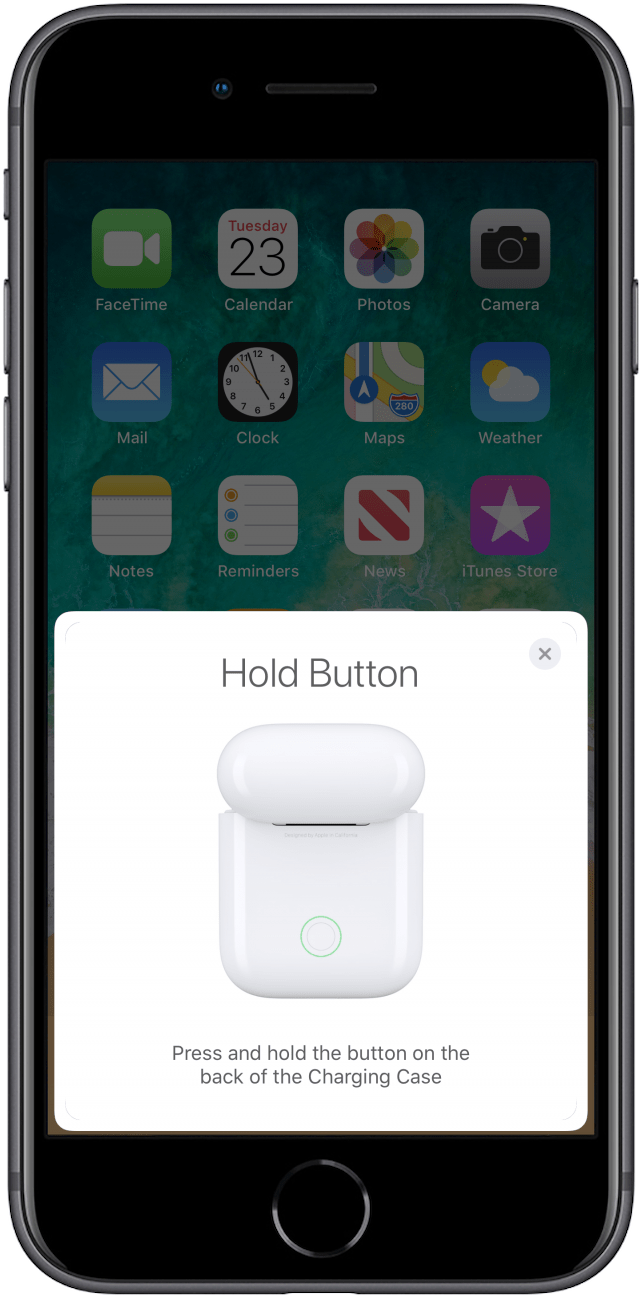
  2. Press and hold the set-up button on the back of the AirPods case. When the status light on the case flashes white, release the button.
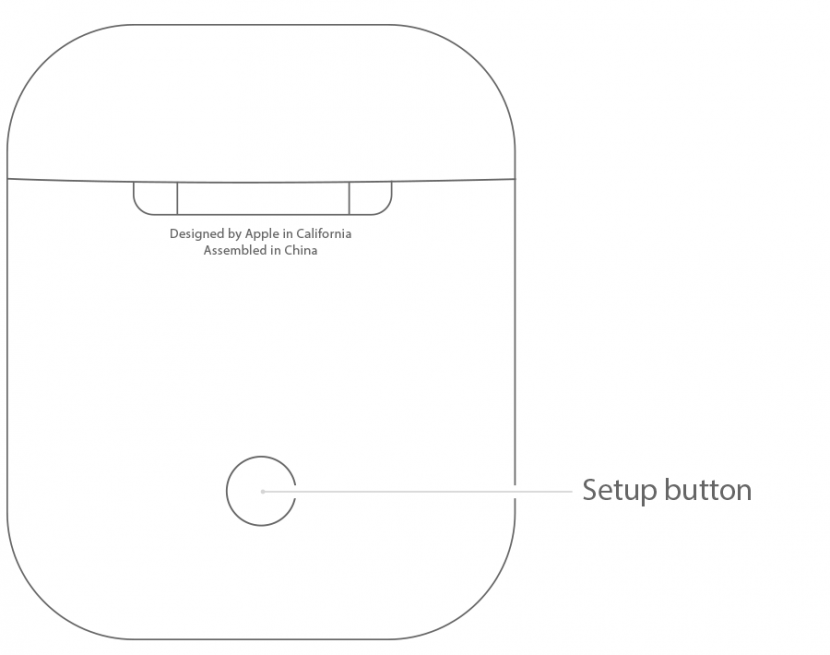
    iPhone, Setup button
     
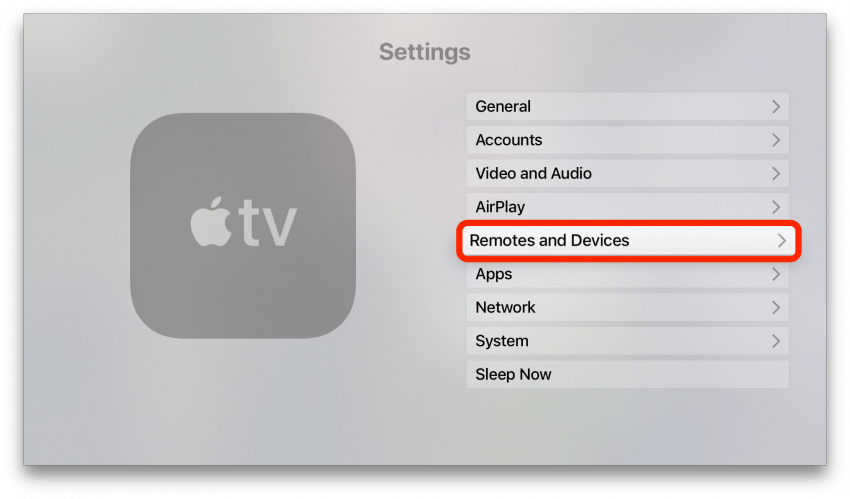
  3. Open the Settings app on your Apple TV.
  4. Select Remotes and Devices.
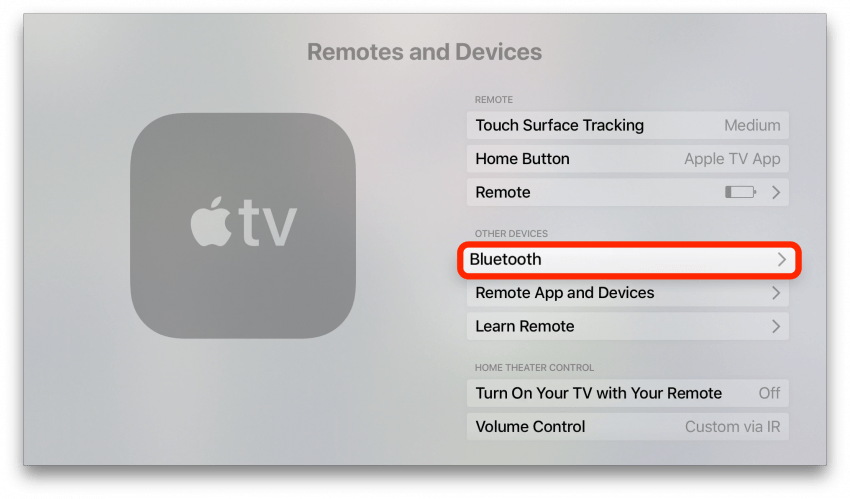
  5. Select Bluetooth.

    Sitting
    Sitting
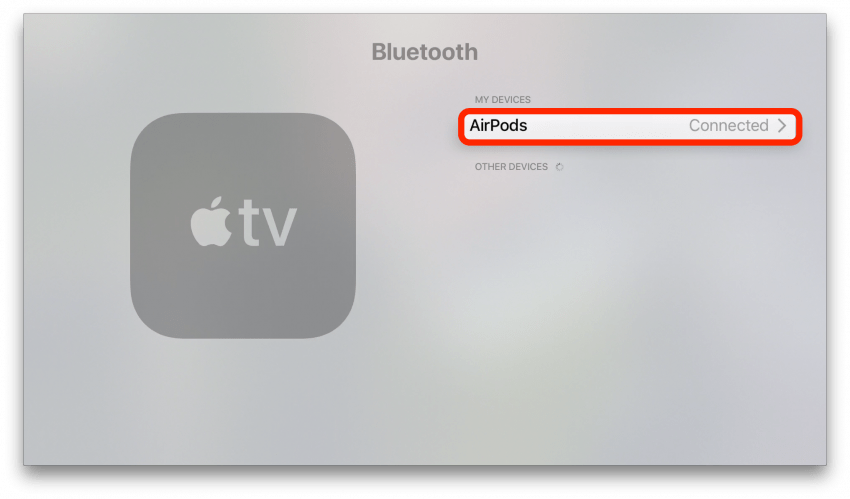
  6. Choose your AirPods from the list of devices that appears.
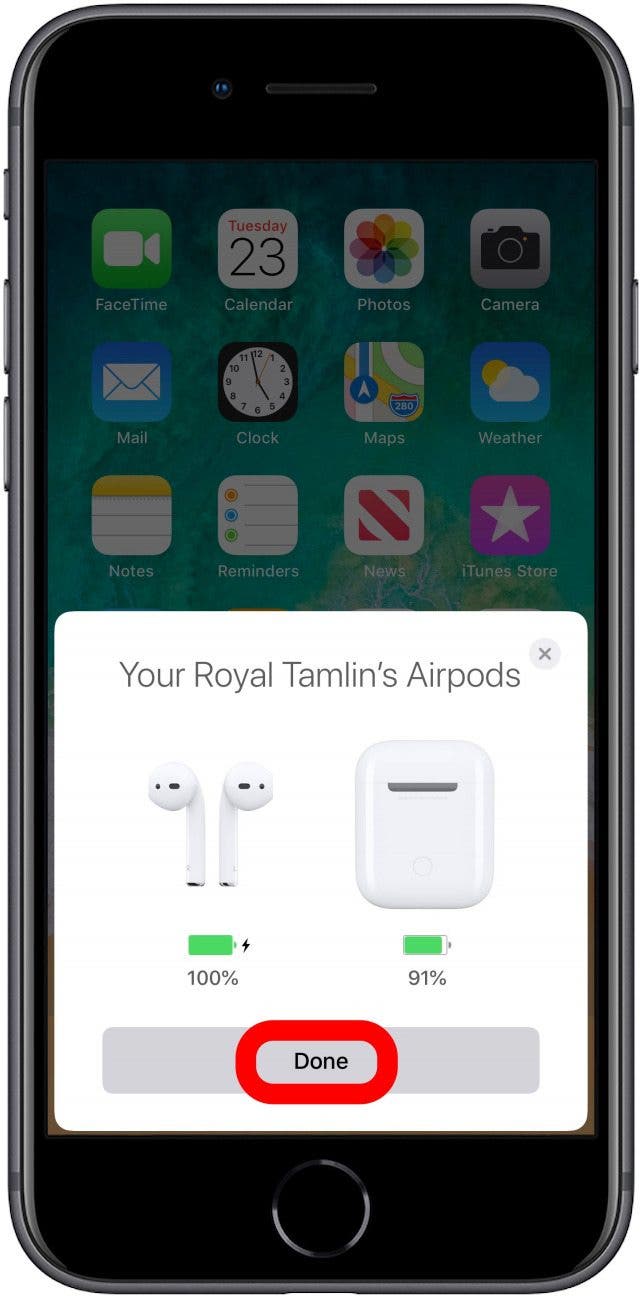
  7. Wait for your AirPods to finish connecting.
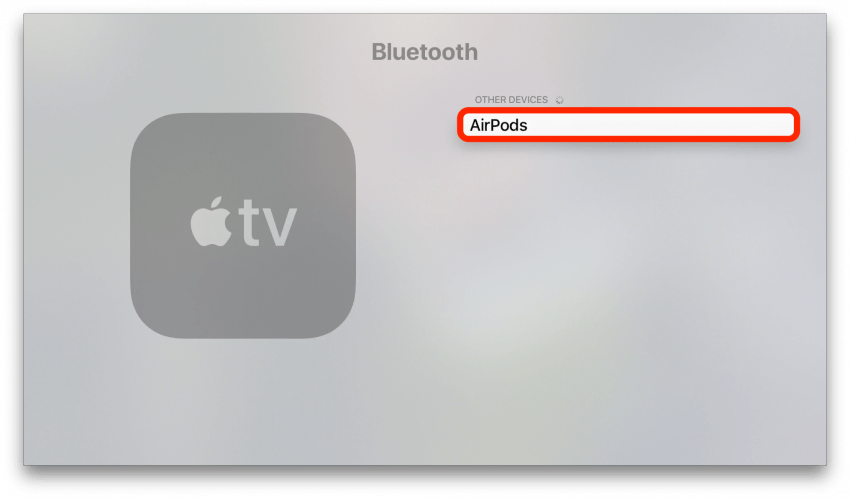
    Sitting , Airpods
    AirPods
You've done it! Now, you can use your AirPods to listen to your Apple TV!
Master your iPhone in one minute a day: Sign up here to get our FREE Tip of the Day delivered right to your inbox.


* This article was originally published here

Friday, August 23, 2019

How to Connect Your AirPods to Someone Else's iPhone or iPad

iPhone, Connect
Did you know that you can pair your AirPods to multiple iPhones and iPads, even an iPhone or iPad that doesn't belong to you? Connecting your AirPods to someone else's iPhone or iPad is as simple as opening your AirPods case near the new device and following the on-screen prompts to pair your AirPods. Let's get started learning how to pair your AirPods to multiple iPhones and iPads.

Related: Apple AirPods & AirPods 2 Guide: Charging, Pairing, Setting Up, Using, More

How to Pair Your AirPods with Your Own iPad

Make sure you're signed in to iCloud with the same Apple ID on both your iPhone and your iPad. (If you haven't taken this step, use the directions below for pairing your AirPods with someone else's device.)
  1. Open lid of the AirPods case and bring your AirPods close to your iPad.
  2. The AirPods and iPad will automatically pair. 

How to Pair Your AirPods with Someone Else's iPhone or iPad

  1. Unlock the iPhone or iPad that you want to connect to.
  2. Open your AirPods case near the new device.
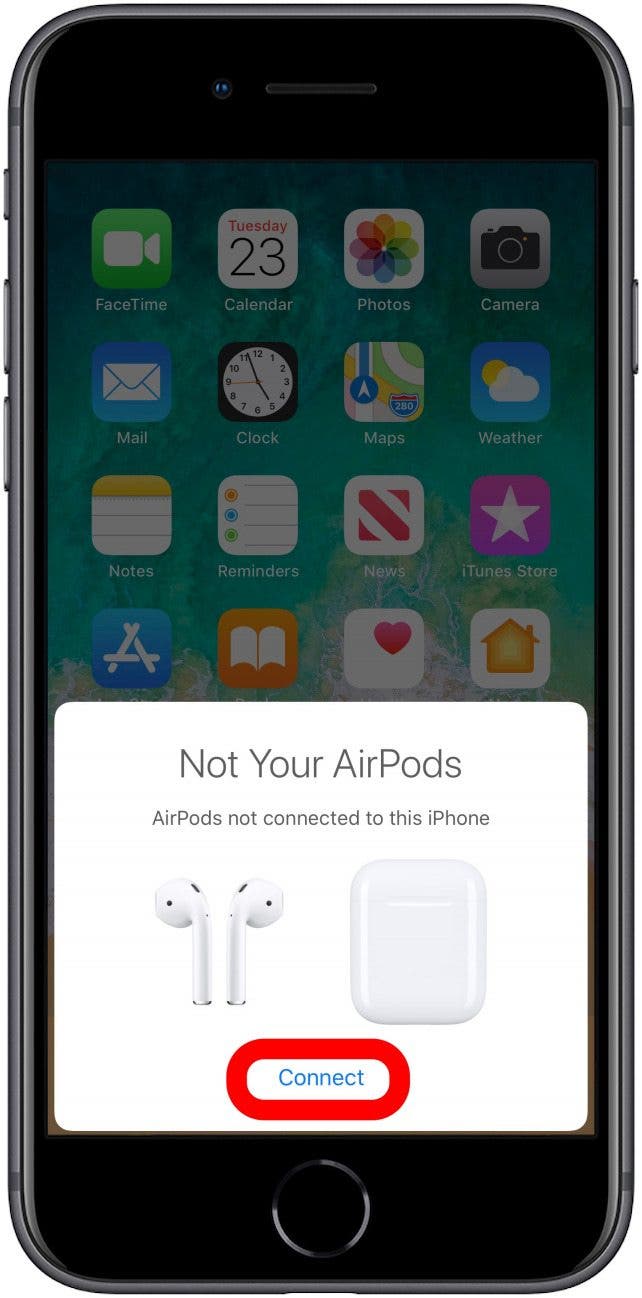
  3. A prompt labeled Not Your AirPods will appear on the screen. Tap Connect.
  4. Following the on-screen prompts, press and hold the Setup button on the back of the AirPods' case.

    iPhone, Connect iPhone, Connect
     
  5. Continue holding down the button while your AirPods connect.
  6. When your AirPods finish connecting, tap Done.

    iPhone, Connect iPhone, Connect
Now you can continue listening with your AirPods on multiple iPhones or iPads. 
Master your iPhone in one minute a day: Sign up here to get our FREE Tip of the Day delivered right to your inbox.


* This article was originally published here