Tuesday, October 12, 2021

iPhone Says Storage Almost Full Since iOS 15 Update

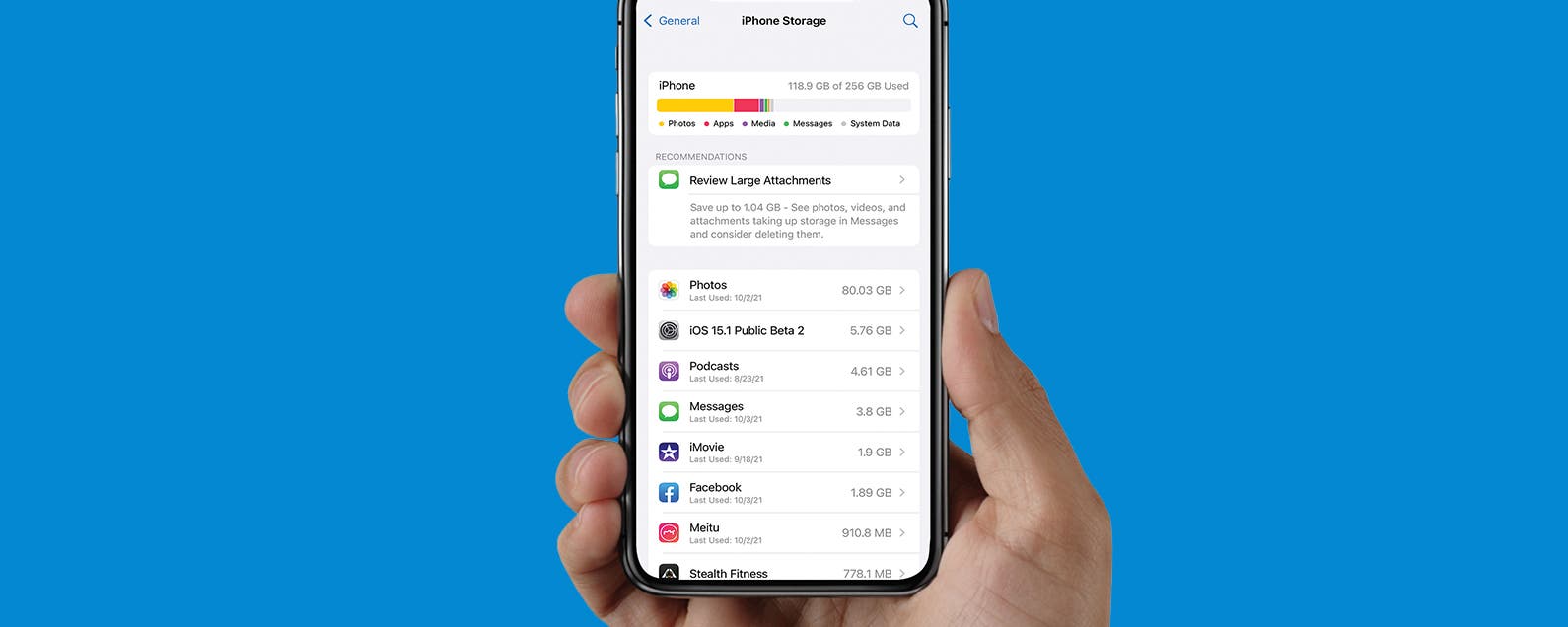
iPhone storage capacity is a common concern, but the “storage almost full” error is unique to the iOS 15 update. If you get this iPhone storage full error message, there are a few things you should do. Please keep in mind that this iPhone error is happening to many users who still have a lot of free data on their phones. Here’s what you should do. What's in This Article? * iPhone Storage Almost Full but Not Error * How to Check If My iPhone Storage Is Full iPhone Storage Almost Full But not Error Since getting the iOS 15, and in some cases, iPadOS 15 updates, many users have experienced an unusual error. Their devices are getting “storage almost full” warnings that keep popping up even after being dismissed. This can happen if you are almost out of storage, but reports show that these users have a lot of space left on their devices. Unfortunately, there isn't a solution for this error, and it is best to wait for Apple to fix it in an upcoming software update. If you experience this "storage almost full" problem, do not attempt to delete files on your device, as this will not fix the problem. Likewise, buying more data on iCloud will also not solve this problem. The first thing to do is to check your storage to see if it is actually full. How to Check If My iPhone Storage Is Full If you ever see a “storage almost full” or “iCloud storage almost full” message, you should check your storage first. To do this: * Open Settings.   * Tap on General.   * Select iPhone Storage.   * Here you can see how much space you are using on your iPhone.   * If you don’t have a lot of storage left, there may be suggestions under RECOMMENDATIONS on what to delete. For tips on how to clear even more storage, read this, and don't forget to sign up for our free Tip of the Day newsletter for more iPhone support. However, keep in mind that this will not fix this iOS 15 storage almost full error.  Although there isn't a fix for this annoying problem just yet, you now know that you can safely disregard this message once you've checked your storage. You do not need to delete files or buy more iCloud storage; you should still be able to take photos and receive texts messages and other content. Even though Apple hasn't addressed this glitch yet, we can assume that they are working on fixing this in an upcoming software update, so keep checking if a new iOS update is available. How-ToiPhoneStorageTroubleshootingiOSDevice ManagementMaster your iPhone in one minute a day: Sign up here to get our FREE Tip of the Day delivered right to your inbox.
http://dlvr.it/S9Nq2n

Samsung Introduces Life Unstoppable: ‘House of Surprises’ – An Immersive, Virtual Experience That Showcases Samsung’s Powerful Ecosystem of Connected Devices

Today Samsung Electronics launched Life Unstoppable 2021, which this year takes the virtual experience one step further with a colorful and stylized mini-movie
http://dlvr.it/S9NH2p

Samsung Starts Mass Production of Most Advanced 14nm EUV DDR5 DRAM

  Samsung Electronics, the world leader in advanced memory technology, today announced that it has begun mass producing the industry’s smallest,
http://dlvr.it/S9MFLs

[Video] Behind the Scenes of How Samsung Tests the Galaxy Z Fold3 | Flip3 5G

Users around the world are raving about Samsung’s latest revolutionary foldable devices, the Galaxy Z Fold3 | Flip3 5G, particularly on their groundbreaking
http://dlvr.it/S9LYMR

iPadOS 15 Wrecked Your iPad Home Screen Icons? Here's How to Fix it.

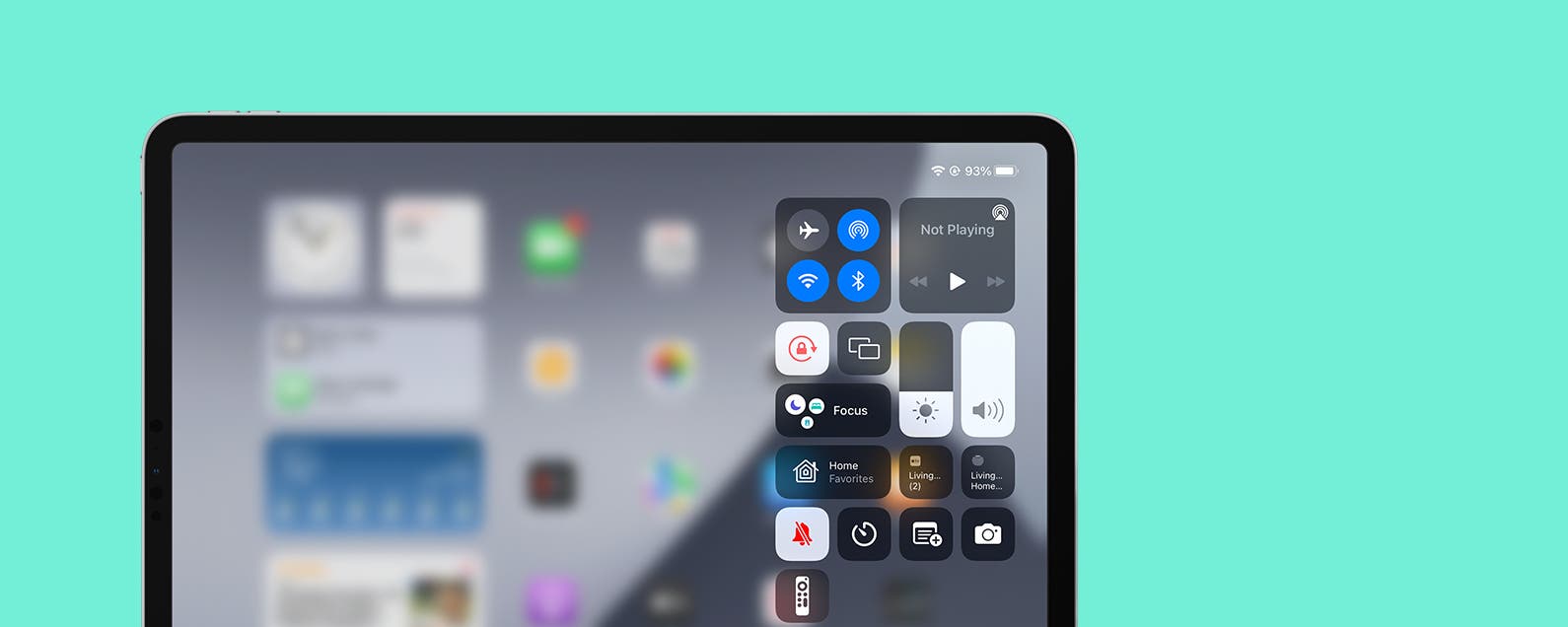
You might have noticed some changes to your iPad's Home screen in iPadOS 15, not all of them good. I had my Home screen arranged the way I like it, but now, when I switch from landscape orientation to portrait, the icon grid changes from 6 x 4 to 4 x 6, forcing a rearranged icon configuration. Irritating! But there's got to be a way to fix it, right? Well, kind of. We'll dig into it below. Related: What iPad Do I Have? How to Identify Apple's Different iPad Models & Generations Jump To: * Widgets in iPadOS 15 * Preserve iPad Home Screen Icons with Rotation Lock What's Up with the Widgets? in iPadOS 14, the only way you could get widgets on your Home screen was to add them to your Today View. That kept all your widgets neatly tucked away in one area of your Home screen, only available in landscape orientation. Now, with iPadOS 15, you can add widgets wherever you want on your Home screen, but that comes with some caveats. Notably, it means your iPad Home screen icons have to make room for your widgets whenever you rotate your iPad between portrait and landscape orientation. Even without widgets, the iPad Home screen icon grid changed in iPadOS 15, meaning that when you rotate your iPad, some of your icons will be pushed to a different row, which can be irritating when you have everything arranged just so. So, what is to be done about it? How can you get your Home screen back the way you want it? Unfortunately, there's not yet a way to change the new Home screen icon grid. Whenever your iPad rotation changes, that grid is going to change if you're running iPadOS 15. But, there is a workaround you can use, if you're willing to commit to either portrait or landscape mode. Preserve iPad Home Screen Icons with Rotation Lock If you know you prefer and don't mind working solely in either portrait or landscape mode, you can turn on Rotation Lock to prevent your iPad Home screen icons and widgets from rearranging when you rotate your iPad. Before you begin, make sure you have your Home screen arranged the way you like and you are working in the orientation you want to stick with (portrait or landscape). To learn more about other iPadOS 15 updates, sign up for our Tip of the Day newsletter. * On your Home screen, swipe down from the upper-right corner to open Control Center.   * Tap the Rotation Lock icon.   * Tap anywhere outside of Control Center to return to the Home screen. Now you'll see the Rotation Lock icon in the top-right corner of your screen. Now, no matter how you physically rotate your iPad, your screen will stay in the same rotation, and your Home screen icons and widgets will stay how you arranged them. How-ToiPadAppsApple AppsThird-Party AppsHome ScreenTroubleshootingWidgetsDevice ManagementMaster your iPhone in one minute a day: Sign up here to get our FREE Tip of the Day delivered right to your inbox.
http://dlvr.it/S9Kwww

Monday, October 11, 2021

Live Text Not Working in iOS 15? Here's the Fix

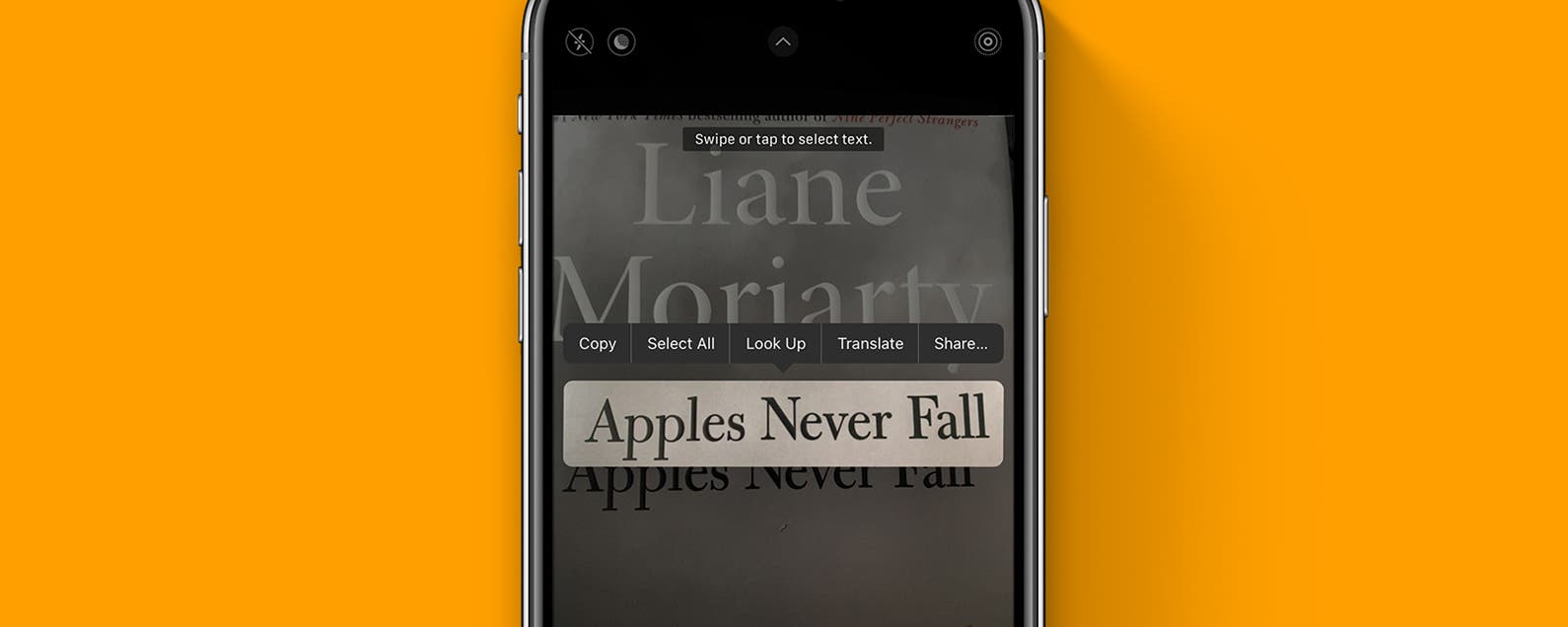
Once you have iOS 15, you might be eager to convert an image to Live Text, but what do you do if it isn't working? Live Text lets you select text from an image and copy, paste, search, and more, but you might run into a frustrating situation where it doesn't work. Here are all the reasons Live Text might not be working, and how to fix it. Jump To: * What to Do If Live Text Isn't Working * Make Sure Your Device Is Compatible * Make Sure You're Running iOS 15 or iPadOS 15 * Enable Live Text in Settings * Make Sure Your Text Is Visible * Select the Text or Tap the Icon * Reopen Your Photo or Camera App * Restart Your Device Live Text Support: What to Do If Live Text Isn't Working If you need a refresher in Live Text basics, Live Text is a function introduced with iOS 15 that allows you to select text in an image and do things like copy, paste, search, and translate that text. There is no separate photo to text app on the iPhone; instead, Live Text is found any time your iPhone recognizes text in an image or on your camera viewfinder. We're going to go over some Apple Live Text support options now and take a look at what to do if this cool new feature isn't working. For more on how to get the most out of iOS 15 check out our Tip of the Day! Related: How to Know If Someone Blocked Your Number on iPhone Make Sure Your Device Is Compatible Live Text isn't available on every device. Below is a list of devices that support Live Text, and if your device is not listed then you cannot use this function: * iPhone 13, iPhone 13 mini, iPhone 13 Pro, and iPhone 13 Pro Max; * iPhone 12, iPhone 12 mini, iPhone 12 Pro, and iPhone 12 Pro Max; * iPhone 11, iPhone 11 Pro, iPhone 11 Pro Max; * iPhone XS, iPhone XS Max, iPhone XR; * 12.9-inch iPad (from 2018 or later); * 8th generation iPad; * 11-inch iPad Pro (from 2018 or later); * 2021 iPad Pro; * 3rd and 4th generation iPad Air. Make Sure You're Running iOS 15 or iPadOS 15 Live Text is not available in iOS 14 and iPadOS 14 or earlier. In order to use it, you must be running iOS 15. If you need to, you can check what OS you're running and how to update to iOS 15. How to Enable Live Text in Settings Live Text comes automatically enabled with iOS 15, but sometimes settings can switch around when we're not entirely sure how they got that way (for me, it's usually from handing my phone to my two-year-old), so if Live Text isn't working, here's how to make sure it's enabled: * Open Settings and tap Camera. * Make sure Live Text is toggled on. Make Sure Your Text Is Visible If you're trying to read text on something like a t-shirt or a crumpled piece of paper, your iPhone might have trouble recognizing it. If you can, either flatten out the surface the text is on that your camera is trying to read, or choose a photo where the text is more visible. Select the Text or Tap the Icon Live text icon not appearing? Here's an important distinction: if you're using your camera to read text, you'll need to hit the Live Text button (shown below), and if you're trying to use Live Text in a photo, you will need to press and hold the text to select it. Tap the Live Text icon if you're using your camera, but don't look for it in a photo. Reopen Your Photo or Camera App If you've tried all of the above, and Live Text still isn't working, try closing and reopening your app. Also try closing any other apps that are open that aren't in use, because when too many things are happening on your iPhone, it can affect its functionality. Restart Your Device When all else fails, restart your iPhone or iPad. Sometimes this is the kick in the pants it needs to get Live Text working again. If none of these steps get Live Text working on your iPhone, it could be an issue with your camera hardware. Try contacting Apple support for further assistance. How-ToiPadiPhoneLive TextTroubleshootingPhoto & VideoMaster your iPhone in one minute a day: Sign up here to get our FREE Tip of the Day delivered right to your inbox.
http://dlvr.it/S9KVd4
Award-Winning Director Joe Wright Partners With Samsung to Unveil a New Film Captured on Galaxy S21 Ultra

Samsung Electronics today announced a partnership with some of the world’s most renowned filmmakers to encourage everyone to let their creativity run free with
http://dlvr.it/S9HccD

Friday, October 8, 2021

A Quick Guide to Alleviating the Burden of Daily Clothing Care With Samsung’s New Bespoke AirDresser

The first thing many of us do upon arriving home is to change out of the clothes we’ve been wearing all day. While once we might have simply hung those clothes
http://dlvr.it/S98MJj

Samsung Electronics Announces Earnings Guidance for 3Q 2021

Samsung Electronics today announced its earnings guidance for the third quarter of 2021.   Consolidated Sales: Approximately 73 trillion Korean won
http://dlvr.it/S97ZRb

Thursday, October 7, 2021

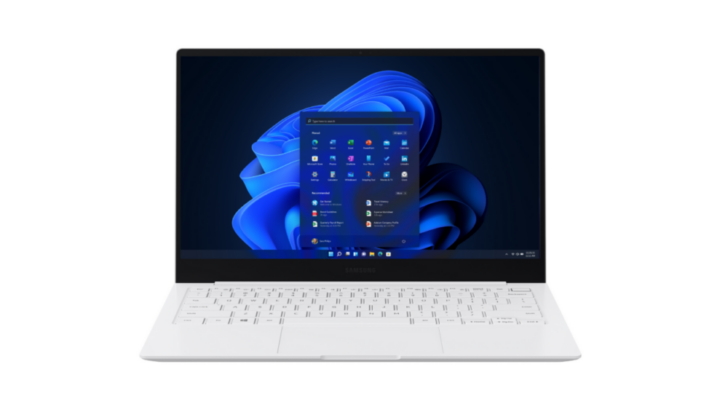
Galaxy Books Deliver Next-Level Mobile Computing Experiences With Windows 11

Samsung Electronics’ Galaxy Book series, designed to work seamlessly with other Galaxy devices including your tablet, smartphone and wearables, is about to get
http://dlvr.it/S94V17

Samsung Foundry Innovations Power the Future of Big Data, AI/ML and Smart, Connected Devices

  Samsung Electronics, a world leader in advanced semiconductor technology, today unveiled plans for continuous process technology migration to 3- and
http://dlvr.it/S933S3

Wednesday, October 6, 2021

How to Add Driver's License to Apple Wallet in iOS 15

With iOS 15, Apple is slowly rolling out plans to let you add your driver's license to your Apple Wallet. Right now, this feature is not available, but soon it will be in Arizona and Georgia, followed by Connecticut, Iowa, Kentucky, Maryland, Oklahoma, and Utah. Let's learn how to add your state ID or driver's license to your Apple Wallet. Related: How to Tell If Your iPhone Is Unlocked & What Does That Mean? Jump To: * When Can You Add Driver's License to Apple Wallet * How to Add Driver's License to Apple Wallet * How to Use Driver's License in Apple Wallet When Can You Add Driver's License to Apple Wallet Driver's licenses and state IDs for Apple Wallet were first announced at the 2021 WWDC and detailed in an Apple press release. As of this writing, no date has been set for the program's launch, but with eight states already signed onto the project, Apple hopes to offer this feature nationwide in the future. The Transportation Security Administration (TSA) is onboard to start accepting mobile driver's licenses and state IDs in Apple Wallet at participating airports, and Apple says, "Participating states and the TSA will share more information at a later date about when support for mobile driver’s licenses and state IDs in Wallet will be available in each state, and which TSA airport security checkpoints and select lanes it will be available at first." How to Add Driver's License to Apple Wallet Once this feature is available in your state, you'll be able to add your driver's license or state ID to Apple Wallet the same as you would add a new credit or debit card. To learn about more ways to use your Apple Wallet app, sign up for our Tip of the Day newsletter. * Open the Wallet app.   * Tap the Add icon.   * You'll be able to select Driver's License or State ID from the list of available cards once the feature is rolled out.   * Your phone will then walk you through the process of scanning your ID to add it to your Apple Wallet. Image from Apple.com How to Use Driver's License in Apple Wallet To present your driver's license or state ID, you'll open your Apple Wallet as usual. Apple will show you a brief explanation of the information Wallet will share with TSA (or other participating agencies and organizations in the future), and you can confirm that you'd like to present that information by double-clicking the Side button. Image from Apple.com How-ToiPhoneAppsWalletPrivacy & SecurityMaster your iPhone in one minute a day: Sign up here to get our FREE Tip of the Day delivered right to your inbox.
http://dlvr.it/S932Fh

Best iPad Accessories: iPad Cases, Stands, Keyboards & Other Gear

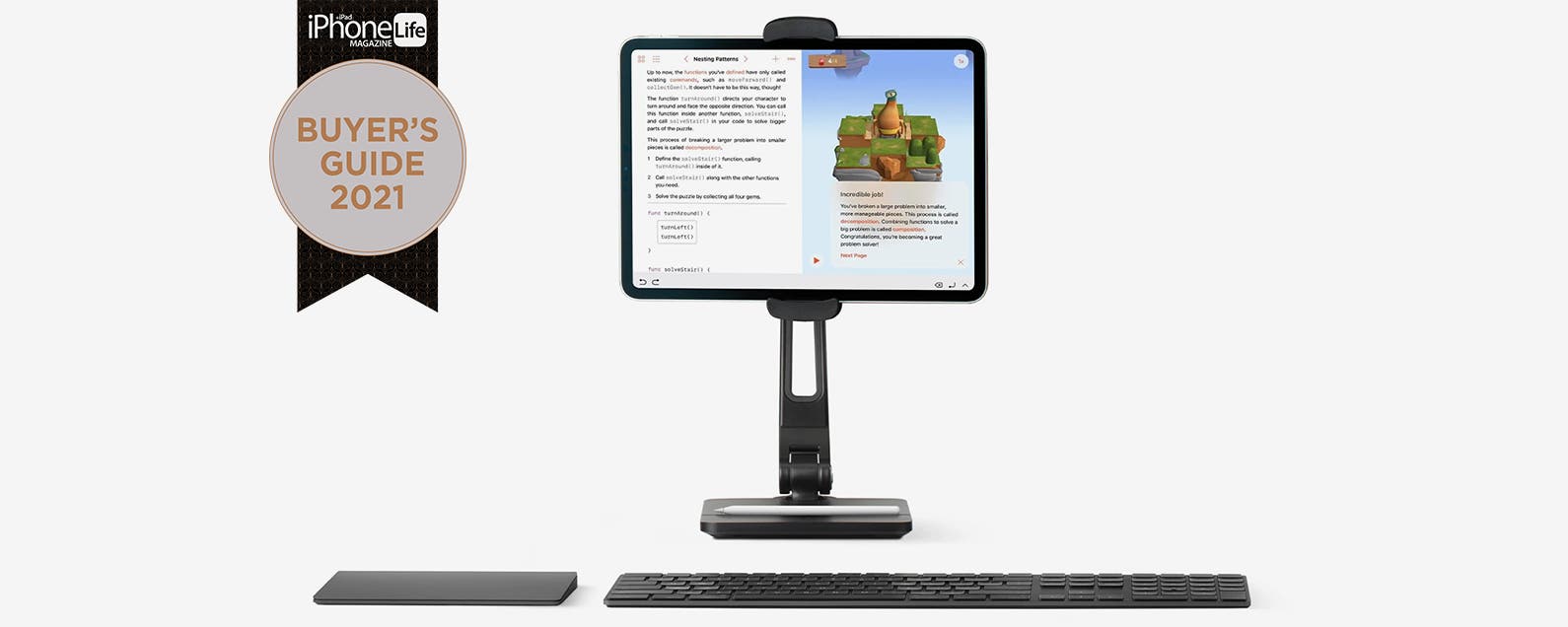
If there's one Apple device that begs for accessories, it's the iPad. Whether you have an iPad, iPad Pro, mini, or Air, you will probably want a case, maybe a stand, a keyboard, or even an Apple Pencil. Here are our top picks for the best iPad accessories of 2021. Related: What iPad Do I Have? How to Identify Apple's Different iPad Models & Generations QWERKYWRITER Typewriter-Inspired Mechanical Keyboard ($289.99) This Bluetooth keyboard was the final touch on my home office. I was taken in by its quirky design, and once I sat down with it, I was sold. Its large keys are not only satisfying to press (that old typewriter feel!) but also more visible and easily accessible than many other iPad keyboards. Despite its appearance, it’s easy to set up and use, and helps me transition into a creative headspace every time I prop my iPad in the tray as if it were a piece of paper. The only downside is there is no Command key, so many keyboard shortcuts are a no-go with this one.  Twelve South HoverBar Duo ($79.99) This iPad stand lets you prop up your device while saving space in your home. Equipped with two options, it lets you either set the stand on a flat surface such as a table or clip it onto something like a cabinet. This is perfect for my household, where we like to use our family iPad to display recipes while keeping our counter space clear. It also offers fun options for FaceTime, letting you adjust the angle to your preference without having to hold your iPad through the whole call. Ecosusi Sombre Vintage Briefcase ($82.50) If you’re a frequent iPad user, you’re going to want something reliable to carry your device around in. The Sombre Vintage Suitcase from Ecosusi is a stylish and versatile solution, offering different size compartments for not only your iPad, but also other gear and personal items, allowing this to become your go-to bag. Four color options let you choose your style. The straps offer three ways to carry the bag: shoulder bag, backpack, or briefcase. Choose the carrying style that best matches your personal needs, load up your iPad, and you’re good to go!  Apple Pencil 2 ($129) While I feature a lot of great third-party iPad accessories here, when it comes to a stylus, my recommendation has stayed with the Apple Pencil 2. While many of the features Apple brags about aren’t exclusive to the Pencil, it’s still a solid, comfortable, and reliable choice. Plus, it can be covered by Apple’s support network, which I learned when I had to send mine in for repairs and seamlessly got a replacement in a few days with no extra charge. This stylus is not an insignificant investment, but you can rest easy knowing you have the best. DTTO Premium Leather Business Folio ($29.99) If you’re looking for a solid, useful iPad case that covers all your bases and doesn’t break the bank, look no further. Lightweight yet protective, it’s easy to carry around and has a helpful compartment to store your Apple Pencil or other stylus. It can flip into a stand for your iPad, and does an excellent job protecting your device from the detritus of whatever case you might be carrying. It comes in a variety of colors, giving you the option to add a little personal twist, or to tell apart whose iPad belongs to whom. It comes in many sizes, so you can find the one that fits your model. ReviewsApple PenciliPadBackpacks & BagsCasesLaptop StandsStylusesShoppingMaster your iPhone in one minute a day: Sign up here to get our FREE Tip of the Day delivered right to your inbox.
http://dlvr.it/S92WMh

The Best iPhone 13 Cases: Our Recommendations

Clear phone cases, designer phone cases, sparkly phone cases, durable phone cases, luxury phone cases: there are so many different kinds of iPhone cases out there, it's hard to know where to start looking! Luckily, we've done the leg work for you. Here are our recommendations for the best cases out there, for all different lifestyles and budgets. Related: The Evolution of the iPhone: Every Model from 2007–2021 Nomad Rugged Case ($59.95) Crafted from Horween leather, this case feels professional and durable. With an internal shock absorption bumper, the Rugged Case is equipped to protect your phone from drops of up to 10 feet. This MagSafe compatible iPhone case allows for the ease and convenience of wireless charging while maintaining a slender design. Like any leather product, this case develops a patina over time, a soft sheen that naturally develops through use and exposure, making it a case that ages beautifully. If you’re looking for a protective-yet-understated phone case, this option is hard to beat. Pela Seashell Pink Peaks ($44.95) Two things stand out about Pela: their colorful and nature-inspired cases, and their commitment to eco-friendly and ethically manufactured products. Created from plant-based materials (not plastic), this case is 100 percent compostable and yet still durable enough to protect your phone from drops and scratches. It’s soft and flexible, slipping easily onto your phone and adding a layer of well-designed protection without the bulk. If you’re looking for a sleek, cute iPhone case that feels great and protects the planet and your phone, this is the case for you. Smartish Wallet Slayer Vol. 2 ($24.99) Based in Austin, this small company crafts quirky, affordable, and practical cases with next-level protection. Everything about this iPhone wallet case screams thoughtful design, from its Austin-themed color (shout-out to Blues on the Green) to its protective features. With the ability to secure three cards plus cash and high-grip textured sides to reduce accidental drops, this card case also has air-pocket corners that add an additional layer of drop protection. Even with these durable features, the case construction feels ultra-light and minimal, allowing me to easily slip this wallet/phone combo in and out of my pocket. After a few days of carrying this phone case with card holder, you’ll never again return to standard wallets. OtterBox Defender Series Pro XT ($74.95) This tough and durable iPhone case delivers with its ultra-protective features and a slim design so it still fits easily in your pocket. Made with 50% recycled plastic, this case has an antimicrobial layer to protect you from germs. It’s also MagSafe compatible, allowing for the convenience of wireless charging. Ever dropped your phone in dirt and been dismayed to find a lot of dust in your charging port? A standout protective feature offered here is the removable shield protecting your charging port. This allows you to effectively block snow, dirt, and debris, making for a case that is not only drop-protected, but also engineered to withstand the indoor and outdoor havoc of daily life. CASETiFY Ultra Impact Clouds ($70) With whimsical prints and an array of protective features, Casetify effortlessly combines fun and practicality. With 360-degree impact protection and 9.8-foot drop protection, this case feels sturdy while maintaining a slim design. With sustainable practices, this case is created from 50 percent recycled materials and is compatible with wireless chargers. We all know we’re supposed to clean our phones on a regular basis, but few of us actually do, so I was highly impressed with the antibacterial coating this case offers, eliminating 99 percent of bacteria. ReviewsiPhoneCasesShoppingMaster your iPhone in one minute a day: Sign up here to get our FREE Tip of the Day delivered right to your inbox.
http://dlvr.it/S92WJy

Samsung AI Forum 2021 Explores Future of AI Research

Samsung Electronics announced today that it will hold the Samsung AI Forum 2021 online via its YouTube channel for two days from November 1 to November 2.
http://dlvr.it/S90vg7