Portrait mode has been making folks look great since the iPhone 7 Plus and 8 Plus—taking great portraits has never been so easy as picking a Portrait Lighting mode and letting the iPhone work its magic. With iOS 13, Apple has added even more flexibility: you can adjust the intensity of the lighting effect applied in Portrait mode. To avoid your photo looking like a bad photoshop job, just tap the lighting intensity icon at the top of the screen and swipe on the slider left or right to tune the effect up or down. A little goes a long way! Let's get started.
How to Adjust Portrait Mode Lighting on the iPhone
Note that this feature is only available on the iPhone XR, XS, 11, or 11 Pro.
Open the Camera app.
Select Portrait mode by touching the camera modes slider below the viewfinder and sliding left or right.
In Portrait mode, a new set of lighting effects will appear just at the bottom of the viewfinder. Touch the lighting mode icon and slide left or right to select a lighting mode. The Natural Light effect only applies a background blur and no lighting effect, so I’ll demonstrate with Studio Light effect.
With Studio Light selected, turn to the row of options icons at the top of the screen, above the viewfinder. Tap the light intensity icon, which looks like a dot and circle inside a six sided polygon (a regular hexagram if you’re feeling precise).
With the light intensity icon highlighted yellow, the viewfinder will slide up just a little, and the camera mode selection slider will be replaced by a light intensity slider. Touch it and slide left or right to adjust your lighting effect.
You can also tap the f-stop icon at the top right of the screen—a cursive f and a number—to adjust how blurry the background is, using the same slider.
When you’re done, you can snap your picture with confidence: the Portrait Lighting effect can be tweaked or removed later in the Photos app.
Now you know how to adjust the lighting mode in your iPhone’s Portrait mode!
Half of all adults in America are living with one or more chronic illnesses, according to the Centers for Disease Control. But thanks to the growing availability of smart health-monitoring devices, patients with iPhones have never been more empowered to take a bigger role in managing their own or their family’s health. This gear makes it easy to collect and share the most accurate data possible with care providers, which can lead to better health outcomes. Health-monitoring devices for iOS can range from basic equipment like thermometers and pillboxes to more specialized equipment meant to be used as part of a doctor-supervised care plan for conditions like diabetes or asthma. Since accuracy is essential for these devices to be helpful, some may require you get training from a health professional in order to use them properly.
Type two diabetes is one of the most common chronic illnesses in the US. Successful management of any type of diabetes requires regular blood glucose monitoring, so the patient can use the information to ensure their blood sugar levels are in a healthy range. The Dario glucose monitor is small, portable, and easy to use. You simply plug the meter into the iPhone’s Lightning port and insert a test strip. Once you prick your finger with the Dario monitor and add a drop of blood to the strip, the meter uploads the blood glucose reading to the Dario app. The app itself is easy to use, sends testing reminders, allows you to track the goals you’ve set with your doctor, and makes it easy to see the connection between blood glucose levels and variables such as meals, exercise, and mood.
Poor or inadequate sleep doesn’t just make for unsafe driving or a lousy day at work. Not getting enough sleep on a regular basis can be a factor in developing serious health issues such as obesity, high blood pressure, and diabetes, according to the National Institute of Health. For those of you who have difficulty getting enough rest, a sleep monitoring system like the SleepScore Max can help identify and remedy the underlying causes. The SleepScore Max is unobtrusive (no need to place anything between the user and their mattress) and easy to use, even in situations where you share a bed with a partner. The SleepScore Max monitors breathing, ambient noise, and light during the night, and you can track other factors such as alcohol and caffeine intake and exercise in the app. The app then uses all that information to provide helpful insights for improving your sleep.
Monitoring lung function at home with a spirometer can help those with serious asthma monitor how well their treatment plan is working, decide whether they should adjust their medication, act to prevent flare-ups, or seek medical attention. Using Bluetooth, the spirometer Air Next and the companion Air app make it easy to track the results and share them with a doctor. To use the device, you’ll need to be trained in using a spirometer properly by a health professional and will need to consult with a doctor for interpretation of the test results.
Remembering to take all of your medications at the right time is a crucial part of managing any health condition, but it’s easy to get distracted and let the appointed time go by or to accidentally leave your medications at home. This smart pill box lets you easily track which medications you take and when, set alarms and refill reminders, and in the case of parents or other caretakers, track whether family members are following their medication plans. Memo Box Mini can even send alerts if you leave a designated location without your medication. Tiny Logic also offers the Memo Box 7 Day pillbox ($199) if the Memo Box Mini isn’t big enough.
A reliable thermometer might be the most basic, yet most essential, health-monitoring device any home can have. It will probably see the most use out of all the contents of a family first aid kit. We like the Thermo because it is non-invasive and doesn’t require much in the way of willing participation from a cranky, sick child. This smart temporal thermometer doesn’t even need to touch the skin to give an accurate reading. You can set up profiles for each family member, track other symptoms of illness along with temperature, track medications, and get helpful medical information in the Thermo app. Parents will be glad to know they can set reminders to check temperature at intervals, making it easier to track the course of a sick child’s fever during the night.
According to the Mayo Clinic, uncontrolled high blood pressure can lead to many serious health problems, including stroke, heart disease, kidney failure, and dementia. Regular monitoring at home with the Qardio Arm can help patients and their doctors develop and stick with a successful treatment plan. The Qardio Arm is lightweight and portable, connects to the iPhone via Bluetooth, and was the easiest to use of all the blood pressure monitors we tested. Quardio has one app for all its smart health devices, which is handy if you have more than one Qardio device. The Arm section of the app includes helpful tips for getting accurate readings and explanations of what the measurements mean. The app also allows users to set reminders to measure their blood pressure and share the information with their doctors.
For an extra layer of protection when using the Notes app, Apple now allows you to create a unique password for each of your Notes accounts, whether that's iCloud, On iPhone or On iPad, or an email-associated account. Before iOS 13, when you locked a note with a passcword for the first time, that password became the password for locking notes in all your Notes app accounts. You can now create a unique password for a Notes account by going to Notes in the Settings app and selecting Password.
If you've never locked a note before, you can quickly lock a note and create a password without ever leaving the Notes app. If you want to set up unique password for each account, you will need to go to the Notes settings in the Settings app.
How to Create a Unique Notes Password for Each of Your Notes App Accounts:
Open the Settings app.
Tap Notes.
Select Password.
Tap on the account for which you want to create a password.
At this point you will see different options depending on if you have ever created a Notes password before.
If you have never created a Notes passcode before:
Enter your new password.
Enter a password Hint and tap Done.
Repeat these steps for your other Notes accounts, creating a unique password for each one.
If you have previously created a Notes passcode:
Tap Reset Password.
Enter your iPhone passcode (changing the password for iCloud or email Notes accounts will require entering the password for those accounts).
If asked, confirm that you want to reset your password
Enter your new password and a hint.
Tap Done.
Repeat these steps for your other Notes accounts, creating a unique password for each one.
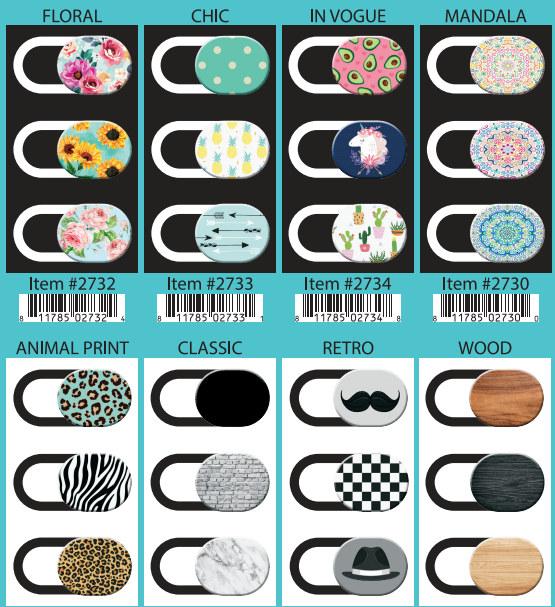
I go to a lot of trade shows, not just technology ones like the Consumer Electronics Show in Las Vegas but also the NY Toy Fair, hoping to find smartphone-related gadgets that would be of interest to iPhone Life readers. That's how I discovered BLOCKERZ Camera Covers ($13.99) from Zorbitz. They are a wholesaler but you can find their products at Amazon, Urban Outfitters, and other retailers. They gave me a sample to try and it turns out, it's not just for iPhones.
The BLOCKERZ Camera Covers are unique among the many camera covers I've seen in that the same unit is designed to work with phones as well as laptops. And since they sell three in a package, you can use one on your laptop, one on your phone, and give the other to a friend or keep it as a spare. They also differentiate themselves by their design. They are more compact than most camera covers, so they should work well with most thin laptops. And they come with adorable designs that can pop off and be swapped out, almost like the newer Pop Grips from Pop Sockets. This lets you change up your style frequently.
Just keep in mind that modern smartphones have multiple cameras, hidden inside a "notch" so a small camera cover such as this may not work for the front facing camera, and Apple is expected to add a third lens to the rear facing camera on their next phones, but these work well with a single lens found on most computers and older or cheaper phones or even iPads and iPod touch devices.
Pros
Cute designs with lots of varieties
Three distinct designs per purchase
Compatible with phones and computers
Minimal design works with slim laptops
Interchangeable
Cons
Not for notch-based front-facing cameras
Final Verdict
The BLOCKERZ Camera Covers from Zorbitz are a cute way to block the camera on many computers and smart phones, while adding some style.
Customize a display picture in your Messages app profile and you’ll be able to share the face you choose with anyone you message. As of iOS 13, you can edit your profile picture and name; simply open messages, tap the three dots at the top of the screen, tap Edit Name and Photo, and swipe left or right to select an option. You can use a memoji or animoji, your initials with a custom color, or any picture on your iPhone. Once it’s set, you can choose whether to make your profile name and image visible to everyone in your contacts list, or only to select contacts. Let’s get started.
If you’ve never set up a Messages profile before, it’s super easy! Here’s how:
Open the Messages app.
Tap the three dots in the top right of the screen (the "more options" icon).
Tap Edit Name and Photo in the pop-up.
If you’re choosing a picture for the first time in iOS 13, then you’ll see the following screens (if you’ve set up your photo and name but want to change it, skip down to editing your Messages profile).
Swipe left or right to choose an option. The last on the right is More Options, and will let you select a photograph from your Photos or iCloud.
Tap your name to type in a Display Name.
Tap Continue when finished.
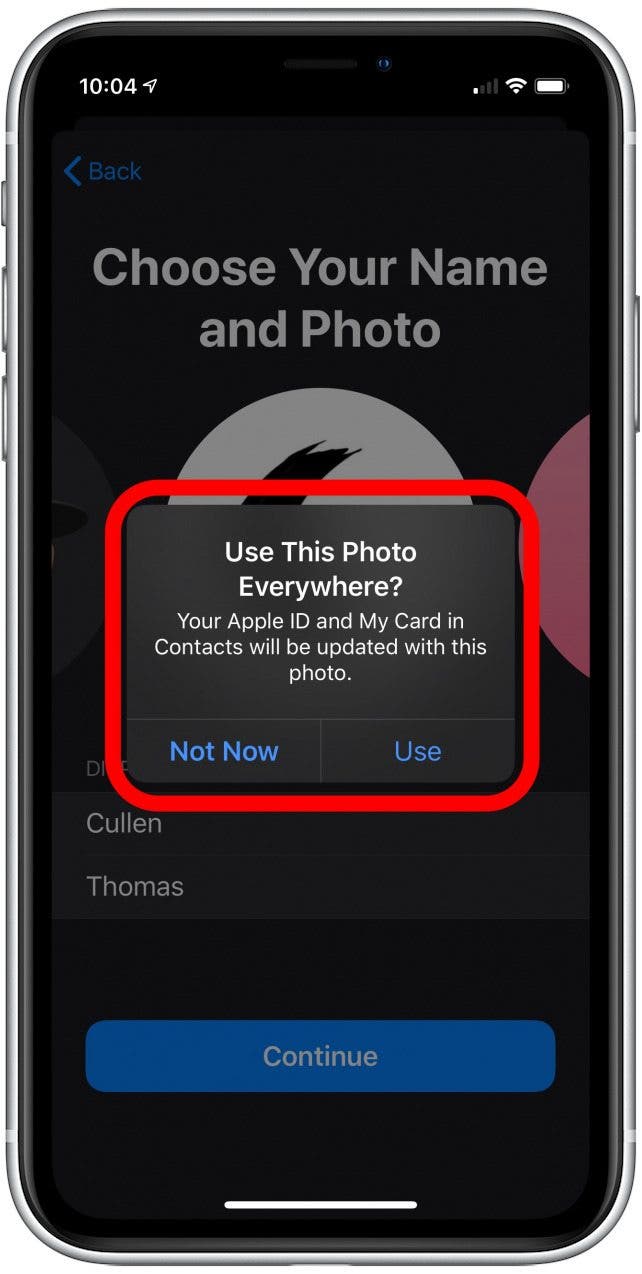
You'll be asked if you want to use the same photo and name in your Apple ID, and the My Card in contacts (your entry for yourself in your Contacts app roledex). Personally, I prefer all those different places to show the same name, since it keeps things simple. But they serve different functions, so you could set them to different things. You might set your messages display name to something quirky like Pineapple Pizza Master and leave your Apple ID and My Card with your actual name. It's up to you!
Last, you'll be asked if you want to share this profile with your Messages contacts automatically, or if you want to be asked every time. I chose to be asked every time, but it's up to you. Even if you set it to automatic, it still only shares with people in your contacts list, so text messages from unknown numbers won't get your name and picture until you add them as a contact.
Select Done to finish.
You've set up your Messages profile! Now you can present your personal brand with style.
If you want to Edit your Messages profile then as you did the first time, open the Messages app and click the More Options icon, which is three dots in the top right corner of the screen then select Edit Name and Photo.
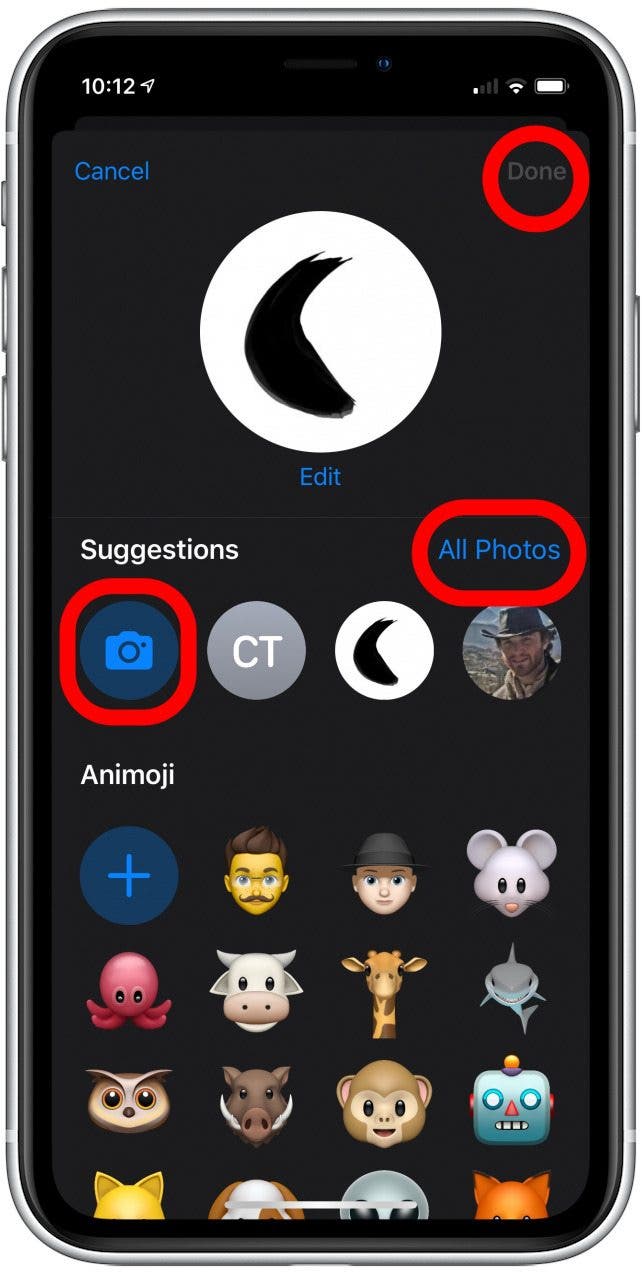
This time you'll see your whole profile on one screen, including all the decisions you made during initial setup. Tap your name to type in a new one or edit it. To change your photo, tap Edit.
Choose an animoji from the list, tap the camera icon under Suggestions to take a new photo, or tap All Photos on the right to select from images already stored in your iPhone.
Once you've made your changes, tap Done to finish.
And there you go! Now you know how to set up and update your profile on the Messages!