Samsung Electronics today announced the new features that will be provided via Smart Forward, Samsung’s over-the-network updates for home appliances,1 to
http://dlvr.it/TCY4jL
Latest Cell phone i-Phone,Samsung, Nokia, Motorolla, T-Mobile Sprint Latest Models info and News
Friday, August 30, 2024
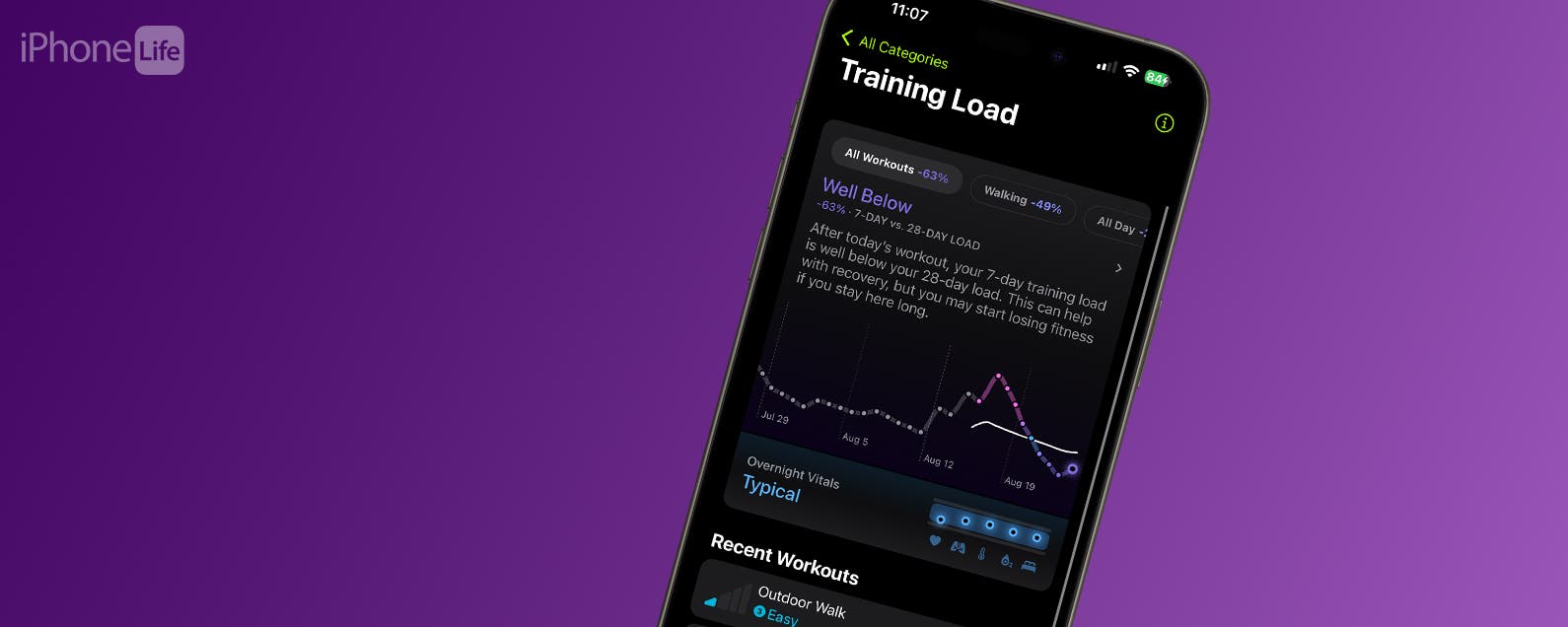
How to Use Apple Watch's Training Load Feature
Apple Watch is a fantastic training tool with many different ways to track your workouts and fitness progress. The watchOS 11 Training Load feature will suggest a physical effort rating for your workout. This metric is valuable for tracking your exercise routine's intensity and monitoring how your body recovers.
Why You’ll Love This Tip:
* Apple Training Load is measured using your weight, height, heart rate, pace, and elevation.
* Your training effort will be estimated automatically but can be manually adjusted.
How to Use Apple Training Load Feature
System Requirements
This tip works on Apple Watches running watchOS 11 or later. Find out how to update to the latest version of watchOS.
We'll teach you how to input your Effort levels for each workout and compare how your your previous week's Training Load compares to the past 28 days. I will start by walking you through the Training Load setup to ensure that you have the Training Load Reminders feature toggled on, but it may already be toggled on by default.
* Open the Fitness app on your iPhone.
* Scroll to the very bottom of the Summary tab and tap See All Categories.
* Tap Add.
* Scroll until you see the Training Load card, then select it.
* Tap Add Card.
* It will show up at the bottom of your Summary tab, but you can drag it to reorder it. Tap Done once you have it where you want it.
* If you haven’t done so already, you’ll be asked to Set Up Training Load. This will show up even if you’ve already used the Training Load feature after workouts.
* Here, you’ll see information about this feature that you may find useful. Tap Next.
* Next, decide if you want to receive Effort Reminders. Keep it toggled on for the rest of the steps in this tutorial to work. Then, tap Next.
* Finally, you’ll learn a bit about the personalized insights that you will get via the Vitals app. Tap Done.
* Once you've done this and toggled End a workout, you’ll see the training load window come up. It will either be blank or will show your device’s estimate of your effort.
* You can adjust it if you don’t think it is an accurate reflection. Just swipe left and right until you land on the level you think is more appropriate. Tap the check mark to save.
* You can view the Training Load of each workout in the Activities app on your Apple Watch or the Fitness app on your iPhone. Just select the activity and scroll down until you see Effort: you can tap on it to make adjustments.
* After you use the Training Load feature for a while, you can get more information about your progress by opening your Fitness app and tapping on the Training Load card. Here, you can see the Training Load of your recent workouts with a Vitals app graph.
Now you know how to use the Training Load feature on your Apple Watch and how to see how Effort is tracked in the Vitals app. That way, you know if you are pushing yourself physically or taking a well-deserved break. Next, check out our favorite Apple Watch workout tips.
More on Apple Watch Workouts
* How to Track Heart Rate Recovery
* See & Sort Workout History
* How to Use Time to Run
How-ToApple WatchiPhoneApple AppsFitness AppHealth & FitnessMaster your iPhone in one minute a day: Sign up here to get our FREE Tip of the Day delivered right to your inbox.
http://dlvr.it/TCXgql
Why You’ll Love This Tip:
* Apple Training Load is measured using your weight, height, heart rate, pace, and elevation.
* Your training effort will be estimated automatically but can be manually adjusted.
How to Use Apple Training Load Feature
System Requirements
This tip works on Apple Watches running watchOS 11 or later. Find out how to update to the latest version of watchOS.
We'll teach you how to input your Effort levels for each workout and compare how your your previous week's Training Load compares to the past 28 days. I will start by walking you through the Training Load setup to ensure that you have the Training Load Reminders feature toggled on, but it may already be toggled on by default.
* Open the Fitness app on your iPhone.
* Scroll to the very bottom of the Summary tab and tap See All Categories.
* Tap Add.
* Scroll until you see the Training Load card, then select it.
* Tap Add Card.
* It will show up at the bottom of your Summary tab, but you can drag it to reorder it. Tap Done once you have it where you want it.
* If you haven’t done so already, you’ll be asked to Set Up Training Load. This will show up even if you’ve already used the Training Load feature after workouts.
* Here, you’ll see information about this feature that you may find useful. Tap Next.
* Next, decide if you want to receive Effort Reminders. Keep it toggled on for the rest of the steps in this tutorial to work. Then, tap Next.
* Finally, you’ll learn a bit about the personalized insights that you will get via the Vitals app. Tap Done.
* Once you've done this and toggled End a workout, you’ll see the training load window come up. It will either be blank or will show your device’s estimate of your effort.
* You can adjust it if you don’t think it is an accurate reflection. Just swipe left and right until you land on the level you think is more appropriate. Tap the check mark to save.
* You can view the Training Load of each workout in the Activities app on your Apple Watch or the Fitness app on your iPhone. Just select the activity and scroll down until you see Effort: you can tap on it to make adjustments.
* After you use the Training Load feature for a while, you can get more information about your progress by opening your Fitness app and tapping on the Training Load card. Here, you can see the Training Load of your recent workouts with a Vitals app graph.
Now you know how to use the Training Load feature on your Apple Watch and how to see how Effort is tracked in the Vitals app. That way, you know if you are pushing yourself physically or taking a well-deserved break. Next, check out our favorite Apple Watch workout tips.
More on Apple Watch Workouts
* How to Track Heart Rate Recovery
* See & Sort Workout History
* How to Use Time to Run
How-ToApple WatchiPhoneApple AppsFitness AppHealth & FitnessMaster your iPhone in one minute a day: Sign up here to get our FREE Tip of the Day delivered right to your inbox.
http://dlvr.it/TCXgql
Thursday, August 29, 2024
Samsung Electronics Announces SDC24, Marking a Decade of Open Innovation and Highlighting AI Innovation
Samsung Electronics today announced that it will host the Samsung Developer Conference 2024 (SDC24) at the San Jose McEnery Convention Center in
http://dlvr.it/TCVq63
Capture Every Moment Like a Pro With the Most Powerful Galaxy Z Flip Camera Yet
Samsung Electronics has consistently pushed the boundaries of smartphone camera technology, delivering exceptional camera experiences and establishing a new
http://dlvr.it/TCVpy6
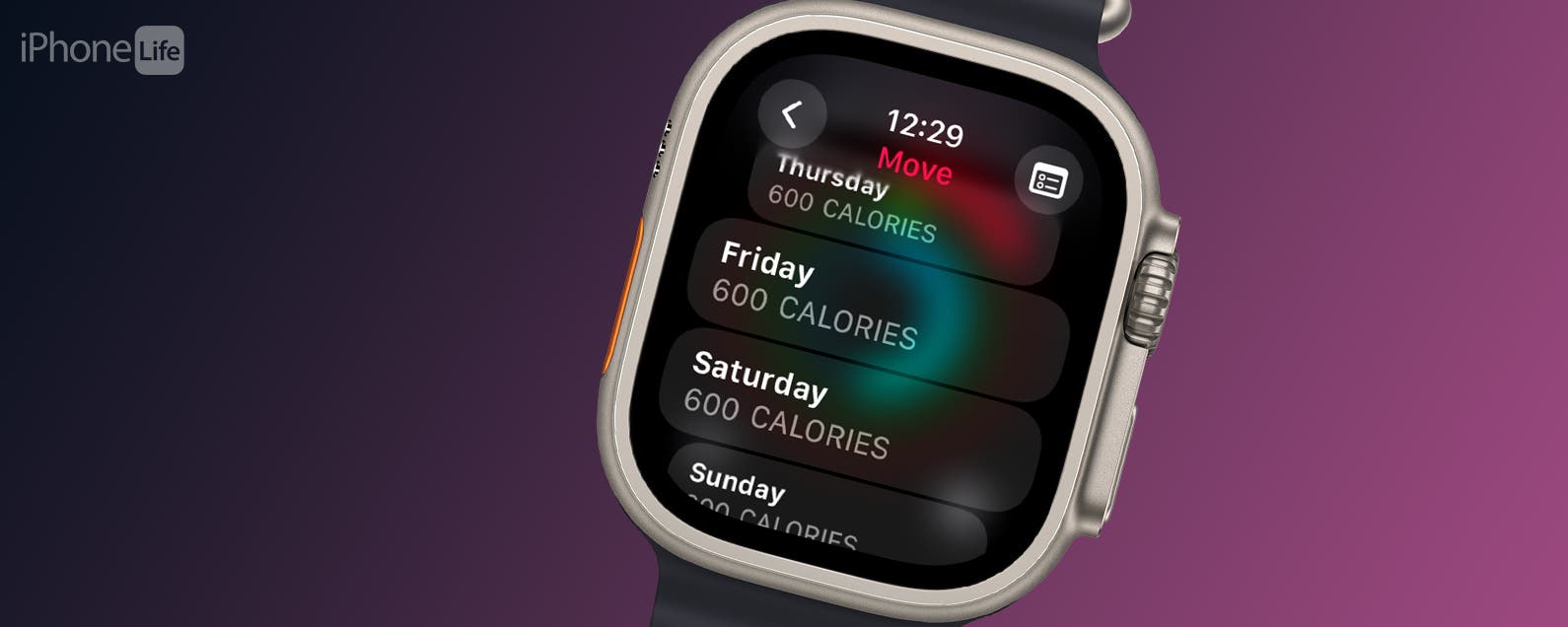
Set an Apple Watch Activity Rings Goal for Each Day of the Week
You can find motivation to be more active with Apple Watch by setting up Activity Goals to push yourself. But it isn't always realistic to set the same goal for Monday and Saturday, which is why you can now set unique goals for each day of the week! Learn how to set individual daily goals for your Apple Fitness Rings.
Why You’ll Love This Tip:
* Set a different Apple Watch Move goal, Stand goal, and Exercise Minutes goal for each day of the week.
* Create a workout schedule that pushes you more on certain days of the week.
* Make your activity goals compatible with your schedule.
How Do I Change My Workout Goal for Specific Days of the Week?
System Requirements
This tip works on Apple Watches running watchOS 11 or later. Find out how to update to the latest version of watchOS.
Setting up generalized Activity Goals can be hard because you don't have the same schedule every day. If your gym days are Monday, Wednesday, and Friday, how are you going to hit the same goals on Tuesday and Thursday? And what about rest days? Apple has finally made it possible to set different goals for specific days of the week, letting you schedule go-all-out days followed by slower recovery days.
* Tap on the Activity Rings on your Apple Watch.
* Tap anywhere on your Activity Rings that isn’t an icon.
* Select Change Goals.
* Tap on the calendar icon in the top right corner.
* Tap Schedule.
* You'll see the days of the week and your calories burned goal underneath. Use the Digital Crown or swipw up and down to scroll and tap on a day to make changes.
* Use the Digital Crown or tap the plus or minus to change the calorie goal. Then tap Set.
* Once you are done customizing your Move goal, tap Set Schedule.
* Next, you'll be taken to Exercise goal minutes. Tap the calendar icon at the top right of your screen and follow the same steps you took to customize the Move goal calories.
* Once you tap Set Schedule for your Move goal, you can follow the same steps for your Stand goal hours.
* It is possible to set daily goals for some of your Activity Rings and leave others to be the same every day of the week. Just skip the step where you tap the calendar icon and select Set once you select the calories/minutes/hours you wish to work towards.
Now you know how to change activity goals on Apple Watch and customize them for every day of the week! I like to keep my Stand goal the same but raise my Move and Exercise goals on gym days. Next, learn how to pause your Activity Rings for a day, week, or month without losing your steak.
More on Apple Fitness Activity Rings
* Active vs Total Calories?
* Set Daily Move Goals on iPhone
* Win All Apple Watch Fitness Competitions
How-ToApple WatchAppsApple AppsFitness AppHealth & FitnessMaster your iPhone in one minute a day: Sign up here to get our FREE Tip of the Day delivered right to your inbox.
http://dlvr.it/TCVdq5
Why You’ll Love This Tip:
* Set a different Apple Watch Move goal, Stand goal, and Exercise Minutes goal for each day of the week.
* Create a workout schedule that pushes you more on certain days of the week.
* Make your activity goals compatible with your schedule.
How Do I Change My Workout Goal for Specific Days of the Week?
System Requirements
This tip works on Apple Watches running watchOS 11 or later. Find out how to update to the latest version of watchOS.
Setting up generalized Activity Goals can be hard because you don't have the same schedule every day. If your gym days are Monday, Wednesday, and Friday, how are you going to hit the same goals on Tuesday and Thursday? And what about rest days? Apple has finally made it possible to set different goals for specific days of the week, letting you schedule go-all-out days followed by slower recovery days.
* Tap on the Activity Rings on your Apple Watch.
* Tap anywhere on your Activity Rings that isn’t an icon.
* Select Change Goals.
* Tap on the calendar icon in the top right corner.
* Tap Schedule.
* You'll see the days of the week and your calories burned goal underneath. Use the Digital Crown or swipw up and down to scroll and tap on a day to make changes.
* Use the Digital Crown or tap the plus or minus to change the calorie goal. Then tap Set.
* Once you are done customizing your Move goal, tap Set Schedule.
* Next, you'll be taken to Exercise goal minutes. Tap the calendar icon at the top right of your screen and follow the same steps you took to customize the Move goal calories.
* Once you tap Set Schedule for your Move goal, you can follow the same steps for your Stand goal hours.
* It is possible to set daily goals for some of your Activity Rings and leave others to be the same every day of the week. Just skip the step where you tap the calendar icon and select Set once you select the calories/minutes/hours you wish to work towards.
Now you know how to change activity goals on Apple Watch and customize them for every day of the week! I like to keep my Stand goal the same but raise my Move and Exercise goals on gym days. Next, learn how to pause your Activity Rings for a day, week, or month without losing your steak.
More on Apple Fitness Activity Rings
* Active vs Total Calories?
* Set Daily Move Goals on iPhone
* Win All Apple Watch Fitness Competitions
How-ToApple WatchAppsApple AppsFitness AppHealth & FitnessMaster your iPhone in one minute a day: Sign up here to get our FREE Tip of the Day delivered right to your inbox.
http://dlvr.it/TCVdq5
Wednesday, August 28, 2024
Gamescom 2024: Samsung’s Glasses-Free 3D Monitor Redefines Immersive Gaming
Samsung Electronics took part in Gamescom 2024, the world’s largest event for computer and video games, with an 800-square-meter booth highlighting unrivaled
http://dlvr.it/TCSWzs
[Infographic] How Samsung Art Store Makes it Easy To Meet the World of Art
Samsung Art Store is a subscription service that enables owners of The Frame to continuously transform any space with over 2,500 pieces of digital art,
http://dlvr.it/TCSLT0
[Recap] Samsung Art Store: Redefining the Paradigm of Appreciating and Consuming Art
There are no clear answers when appreciating art. Each piece will evoke distinct emotions and elicit different reactions. However, context on the artist or
http://dlvr.it/TCSLLp
Upgraded Samsung Food Raises the Bar for Food Experiences at IFA 2024
Samsung Electronics today announced new features and updates for Samsung Food1 — a personalized, AI-powered food and recipe platform — to celebrate its first
http://dlvr.it/TCSLB9
Tuesday, August 27, 2024
The Knox Journals: Safeguarding Your Online Privacy With Galaxy Security
Whether for work or play, most of us use the internet for hours every day. And when we do, we want the peace of mind that comes with knowing everything we’re
http://dlvr.it/TCRW5p
Samsung Set To Enhance Athlete and Fan Experience for an Unforgettable Paris 2024 Paralympic Games
Samsung Electronics, a Worldwide Olympic and Paralympic Partner, will harness the power of Galaxy technology to continue supporting connected Games-time
http://dlvr.it/TCQ5k0
Samsung Launches The Premiere 9 and The Premiere 7 Projectors, Bringing Cutting-Edge Laser Technology to the Living Room
Samsung Electronics today announced the launch of its latest innovations in home entertainment, The Premiere 9 and The Premiere 7. These ultra-short
http://dlvr.it/TCPfMx
Monday, August 26, 2024
Samsung Elevates AI Home Life With Upgraded Voice Control Over Bespoke AI Appliances
Samsung Electronics today announced that it will update its voice assistant Bixby1 with enhanced AI in home appliances.2 Bixby, which will be upgraded starting
http://dlvr.it/TCNf70
Friday, August 23, 2024
[Interview] Behind the Scenes of Galaxy Watch Ultra and Galaxy Watch7: Product Planning the Next Generation of Smartwatches
A new smartwatch has arrived — designed to accompany users beyond daily healthcare as they embark on extreme adventures. Introducing the Galaxy Watch Ultra,
http://dlvr.it/TCG51D
Thursday, August 22, 2024
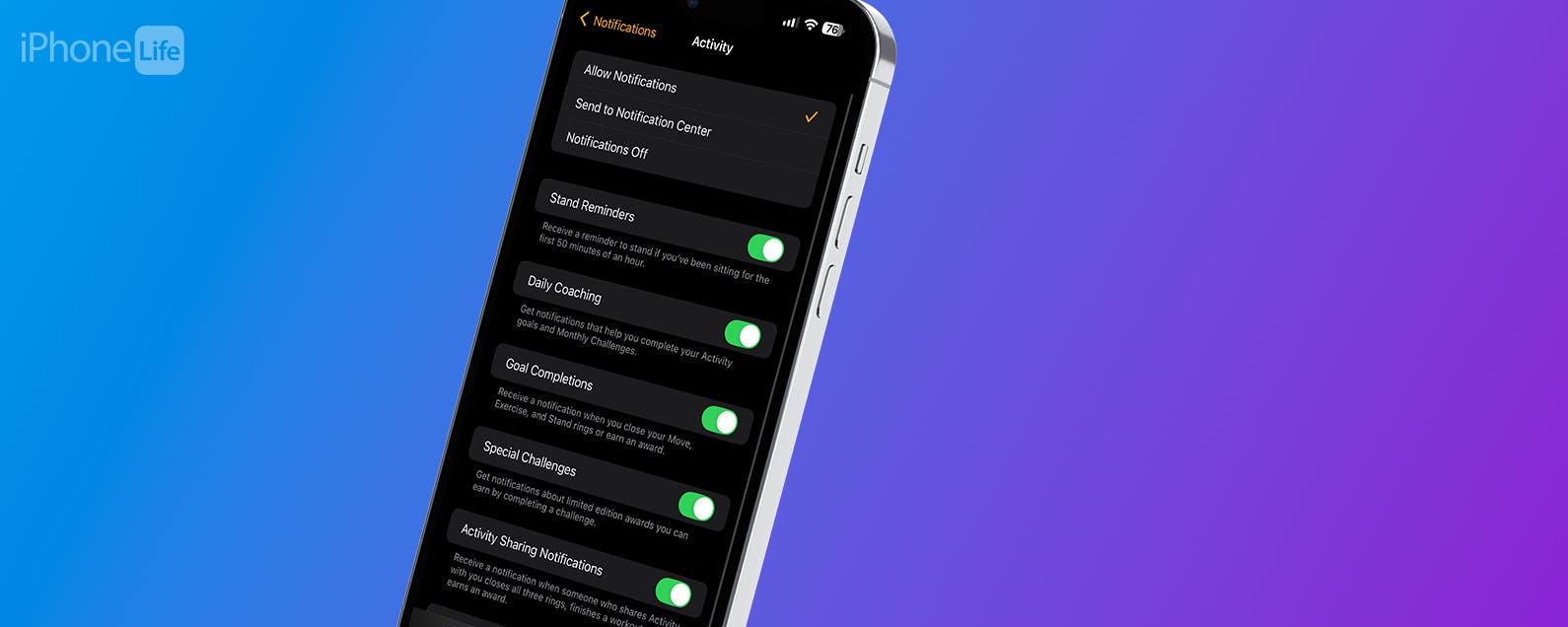
How to Customize Apple Watch Notifications
Tired of endless interruptions on your wrist? Me too! Learn how to customize which notifications you get on your Apple Watch to minimize unnecessary alerts. Some apps have app-specific notifications to give you even more control over your device.
Why You’ll Love This Tip:
* You can customize which notification you get on your Apple Watch.
* Minimize notifications by turning off alerts from less important apps.
How to Customize Apple Watch Alerts
System Requirements
This tip works on Apple Watches running watchOS 11 or later. Find out how to update to the latest version of watchOS.
Yes, you have full control over which apps can send notifications to your Apple Watch! This means that you can keep certain notifications off your wrist. To customize your Apple Watch notifications:
* Open the Watch app on your iPhone and navigate to the My Watch tab if you're not already there.
* Tap Notifications.
* Here you will see a list of all your apps separated into two sections: the first consists of mostly pre-installed apps with customizable settings and the second has third-party apps with an iPhone-mirror toggle. Tap on each pre-installed Apple app and select the options that work best for you.
* Some apps, like Activity, will have app-specific notification options.
* Some apps will also offer the option to either allow notifications, turn them off completely, or only see them in the notification center which means you will see the notification when you check for it, but you won’t be alerted when it comes in.
* Other apps will instead give you the option to mirror the notification settings for the corresponding iPhone. When opting to mirror my iPhone, some apps will actually list your iPhone’s notification settings underneath.
* Next, scroll down to the second list of apps. These apps only have the option to mirror the iPhone notification settings or not. They do not show what those settings are though, so if you’re not sure you will have to check them in your iPhone Settings app.
Pro Tip
If you decide to mirror your iPhone, you will only receive notifications for apps that mirror the iPhone and only if notifications are enabled for that app on the iPhone.
Now you know how you customize the notifications you get on your Apple Watch app-by-app! If you have a lot of apps on your devices, this could take a while, but it is worth the time spent. Next, learn how to fix your Apple Watch not getting notifications.
More on Apple Watch Alerts
* Stop Notifications During Workouts
* Get Notified About the Weather
* Turn Off Keyboard Notifications
How-ToApple WatchApple AppsThird-Party AppsNotification CenterNotificationsDevice ManagementMaster your iPhone in one minute a day: Sign up here to get our FREE Tip of the Day delivered right to your inbox.
http://dlvr.it/TCCVdN
Why You’ll Love This Tip:
* You can customize which notification you get on your Apple Watch.
* Minimize notifications by turning off alerts from less important apps.
How to Customize Apple Watch Alerts
System Requirements
This tip works on Apple Watches running watchOS 11 or later. Find out how to update to the latest version of watchOS.
Yes, you have full control over which apps can send notifications to your Apple Watch! This means that you can keep certain notifications off your wrist. To customize your Apple Watch notifications:
* Open the Watch app on your iPhone and navigate to the My Watch tab if you're not already there.
* Tap Notifications.
* Here you will see a list of all your apps separated into two sections: the first consists of mostly pre-installed apps with customizable settings and the second has third-party apps with an iPhone-mirror toggle. Tap on each pre-installed Apple app and select the options that work best for you.
* Some apps, like Activity, will have app-specific notification options.
* Some apps will also offer the option to either allow notifications, turn them off completely, or only see them in the notification center which means you will see the notification when you check for it, but you won’t be alerted when it comes in.
* Other apps will instead give you the option to mirror the notification settings for the corresponding iPhone. When opting to mirror my iPhone, some apps will actually list your iPhone’s notification settings underneath.
* Next, scroll down to the second list of apps. These apps only have the option to mirror the iPhone notification settings or not. They do not show what those settings are though, so if you’re not sure you will have to check them in your iPhone Settings app.
Pro Tip
If you decide to mirror your iPhone, you will only receive notifications for apps that mirror the iPhone and only if notifications are enabled for that app on the iPhone.
Now you know how you customize the notifications you get on your Apple Watch app-by-app! If you have a lot of apps on your devices, this could take a while, but it is worth the time spent. Next, learn how to fix your Apple Watch not getting notifications.
More on Apple Watch Alerts
* Stop Notifications During Workouts
* Get Notified About the Weather
* Turn Off Keyboard Notifications
How-ToApple WatchApple AppsThird-Party AppsNotification CenterNotificationsDevice ManagementMaster your iPhone in one minute a day: Sign up here to get our FREE Tip of the Day delivered right to your inbox.
http://dlvr.it/TCCVdN
Subscribe to:
Posts (Atom)