In this tip, we'll show you how to create a new folder on your iPhone or iPad, right in the Notes app. Once you've written multiple notes, you may have a hard time finding the note you need. Use this tip to make folders for every type of note, then move your notes into the appropriate folders, so you always know where to find them.
How to Create a Folder on the iPhone & iPad in the Notes App
Apple's Notes app is one of the best note-taking apps out there, especially considering that it's free! It's great to have your thoughts, ideas, and lists all in one place in the Notes app, but what's even better are organized notes. Here's how to make a new folder on your iPhone or iPad, so you can put each note where it belongs, and find it when you need it.
Open the Notes app.
Tap Folders in the upper-left corner of your display.
Tap New Folder at the bottom-right corner of your display.
Name your new folder and tap Save.
You'll be taken back to the Folders page, where you'll see your new folder in the list.
Now you can get all the notes on your iPhone or iPad organized into new folders!
Check out our free Tip of the Day for more great Apple device tutorials.
The Apple Watch Series 6 is on the way, with insiders and fans speculating its announcement at Apple’s September event. Rumors are circulating online of improvements expected and hoped for in the Series 6, like blood oxygen level monitoring, yoga improvements, and a better wireless antenna. Read on for our roundup of rumors, ordered from most to least likely.
An upgrade to the Apple Watch could allow it to monitor the wearer’s blood oxygen levels, a metric that would permit it to detect incoming panic attacks. This feature has been rumored for some time, starting on twitter but later reinforced in a Geared Up podcast in May with leaker Jon Prosser. This one is looking reasonably likely. According to 9to5 Mac, which claim to have found small amounts of the code behind the feature, Apple Watch users who experience a panic attack while driving would receive a warning from their watch and instructions to pull over, and then instructions for breathing techniques. I, for one, welcome my nanny watch.
Antenna Behind the Screen
The Apple Watch Series 6 may sport an upgraded wireless antenna, created by spreading the antenna’s surface out behind the watch’s screen. A patent filed by Apple in 2018 and published in January of 2020, initially spotted by Apple Insider, details the new antenna design. As always, the patent doesn’t necessarily mean that Apple will go ahead with the new design, but if they do, it will be a step toward increasing the wireless reliability of the Apple Watch. What does this mean in terms of daily use? Well, it might make it easier to leave your iPhone behind when you go for a jog. We hope so!
Improved Electrocardiogram (ECG)
The Apple Watch Series 6 may have improved ECG reliability. Earlier series can take an ECG reading through the watch crown, but if the user’s heart rate is elevated, the results come back as inconclusive. Widely reported rumors continue to circulate that updates in hardware or software with the new series will improve on this capacity. If it’s true, it could make the ECG more reliable and effective at higher heart rates, but nobody knows if this is a hardware or a software update or could roll out to earlier series as well.
Yoga Fitness
The WatchOS 7 rolled out improvements to the Dance workout type, and a patent filing suggests we might expect to see similar improvements to the accuracy of the Yoga fitness. Originally spotted by Patently Apple, the patent details methods to increase the accuracy of predictions about how many calories are being burned in a Yoga session.
New Batteries
The new series could come with a new set of batteries. We’re careful not to say better batteries because this may only mean that the rest of the hardware is more efficient and so Apple can get away with using smaller ones. Mysmartprice spotted a series of regulatory filings that revealed the new battery arrangement.
Kid Mode
It may soon become possible to pair a second apple watch to the same iPhone, a feature intended for use with a parent’s iPhone granting their child their own Apple Watch, reports Apple Insider. While this would technically be a feature of the Watch app on the iPhone, it would open up a world of WatchOS functionality aimed at kids.
Apple Watch Series 5 Release Date and Pricing Rumors
Apple usually announces its new lineup in September, and while early rumors pegged the likely date as September 8th, there have been some rumored delays because of supply chain issues, as reported by Business Insider, related to the COVID-19 pandemic. We’re now expecting the event sometime in late September. That said, rumor has it the Apple Watch Series 6 development has been going ‘smoothly,’ so here’s hoping we won’t see any more delays!
As to price, we have no rumors to go on. The current lineup features models in 40 mm and 44 mm, with a variety of case options ranging from the default aluminum to stainless steel, ceramic, and titanium. The current series ranges from $399 to over $1000, depending on your case and watch-band choices. We expect the Series 6 to be similar, though a cheaper plastic option would be welcome.
In the 141st episode, David and Donna share their Family Sharing tips, movies to watch while you're cooped up at home, and how to use the Shortcuts app to order Starbucks from your Apple Watch.
Click here to listen and subscribe. If you like what you hear, be sure to leave a review. And remember to tune in every other week to hear our editors share with you the latest Apple news, best apps, iPhone tricks, and coolest accessories.
This episode was brought to you by Matias and Monday.com. Do you find yourself typing the same things over and over, like "please reply at your earliest convenience" or "looking forward to our next lunch?" If so, you might want to check out the Ergo Pro Programmable Keyboard by Matias. Not only can you set up macro keys to create shortcuts for commonly used phrases, but this keyboard is also designed to take the pressure off your joints.
Reduce stress and boost productivity with Monday.com, an all-inclusive, desktop and mobile-supported platform that provides everything you need to support multiple departments in every type of project or business. Create boards with tasks and subtasks to keep your team working together on schedule. Track workflow on a dashboard that displays your inbox, calendar, metrics, and boards. Utilize services you've already integrated with, like Slack, MailChimp, Zoom, Dropbox, Google Drive, and more.
Questions of the week:
What are your latest movie recommendations? Email podcast@iphonelife.com with your answers!
- Hi and welcome to the iPhone Life podcast. I'm Donna Cleveland editor in chief at iPhone Life.
- I'm David Averbach, CEO and publisher at iPhone life.
- Each episode we bring to you the best apps, top tips, and great gear in the iOS world. In this episode, we have a sponsor for you that David's going to tell us about.
- Yeah, so today's sponsor is Matias and those long time listeners will be familiar with them because they are very long sponsor. One of our favorite companies, I love the companies that just specialize in one thing and do it great. And that's Matias. They specialize in keyboards, they have a wide range of keyboards for you. All of them are very high quality. So I'm gonna tell you about two of 'em today. The first one is their wired keyboard. So Apple has stopped creating wired keyboards. But wired keyboards are great because they don't have any connectivity issues ever. And so Matias has a wired keyboard that is a aluminum shell. It looks a lot like the old school, Apple wired keyboard, really high quality and very affordable. And then the second keyboard I want to tell you about today is the Bluetooth keyboard. And so Apple does make a Bluetooth keyboard, but Metias's is a lot better and I'll tell you why. First of all, it's cheaper. Second of all it's backlit. And the backlit is, they did this really cool thing where they have two batteries, one for the keyboard and one for the backlighting. So what that means is your keyboard will last up to a year. I think the Apple keyboard lasts about three months. So your keyboard will last a year on one charge, but you can always recharge it for the backlight. It uses a lot more battery, but it's really nice, especially if you tend to work a little bit in the dark. The other thing that's great about their Bluetooth keyboard is you can sync up to four devices on it. So my partner and I share an office. And so if one of us is using the keyboard for their laptop and then the other comes in and use it for theirs, you can easily switch as a button. You just toggle between four devices. You can use it on your iPad. You can use it on your iPhone. So both really great keyboards, they have a wide range to have tactile keyboards or mechanical keyboards rather. So Mathias was spelled M-A-T-I-S and so go check them out and we'll link to it in our show notes @iphonelife.com/podcast.
- Cool. Thanks, David. I also want to tell you about our free daily tips newsletter. If you sign up at iPhone life.com/daily tips, we'll send you one tip every day in your inbox that will teach you something cool that you can do with your iPhone in under one minute. And it's just a really fast, easy way to become an iPhone expert. And it's a great time to sign up right now because we're about to start doing our iOS 14 tips as they start coming out in September. And so you'll be able to master all the new features and make sure not to miss anything without any effort on your part, because we make it really easy and do all the work for you. And then just send you a small, digestible little tip everyday. So iphonelife.com/daily tips is where you can go to sign up. And I have a tip I want to share today that I think is useful. We've been doing a few, quite a few families sharing tips lately, which before I share this specific tip, I was gonna ask you, David, if you use family sharing, if it's something you find useful.
- I do, we have gotten, those of you who are magazine subscribers will know we've gotten my stepson an iPhone. And so now, I never used to use it, because if you're just two adults, it's, it's marginally useful. But as soon as you bring a kid into the mix, it's really, really useful. So I use it a lot to manage his device. And also as a result, we've ended up using it to kind of manage group functions like calendar and reminder and things like that.
- Cool. Yeah. So family sharing for those of you listening and aren't familiar with it, it is really set up in a lot of ways to let you manage what your kid is doing on their devices. Through family sharing is, wait, is it through family sharing that you do the like parental controls too or no?
- Yep You can do parental controls. They need to request apps to download. And so that's the big one is like, he can't access content unless I approve it. Like I can put parental filters on it. You can't download apps unless I approve it. I can limit what he can see in the app store. So he doesn't necessarily even see the mature apps. That's the main thing. You can also put restrictions on things like screen time in general. So he can't use his phone past a certain hour. He couldn't use it in school back when he was attending school. We had 30 minute limit on games per day. So you can do a lot of things, limiting what he can and can't do.
- Cool. Yeah, I use it with my husband and it's nice for things like shared reminders, lists and shared calendars. Like a lot of times I'll put on if my family's having a birthday party or things like that. So that it'll show up in our family calendar and he'll know he'll be reminded to be there too. But it's, you know, without kids, it's not something that I would say is essential, but I do enjoy it. So this tip is, oh, how to tell which apps are family sharing apps. So one of the glories of family sharing is that if you download an app, anyone in the family can download it. So if it's an app that you've paid for, you can really get a lot more mileage out of it, which is awesome. But not every app has family sharing compatible, especially if there are apps that have like paid subscriptions or like that. They might not be family sharing compatible just to cut down on complications from their end. So the way that you tell if an app works with family sharing before you make the decision to purchase it, because it might affect whether you buy it or not, you open the app store, search for the app that you're looking for, and if you scroll down on the app description page, there'll be a little section that says a header that says supports, and it'll show you the different features that it supports. And one of them would be family sharing, if it does work with family sharing. So that's a nice little tip to help you get more out of your family sharing set up. And let's say it's sort of an expensive app, it might change whether or not you buy that app depending on whether everyone in your family can use it for that price or if everyone would have to still go ahead and pay for it themselves. So that was my family sharing tip for the day. Next, I want to tell you about our premium subscription. We have a monthly subscription called iPhone Life Insider. It's an educational platform, and it's for those of you who want to accelerate your learning process with your iPhone. And we have a new brand new feature of insider, that's really groundbreaking and takes our service to the next level and that's iPhone Life Classes. So now when you subscribe for the same price as you did before you get, not only all of the video guides and video tip content and our digital magazine archive and our insider podcast and all of those good things you got before, but you also get unlimited access to our live online classes. And this is just pretty amazing because you get to interact with our expert instructors. You get to be guided through whatever you're trying to learn, and you,` we help make sure that you don't get stuck anywhere because you have access to our instructors. And we've had a really great experience with this feature so far. We've been testing out classes for about the last year and we've charged up to $350 for courses. And that's really not uncommon to see other places online if you're looking for this type of thing. But we wanted to bring you this experience and make it really accessible and give it to all of our insiders who are already subscribed, who they'll get access to this too. So if you go to iPhone life.com/podcastdiscount, you'll get a special discount as a podcast listener, and you'll be signing up in time to attend our iPad course, which starts on August 5th.
- I think because we're, pre-recording this, I think we will be in the middle of our podcast or our iPad course. So the good news is there's still time to catch the second half live and we are gonna put recordings in. So we actually going to put recordings of all of our past classes in insider. So if you've seen us promote classes before and wanted to attend, but didn't get the chance, you can watch those. And we will have recordings of the first two lessons up. I think it would be one lesson in actually, so you can catch up, watch the recording of that and then attend the rest live. And we have a class for iOS 14. As soon as I was 14 comes out, we're gonna not only have our regular in-depth guide with video step-by-step tutorials, printable guide, we will also have in depth training with question and answer with Donna and myself when iOS 14 comes out.
- Yes, thank you, David. So go to iPhonelife.com/podcastdiscount to check it out. I have an insider who wrote a really fun question last week that Colin, our writer and producer answered. And I thought I would share it with you guys. Cause it might give you some good ideas of ways that you can be using shortcuts. I know that I could use some inspiration to try out shortcuts, some more shortcuts for myself. So here's one. Is it possible to use shortcuts with my Apple watch to order Starbucks? I would like to just say, Siri, order my coffee and have it automatically send a mobile order of my usual coffee to my local Starbucks, if that's possible. Thanks coffee craver. Their response is, howdy coffee craver. And the answer is gonna get a little tedious sounding, but I wanted to have the up top, let you know that the answer is that yes, you can do this, which I think is just so cool.
- Cool.
- It's very like if you're willing to spend this time to set it up, that's so futuristic and worth it 'cause it simplifies the process for the future for you. So the responses, what a great idea. Yes, if you have your Starbucks app set up with a smart order starred, your preferred store selected and your Starbucks account charged with some money, then you can set up a shortcut to tell Siri order my Starbucks or whatever terminology you want to use and it'll happen automatically. So to get started, you wanna install the Starbucks app and in the app, you'll need to put some money on your Starbucks account. You'll need to place an order then at your favorite Starbucks and tap that order and put a heart next to it for, oh, and you'll need to tap the heart next to that Starbucks location and that'll make sure the location saved to your favorites. It won't save to your favorites until you've selected it and ordered something there. So you do need to do that initial order first, before you do this. Then open the shortcuts app, tap the plus icon to start a new shortcut, tap the add action, then in the search bar type Starbucks, select the Starbucks app, tap order from Starbucks, set the name for your shortcut, which is what you'll be telling Siri to do. So you'll choose your words, whether it's order my Starbucks or like order me a cappuccino or whatever. If you name the shortcut order my coffee, then that's the command Siri will respond to. And the new action you'll see order drink at location with drink and location as links. Tap the links to choose what you want to order from your order history and where you want to order it from your favorite locations. Then tap done in the top right. Now you should be able to tell Siri, order my coffee and it'll be ready when you arrive. Cheers Colin. So this I'm going to post this in our show notes so that you can refer to this, 'use the shortcuts app is a little bit complicated right now. And so this way we'll make sure to have something to reference if you're wanting to try this out at home. But I thought that was really fun. I okay, at one point I would, I used it just to try to understand how it worked, but it's not something that I have really gone back to. I had like a morning routine set up so that it would start playing my music and do directions to work. It was really just to try it because we live in a tiny town and I know exactly how to get to work, but it was kind of cool to see that you could do things like that. What about you?
- Yeah no, I haven't. I mean, I've messed around with it when it first came out and I found it to be a little bit too tedious and I couldn't think of, and I think this is why it's a good tip is that I mostly, I couldn't think of a use case that made it worth me learning it.
- Yeah.
- And so I'd be curious to try it with a use case. Now I'm not a Starbucks drinker. I make my own cold brew in the morning. So if I could get, if I get Siri to do that for me would be somewhere, but no, I haven't tested it.
- All right, well I thought, yeah, I thought this one is mainly great just to like give people ideas. David, do you want to tell us about our second sponsor of this episode? Monday.com.
- Yeah. So our second sponsor's, monday.com. And in these days is is where a lot of us are still working remotely. We need a lot of software to help us stay connected with our teams and to help us stay organized. And as a company iPhone Life, we often used a wide range of software and tried to piece them all together. And so, you know, I have a bunch of spreadsheets for organizing certain tasks and then we have other softwares for assigning articles and software for sales. And it's, it's just a mess. So monday.com really solves some for you. It's a comprehensive software that's very flexible, very user friendly, and it can be used for a wide range of things. So it can be used for sales. It can be used for project management. It can be used for team management and it's kinda like spreadsheets on steroids. It's very flexible yet very powerful. It's also very affordable. So check it out. If you go to monday.com and if you're somebody who's in a team, either working remotely or wants to use software to be more productive, it's a really powerful tool.
- Awesome. And this is one of our newer sponsors too, isn't it?
- They are. This is the first time we've promoted them I believe. That's fun. Do you have any apps and gear to share this, this issue or this episode? Sorry.
- I do have one. Yeah, I have kind of a fun one. So I, a while ago, took a Panorama photo. So let's start there. First of all, for those who don't know how to do it, it's one of the settings in your photos app and it lets you kind of, you take your phone and you scan it across a long section and then get this beautiful panoramic photo. I wanted to post it on Instagram, but of course, Instagram, won't let you do a panoramic photo, cause the dimensions are totally messed up. So I found this app it's called Unsquared. Have you ever heard of this, Donna?
- No.
- It's really cool and what it takes a panoramic photo and it breaks it up into multiple photos. And so what you can do then is when you post on Instagram, you do a carousel. So you do several photos and you can swipe through. And it just looks like you're swiping through one continuous photo on Instagram. But really what you did is he took a panoramic photo and you sliced it into four sections and uploaded that . The app--
- That's so cool. It's really cool, the app is free. They have, it's freemium, so they have some paid options. The free version puts their little watermark on it, but I didn't care, I'm not doing this professionally. It was also really easy. Like it was shockingly easy to do, really user friendly. For example, when you, you go to the app, you upload the photo, it slices it into sections and it resaves it into your photos app. And when you go into Instagram to do the carousel, it resaves it in the correct order. So it was really easy. Like it didn't have a steep learning curve. It took me a couple of minutes and it created this whole photo.
- That's so awesome. Yeah, do you have one on your Instagram?
- I do somewhere, yeah.
- Okay well I'm like, I'll have to go look, check it out.
- Yeah, yeah. Go check it out. I want to do, I took some really beautiful panoramic in Colorado Springs, so I'm going to do more of them.
- Cool. Yeah, so my gear this week, I wanted to tell you about it's the web cam that I'm using to record this podcast from home. And I thought to bring it up just because in the latest class that we taught, I had people asking a lot of questions about that, wanting to know how we were doing the setup that we were doing at home. And we're also getting into more Mac coverage now. And so I wanted to share some gear that worked. This works with my Mac book pro. It's the Logitech Brio, ultra HD pro webcam. It's $199. And this one it's like for 200 bucks, that's not super cheap, but it's not terrible. And I think that this, the quality of the webcam is a lot better way, way, way better than my built-in camera and a lot better than for awhile I was using a web cam that created this like fisheye effect. It was like the first, the first video session we did, I was using that and the lighting was really bad and this weird fisheye effect. And then with this HD Logitech one, it looks like a lot, a lot, a lot better and it's still really easy to use. So if you are doing more video conferencing from home, whether it's just to talk to relatives or friends, or if you're using it for work, I do think it's nice to have a decent camera. And so if you go to Logitech's website, you'll see that it's back ordered right now, so you might have to wait a bit. And it's really interesting during the, during this time, just to see what is hard to get. Like, it can be sort of random things. Like this is one that seems pretty predictable. Everybody's like communicating online now. So of course webcams would be hard to find. But there's other things like rollerskates are really hard to find right now.
- Bikes are really like, find bikes are all sold out.
- Yeah. Yeah, so sorry to recommend something that you might have to wait to get, but I still thought that it was worth mentioning 'cause we do have people asking questions about it.
- You know, it's funny. I'll have to look at what web cam I have 'cause it is a Logitech one. But I was appreciating as we're sitting here that I feel like your video quality is better than mine, which is frustrating.
- Oh, yours is a Logitech one too?
- Yeah, but it must be a cheaper one. I don't know what I got.
- Yeah, this is, I think is their best one, from what I can tell. Yeah, it's their most expensive one. They like, they range from 65 to this is the $200 one. So yeah, I don't know, but I've been happy with it.
- Yeah.
- Okay, is that, I think this is all we have. We need to do a question of the week?
- No content we've been enjoying. Content we've been enjoying.
- Oh, I always forget, the content we've been enjoying. Okay, yeah. We have or I have forgotten the last couple of episodes to do content we're enjoying, 'cause that's been our series for during the quarantine. So we wanted to bring that back to this episode for you and continue along with that. David, do you have something to share?
- I do, I mean this one's so everybody's watching it. So it's a little bit of a cop out, but I did watch "Hamilton" and I loved it. I had seen it. I didn't see it in New York, but I saw it in Chicago and they had really amazing cast in Chicago. And I was, I loved it. I mean, it was really an amazing live show and I was nervous how it would translate to video, but I thought they did a really good job and it was still very impactful on video. And it was fun seeing, you know, cause you can do closeups and I loved it. Did you get to watch it?
- Was it all the same cast and everything? Like how did they do that?
- So what they cause they, I watched in Chicago. So Chicago is, they have several places around the country that they have a cast that's just in there. So Chicago had its own cast. This was the original cast. They filmed it, I think in 2016. So it had all the original cast. Cause even if you were to see it on Broadway now if Broadway were open, it doesn't have the original cast, many of whom have become very famous and now are kind of too famous to be in the show anymore. So they filmed it before the original cast left. So it has all the originals and yeah, it was great.
- No, I haven't seen it. And that's a good idea for me because I could use, like, I've been, I've been curious about "Hamilton". I haven't seen it live and I also haven't watched the movie version of it, but I've just heard some of the songs. Yeah.
- Yeah. It's different though. The thing that's so fun about "Hamilton" is that it's a unique play in that, usually for musicals, you have your dialogue and then they'll just randomly burst into song and you're like, okay, that's not how life works and it can be a little cheesy, at least for me, I'm not necessarily the biggest musical theater fan. But "Hamilton" the dialogue is the songs 'cause the rapping. So it's like the entire thing is a song. But therefore if you've heard the songs, it's a very different experience to watch it in context of a play, if that makes.
- I think I'm gonna watch that this weekend, I'm excited. I feel like my, I was gonna say my main exposure to "Hamilton" has been hearing Connor who used to work here sing. We did karaoke and she was amazing I thought.
- Yeah, she was great. She was great. And my partner, I saw it live with my partner and she got really obsessed. And so she's listening to soundtrack a lot and she could sing along to every single song.
- That's adorable.
- It's on Disney plus. So all you need is a Disney plus subscription. It's like three and a half hours. So we kind of treated it like we were watching a TV show. In other words, it's a commitment to watch the entire thing like straight. But we just treated it, like we watched half an hour at a time when we had time.
- Oh, that sounds like a good way to do it. That's fun.
- Yeah.
- So mine, this time is and this is also not like it's not newly out, but people still will like it. And that's "Little Women", the newer version. It came out, I think in 2018.
- Yeah. I heard that was really good.
- I'd heard mixed things about it and I was a huge fan of the movie version with Wynona Ryder. and who was it? It's the guy who plays Batman. Christian Bale, the old version. But like, that was so good that I was like, how could this possibly compare? And in some ways it didn't. Like, I don't know I would still probably say the older version, if I had to choose one, I would choose that. But I did really, really like it still. Like, I feel like it was well done. There's a bit of a different spin on it. It felt like a little bit more positive. Like I feel like the "Little Women" original version was so bittersweet with like Beth and everything, like in the end felt kind of sad in some ways and this felt like much more of like a happy ending to me. So, so yeah, I think it was a really worth watching. If you're, I think it's a good like family movie and just kind of like overall feel good, sweet. And I had like more of a feminist spin on it too. I feel like focusing on Jo's ambitions to be a writer and stuff like that. They did, they played that up a little bit more. It was cool. So did you see it?
- No, I would like to. I had a chance, but I didn't see the original either, but I'd love to see them.
- I like this too, us giving more movie recommendations because I feel like TV has really just taken over everything. Like there's so many good TV shows now and it feels like there are less good movies to watch or something. Like, I have a harder time finding a great movie to watch now.
- I agree, I agree. But it's like there's somethings, since we're spending so many nights watching in front of a screen, it's nice to differentiate and have like a weekend date night, movie night instead of like, we're just like watching another show. So to me making more of an event out of it, like we're going to watch, like I have a "Hamilton" marathon over the weekend or like watch "Little Women" or something that feels more special instead of just like, let's watch another episode of the show we've been watching for months, you know? So--
- I agree.
- It feels a little bit cheapened if you're doing, like, if you're trying to do a date night or something special to watch a TV show and like let's watch season three episode eight tonight.
- I know. Yeah, it's true. So yeah I always love to get some good movie recommendations. Do you, I mean, do you have that experience too? That it feels like it's easier to come by a great TV shows, but not as easy to come by a great movies.
- Yeah, I mean, I'm much more in the TV world at this point. Like I don't watch that many movies anymore and I definitely feel like 'cause the production quality on TV shows now has gotten so good and you can get so invested in the character arc and the story arc that I actually enjoy TV as a medium more now because you can have such richer character development.
- Yeah, I agree.
- But I do agree that there's, it's nice to find a fun movie, like as a kind of a special occasion.
- Let's make our a question of the week, what movies do you have to recommend to us?
- Oh yeah, let's just make this selfish. Tell us your movie recommendations.
- Yeah, email us at podcast@iphonelife.com to let us know. And that wraps up our episode, this episode of the iPhone Life podcast. Of course stick around if you're an insider and we have some special content just for you. And so with the rest of you we'll be back in weeks with the next episode. All right Insiders, we have a complaints and learning section for you this time. And I want to remind all of you though, as well that you have unlimited access to iPhone Life courses. That means that when you log into the insider site and navigate to courses, you can either watch the videos so far of the iPad course that has just, that is going on. And also you'll see instructions there for how to join the live sessions every Wednesday. So make sure to do that. I think it'll, you'll have been checking that out. So I have just a little tip to share that I've been finding helpful lately. I went through my, all of the calendars that I have in my calendar app on the iPhone and just decided to like color coordinate them, color code them.
- Oh, I thought you were color coordinating them.
- Not color coordinate.
- Yeah, sorry, not colored coordinate. But anyways, it's so something that's like not hard to do and sounds like not a big deal, but it's really was inspired by the fact that I've been using my widget, my calendar widget on my home screen and like just pay, I've been paying more attention to my calendar. And there is something really nice about having a visual differentiation between like the types of things that you have on there. So I'm just like more and more switching over to the calendar app and put like everything I'm doing there, whether it's getting together with my girlfriends, working on my personal podcast, doing iPhone Life work. I put like health related things like fitness. And I want to have my own calendar for that. And then just social things as well. So I wanted to have like a different color represent each sort of area of my life. And I've been finding it a little bit easier just to visually be like, oh yeah, I have a social engagement today. Oh, it's a workout day just by changing the colors. And it says, so it's something that's super simple, but I think it's a nice, it's a nice step to take. So all you do for those of you listening, open your calendars app, tap calendars at the bottom of your display, and then you'll see a list of all your calendars there. The ones that have checks next to them are the ones that you've approved to show up on your, in your calendar app. So this is also where you can control that. But you tap the info icon and from there you'll have a menu of colors you can choose from. And part of the problem is I'd had like three calendars before this that I had chosen purple for. So it was like everything on my calendar, mostly it was purple and now I don't have that problem.
- The other part of this tip is you need to separate your calendars. 'Cause I just put everything in one calendar. So you kind of need to have like a work calendar, a family calendar, a social calendar, and then you can do this, which I like. I never do that.
- Yeah and it's easy to do that. Like if you just said it, a lot of iCloud calendars for your different separate engagements, that's like an easy thing to do. You can add in that place where I told you where you tap calendars is also where you can add calendars.
- Yeah, that is cool. We do that to track for ad management and I love it. We, you know, we'll have a different color for each ad type and you can just see at a glance what's going on in the week really easily. Cool, all right, well I have one and it's, these are my favorite 'cause it's a complaint and then a learning. Like there's something that's bothering me and then I found a solution for it. So what was bothering me was I often find that when I'll take photos of my dog, so my dog's Black and so she's kind of hard to photograph in general if it's low light and she's hard to like capture. And so I often end up using a flash, but then her eyes are just, you know how that happens, where you'll have like these like weird alien eyes?
- Yeah.
- And it drives me crazy and then it ruins the photo and like there's no way to like make that photo good once there's an alien eye in it. But what I discovered is there is a setting in Adobe Photoshop and this is the Adobe Photoshop app. So it's free to download. I think it's called like Photoshop express. It's free to download. And it's a setting that's literally called pet eyes and you just go in and you like tap the eyes and it corrects it for you. And it was really easy. It took me like 30 seconds once I had the app downloaded and the photo looked nice. And so I've now like have been able to share photos of my dog that I wasn't able to share before because the photos had been ruined.
- Is it like a hundred percent better? Or just like less alieny.
- It's okay, it's a different problem. It's a hundred percent better as in it does not look at all alieny but what it does is it makes the eyes just look kind of marble like. And so if you really zoom in, you can tell. But basically like my dog's eyes are like Hazel. and if you pay attention, they're like very colorful eyes, but this just made her eyes black. But like, if you weren't paying attention, you couldn't know, you wouldn't notice. Like it looks pretty good and it doesn't ruin the photo. I wouldn't do it if you're doing like an up-close portrait of the dog. But if the dog's just in the photo, then it's nice.
- Cool, I'll have to check that out. So this is the Photoshop app on your phone?
- Yeah, and it's free. So like, cause I know Photoshop, you think of being this really expensive software.
- Yeah. I was going through that. I was like, wait, so you had to put it on your computer and then do this whole editing process, but no. Okay.
- Yeah, yeah.
- That's awesome. Well, yeah, I'm curious too. Do you use like the red eye just feature much? It just made me think of like red eyes as well.
- It's actually in the same section of the Photoshop app. I don't. I mean, I, I feel like in general, I haven't had that be a problem very much anymore, have you?
- Not that much. And I don't know why if it's that the iPhone's gotten better or if I just haven't been taking many photos where that would be a problem. I don't know. I don't use my flash that often.
- That's what I was gonna say. I think that's one of those sneaky things where as the iPhone's gotten better, now we have the low-light mode, I almost never use a flash.
- Yeah, I think it's true that the low light mode might be part of what's making that difference.
- Yeah.
- Which is awesome.
- It sneaks up on you. You don't notice it that much on low light photo, but I think it allows you to take photos in a lot of situations where you wouldn't otherwise.
- Yeah. I'm just cracking up by the pizza photo. I've gotten so used to it, but you're like, Israel's like pizza picture in the back is so great.
- It's funny, I rearranged my camera today And so it's like really prominent and I've been staring at this whole time Being like I need to come up with a different photo.
- It's fun.
- It just fee like. Yeah I just feel like too, if you didn't know that my seven year old stepson painted it you might think that I painted it. and I painted it, I was really, really proud of it So I just decided, this is what everybody should look at is this beautiful pizza painting.
- It's pretty funny.
- I need to replace it, but you know, I also feel bad cause I don't wanna just take down this picture that he painted.
- Yeah, I think stick it--
- But everyone should know that my seven year old stepson painted this, not me. Although to be honest, I don't think I could do a better job if we're being honest.
- Oh I couldn't either, definitely. All right Insiders, thank you for sticking around for our exclusive section for, you know, tips on your pet's eyes as well as pizza paintings. And we'll be back in a couple of weeks with a new episode for you. In the meantime make sure to check out courses.
The annual fall Apple event is on the way, and we're looking forward to the announcement of a new iPad or two, maybe even three or four! This year leaves us with more questions than an Apple announcement would usually generate, since there's Covid-19 to consider. We've gotten used to Apple announcing its new iPhone and iPad lineup in the second week of September, but rumor has it that the next Apple event may be pushed back, and more than likely, it will be another all-virtual event. Beyond when the event itself will take place, there's the hardware to talk about. It's a given that Apple will release at least one new iPad, but we've heard that it could be an iPad, an iPad Pro, an iPad Air, an iPad mini, or even all four! Let's go over the iPad rumors we've collected about the upcoming Apple announcement, and what we can expect from the iPad(s) that will make their debut.
We're not sure yet whether the fall Apple event will happen in the second week of September, as usual, but it's looking less and less likely. In an earnings call with investors on July 30, Apple CFO Luca Maestri revealed that “Last year we started selling new iPhones in late September, this year we expect supply to be available a few weeks later”. New iPhones usually ship a few weeks after their announcement at the fall Apple event, so will the event be delayed to prevent a lengthy gap between the announcement and the ship date?
Up and coming Apple leaker John Prosser assures us via Twitter that the fall announcement will be pushed back until October, and that the new iPhones won't ship until as late as November. This seems completely possible, but does the same hold true for the new iPads?
iPad Rumors: What Can We Expect from the New iPad, iPad Pro & More?
Event and ship dates aside, what can we expect from any fall 2020 iPads when they are finally announced/arrive? There's lots of ground to cover, so let's begin with Apple's most-discussed upcoming iPad, the new iPad Pro.
New iPad Pro 2020?
Apple announced a new iPad Pro in March, complete with a 3D scanning camera, the A12Z Bionic Processor, 6GB of RAM, edge-to-edge Liquid Retina display, dual camera, Pro Audio system, and compatibility with the new Magic Keyboard with trackpad. Despite this recent iPad Pro release, China's Economic Daily reports that the iPad Pro 12.9-inch 5th generation was set to be announced this fall. Unfortunately, signs are pointing to a delay in that release. Due to supply chain problems brought on by Covid-19, Economic Daily reports that Apple has pushed back the 5th-gen release date to spring 2021.
Let's go over a few features of the iPad Pro 5th generation, despite the rumored delay. After all, Apple may surprise everyone and debut the tablet on time.
An iPad with 5G?
5G promises mobile speeds more than 25 times faster than 4G, along with less latency, and the ability to connect more devices. Apple customers have been anticipating iPhones with 5G capability, and, why should iPads be left behind? The iPad Pro 12.9-inch 5th generation is rumored to be 5G capable, although, as stated above, it may be released next year rather than this fall.
iPad Pro Display
According to 9to5 Mac, TF Securities' Ming-Chi Kuo has revealed that the new iPad Pro, as well as upcoming MacBook models, may feature mini-LED displays. These tiny LEDs, measuring less than 0.2 mm each, will be packed in at a density of around 10,000 per screen. Though expensive, mini-LED screens will offer a comparable color-range to OLED displays, while avoiding ghost image, or screen burn-in issues. Kuo feels that this update may not make it into the iPad Pro 5th generation, but will definitely be included by the 6th generation iPad Pro.
New iPad mini
The iPad mini 5th generation made its debut in 2019, but as with the iPad Pro, that's not going to stop Apple from offering the 6th-generation mini right on its heels. The iPad mini has long been a favorite among those who enjoy a compact tablet, and the 5th generation mini packs a lot of value into a small package. Starting at just $399, the 5th-generation mini offers a Retina display, A12 Bionic chip, and first-generation Apple Pencil support, among other features.
According to Apple Insider, prognosticator Ming-Chi Kuo reported in May that the 6th-generation iPad mini is on the way. The latest in the mini line may be announced at the Fall Apple event, but it's also likely that we'll have to wait for Spring or even Summer of 2021 if supply-chain issues persist. In any case, what improvements can we expect to see from the new mini?
Ming-Chi Kuo expects an edge-to-edge display for this iteration of the iPad mini, which should bring the display size up from 7.9 inches to between 8.5 and 9 inches without an increase in chassis size. This, of course, will mean the removal of the Home button, which will require either Face ID, or an on-screen Touch ID feature as a substitute. If Apple goes with Face ID, that will require an upgrade to a TruDepth camera system. I'm hoping to see a chip upgrade and second-generation Apple Pencil support, as well.
New iPad Air for 2020
Another iPad is slated for 2020, although it's not yet clear whether it will be an iPad or an iPad Air. Once again, this prediction comes from Ming-Chi Kuo, this time, via MacWorld. The latest, 7th-generation iPad has a 10.2-inch display, and the current iPad Air 3rd generation has a 10.5-inch display. Ming-Chi Kuo reports that one of the new iPads this year features a 10.8-inch display, although he hasn't detailed whether it will be the standard iPad or the Air.
Whether this expansion will be accomplished by switching to an edge-to-edge display is also not a sure thing. If that's the route Apple takes, it will once again necessitate an upgrade to the TruDepth camera system or an on-screen Touch ID feature.
Beyond the screen size prediction, Ming-Chi Kuo reveals that this upgraded iPad will be one of Apple's more affordable tablets, and that it will also feature an upgraded processor. There are also rumblings that this tablet, if it's an updated iPad Air, will switch from a Lightning to a USB-C connector. It also seems likely that Tru Tone display will come to the standard iPad, since the latest iPad Pro, mini, and Air already include the feature.
One Last iPad 2020 Rumor
20W Charger
Apple Insider revealed that a new, faster 20-watt charger had been mentioned in Apple's regulatory filings. Although it's pure speculation at this point, many hope that the new charger will be included with the new iPad lineup.
Which New iPad Features Are You Hoping for in 2020?
Have you heard any iPad rumors that I haven't mentioned? Are you planning on purchasing a new iPad after the Fall Apple event, and if so, which one? Let me know in the comments.
Check out our free Tip of the Day for helpful Apple device tutorials.
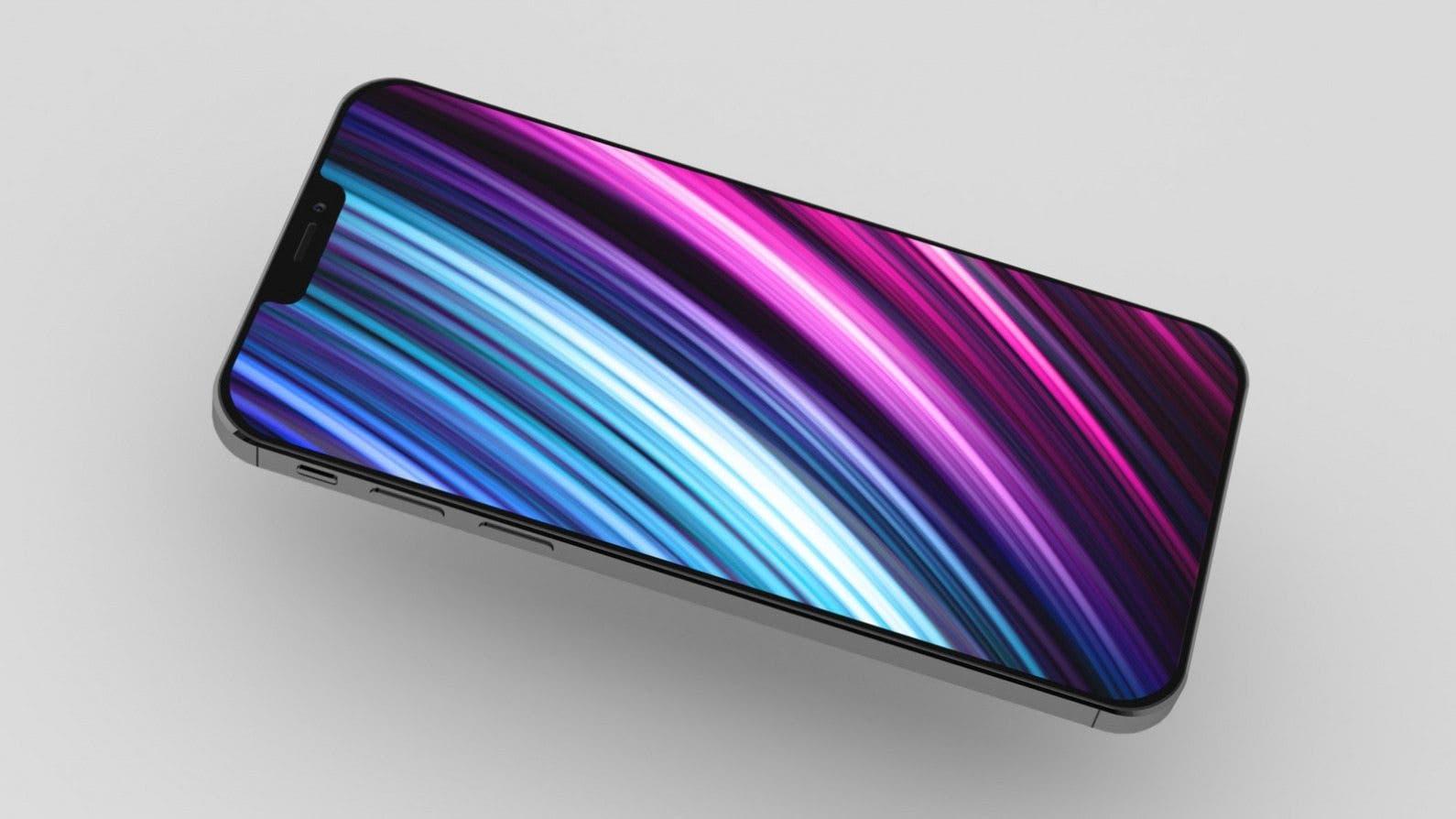
As we gear up for fall, the tech world is looking ahead to the biggest announcement of the year: the 2020 iPhones. While Apple has been known to throw us some curveballs with its naming patterns, if the company follows last year's lead, we'll be looking at the iPhone 12 and the iPhone 12 Pro. The global upheaval of this year may affect the release of the new iPhone, but we've been following all the iPhone 12 leaks and rumors out there, and have put together a picture of what the iPhone 12 may have in store. The first thing to know is there are expected to be four versions: a 5.7-inch iPhone, two 6.1-inch iPhones, and one 6.7-inch iPhone. We'll see the first year of 5G support, as well as rumors of all OLED displays, a triple-lens 3D camera, a brand-new physical design. Let's take a closer look.
Unlike previous years, we're likely looking at a release date in October. Apple CFO Luca Maestri has said the 2020 iPhones will be available "a few weeks later than the 2019 iPhone 11 models, which came out at the end of September." This means we'll likely see them around the middle of October. Apple leaker Jon Prosser told Forbesthe release will be staggered, so we may be seeing the lower-end models first and the higher-end ones come a bit after. This may indicate stock differences, so availability may vary between the entry-level and Pro versions.
OLED for All
While there is still expected to be entry-level and Pro versions of the iPhone 12, one difference they are not expected to have is OLED displays. According to The Wallstreet Journal, all 4 models will have OLED displays. It was originally rumored that the difference between models may include the higher-end versions having a 120 Hz "ProMotion" refresh rate, but industry insider Ross Young says this is not the case, and no models will feature this.
Big Design Changes
If the rumors of the 5.4-inch iPhone 12 are true, it will be the smallest iPhone since the SE, while the rumored 6.7-inch model would be the largest. Rumors from Bloomberg include a metal frame similar to the iPhone 4 or iPad Pro, with a square frame of stainless steel with glass still making up the front and back body. According to Ming-Chi Kuo, the grooving on the frame and the new injection molding procedures will help the internal antenna's performance by reducing the metal frame's negative impact.
Rendering shared by EverythingApplePro and Max Weinbench allegedly based on leaked CAD designs.
We also may be looking at a new navy blue color option, along the lines of the midnight forest green introduced with the iPhone 11. The YouTube channel EverythingApplePro and Max Weinbench released a video that included light blue, violet, and light orange as color options as well. We also may be seeing a smaller notch at the top
iPhone 12 A14 Chip: Too Good to Be True?
Every model will use an Apple-designed A14 chip that TSMC manufactures. In addition to providing speed and efficiency boosts, the A14 chip could help compensate for the extra battery 5G uses. Bloomberg says the chip will have a focus on speeding up AR tasks and artificial intelligence. Barclay analyst Blayne Curtis predicts the Pro models will have 6 GB RAM while the iPhone 12 will have 4 GB RAM. Overall, we should be seeing a big boost in performance, with much less power used, which almost sounds too good to be true. But the new 4nm process should enable the A14 Bionic chip to use 30 percent less power while providing 15 percent faster performance.
iPhone 12 Camera Gains
The iPhone cameras have a reputation to uphold. The iPhone 11 brought them back up to the top in the smartphone camera kingdom, and the tech world is watching to see what the 2020 iPhones will bring. The Wall Street Journal and Bloomberg have been making noises about a triple-lens arrangement, which brings up the possibility and even likelihood of a 3D camera on all the models. Are we going to see something similar to the LIDAR scanners on the 2020 iPad pro on any of these models? The possibility seems real, at least for the Pro models.
Rendering shared by EverythingApplePro and Max Weinbench allegedly based on leaked CAD designs shows possible new camera.
5G Comes to the iPhone
Analyst Ming-Chi Kuo has confirmed every model of the 2020 iPhone will use 5G technology. The company will use Qualcomm X55 5G model chips rather than Intel chips, which will offer peak download speeds of of 7Gb/s and upload speeds of 3Gb/s. mmWave, the faster but limited in range 5G network, is being set up throughout the US, but not all countries have implemented mmWave technology yet, so it is unclear where it will be available and if the slower but wider ranged sub-6 GHz network will be used in some areas instead. Kuo predicts we may see both mmWave and sub-6 GHz networks in countries such as US, Canada, UK, Australia, and Japan, while other countries may have only sub-GHz networks, at least to start off. The implementation is well under way, so we hope to see a strong start to 5G once these phones launch.
New iPhone Packaging
We can say goodbye to the earbuds and chargers that came in the box with our new iPhones. According to analyst Ming-Chi Kuo, this may be because of reduced demand for wired ear buds due to the popularity of AirPods. There may be a related deal on AirPods down the road, such as a discount code with the purchase of an iPhone, but nothing official has been announced there. The dropping of the charger, however, indicates Apple may be more thinking about production costs with this one. No accessories means less packaging, which is good news for the environment, and better news for the company footing the bill.
Names & Pricing for the New iPhones
Assuming Apple follows the naming structure it used for the iPhone 11, we'll probably be looking at two iPhone 12 models (5.4 inches and 6.1 inches), a 6.1-inch iPhone 12 Pro, and a 6.7-inch iPhone Pro Max. Most rumors have been indicating the pricing will be along the lines of the following:
$649 for the 5.4-inch iPhone 12
$749 for the 6.1-inch iPhone 12
$999 for the 6.1-inch iPhone 12 Pro
$1,099 for the 6.7-inch iPhone Pro Max
However, analyst Jeff Pu believes the 5.4-inch iPhone 12 will start at $749, which could bring the 6.1-inch version up to $799 or $849. Whether or not this increase would affect the Pro versions is yet to be seen.
The folks at iOttie have been on the forefront of using colorful fabrics to accessorize their accessories. They provided me with a review unit of their iON Wireless Go Power Bank($49.95) to try, and sure enough, it is as stylish as it is useful. It is a portable battery pack for iPhones that is just smaller than an iPhone SE or iPhone 8 but twice as thick. The first thing you notice is the attractive woven fabric (red or grey) that covers the surface. It looks nice on your coffee table and the cloth won't scratch your naked iPhone, although there is a rubber pad where the integrated Qi charging coil is.
You can charge up to three devices at once, using the Qi pad, a USB-A port and a USB-C port, as long as you have the right cables. The iON power bank comes with a color-matched USB-C to USB-A cable so you can charge the device itself. Another nice touch is the LED numeric display to show percentage of battery life. It is hidden behind the fabric so it disappears when not in use and makes for a nice effect.The battery has a decent 10,000 mAh and puts out 18 watts. As with most portable Qi chargers, you need to press a button to enable Qi charging because otherwise it would be consuming a little bit of power all the time, and would run out sooner. I've found the iOttie to hold a charge for weeks.
Pros
Nice attractive fabric in red or grey
LED numeric display to show percentage of battery life
Qi charging pad built-in
USB-C and USB-A ports
10,000 mAh and 18 watts of output
Cons
Need to press a button to enable Qi charging
Final Verdict
If you need to charge multiple devices, using USB-C, USB-A and Qi, the iON Wireless Go Power Bank from iOttie is a stylish and affordable choice.
We all know the frustration of that notification that pops up telling us our phone storage is low. When looking to see what's taking up space on an iPhone, one of the first things to check are podcasts and TV shows. Removing even just a couple of these larger files can free up storage quickly, but not all of them take up the same amount of space. Here's how to see how much storage podcasts and TV shows are taking up so you can make efficient decisions about what to remove and get back to enjoying your content. For more great Apple product tutorials be sure to check out our free Tip of the Day.
How to Tell How Much Space Your Podcasts & TV Shows Are Using
Go to Settings.
Tap General.
Tap iPhone Storage.
Scroll down to Podcasts or TV and tap.
Your downloaded content will be shown at the bottom of the new menu with the space it takes up beside them.
When you find your iPhone is at capacity, do this to find what to clear out, or you might find your favorite media isn't the problem at all!