Samsung is globally known for pioneering TV technology, each year aiming to improve the picture quality with the latest Neo QLED 8K and the state-of-the-art
http://dlvr.it/SNBlZR
Latest Cell phone i-Phone,Samsung, Nokia, Motorolla, T-Mobile Sprint Latest Models info and News
Friday, April 8, 2022
iPadOS 16 Rumors: Everything We’re Expecting for Summer 2022
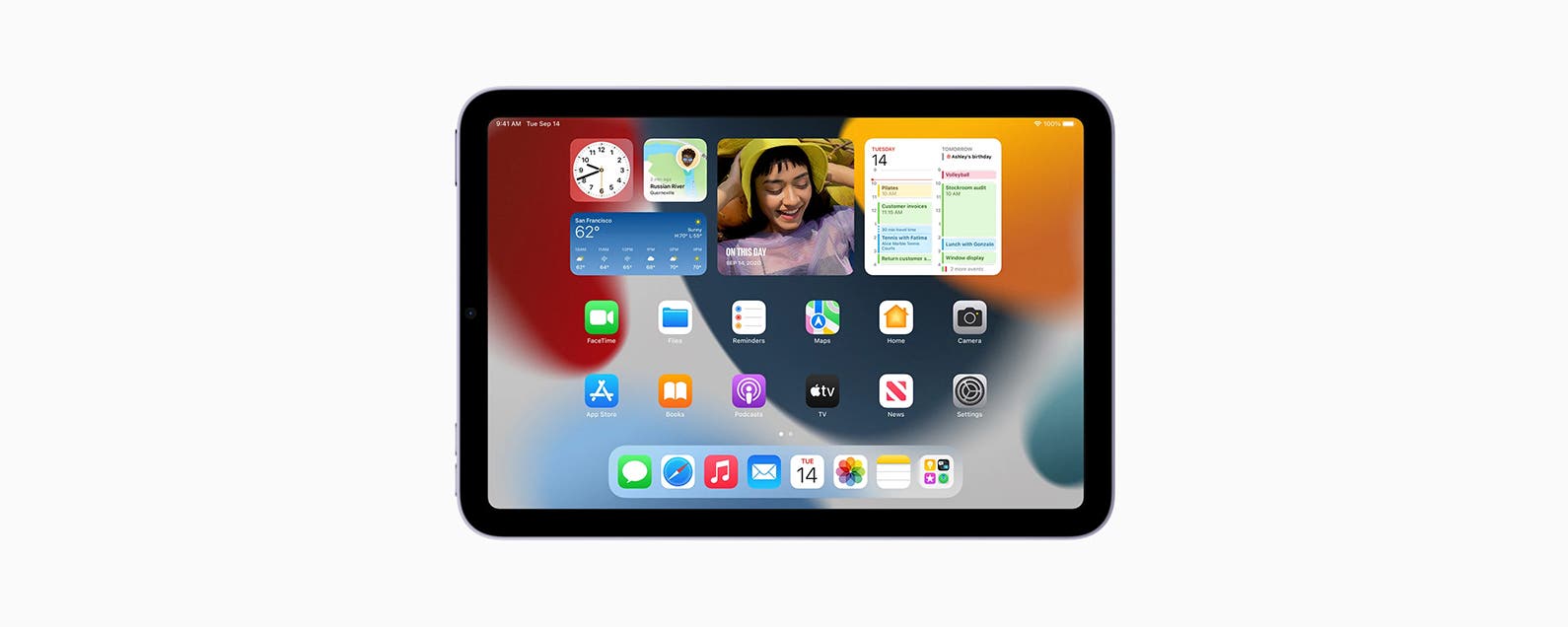
The updates that came to the tablet-specific operating system iPadOS 15 included some much-needed changes such as better notification management with the addition of the Notification Summary and Focus modes. iPadOS 15 also brought with it a more stream-lined multi-tasking UI and new Quick Note functionality.
However, a couple rumors concerning iPadOS 16 point towards particularly exciting new features for iPad users. Here’s everything we know so far from possible announcement and release dates to some interesting potential features coming to iPadOS 16.
Related: iPhone 14 Release Date & Rumor Roundup
Image Courtesy of Apple
iPadOS 16 Release Date Rumors
For those new to the Apple world, the company has traditionally revealed new software and updates at the developer-focused Worldwide Developers Conference, or WWDC, that takes place every June. We can expect that Apple will debut its plans for iPadOS 16 at the conference this summer, but based on the September 2021 release of iPadOS 15, we will likely have to wait a few months after the WWDC before we can access the new features. Typically, in between a new software’s debut at the WWDC and its public release, Apple will allow developers and a few keen Apple consumers to try out a beta version, testing and correcting for bugs. Without a crystal ball, we can be pretty confident predicting iPadOS 16 to come to the masses in September of 2022.
Which iPads will Support iPadOS 16?
Although it’s much too early to be sure which iPads will support this big software update—especially if some of the new features coming to iPadOS 16 require specific hardware—we can make a few guesses as to which iPads will still run, and which will be kicked to the curb. Considering that the iPad Air 2--a tablet released eight years ago in 2014--can run iPadOS 15, if any iPads do get the chop, it won’t be many. Here’s a complete list of the iPads that support iPadOS 15 for reference:
* iPad Pro 12.9 (5th gen)
* iPad Pro 11 (3rd gen)
* iPad Pro 12.9 (4th gen)
* iPad Pro 11 (2nd gen)
* iPad Pro 12.9 (3rd gen)
* iPad Pro 11 (1st gen)
* iPad Pro 12.9 (2nd gen)
* iPad Pro 12.9 (1st gen)
* iPad Pro 10.5
* iPad Pro 9.7
* iPad (9th gen)
* iPad (8th gen)
* iPad (7th gen)
* iPad (6th gen)
* iPad (5th gen)
* iPad mini (6th gen)
* iPad mini (5th gen)
* iPad mini (4th gen)
* iPad Air (5th gen)
* iPad Air (4th gen)
* iPad Air (3rd gen)
* iPad Air 2
What to expect from iPadOS 16
Image Courtesy of Apple
With addition of the M1 chip in the 5th generation iPad Air, the Air now joins a lineup of ridiculously powerful tablets with a less-than stellar operating system. The biggest complaint we’ve been hearing from iPad users is that, while the M1 chip is a feat of engineering, the operating system is subpar and doesn’t even come close to capitalizing on the tablet’s processing power. However, there are a few rather exciting rumors about what Apple can and might do to improve the OS with M1 compatibility.
M1-Native Apps
According to iDropNews, the big new addition to iPadOS 16 will be Mac-level first-party app support. They claim that Apple is planning to launch Final Cut Pro, Logic Pro, and xCode for M1-compatible iPads, a huge plus for artists and creatives and positions the iPad as a reasonable alternative to a MacBook.
Floating App Windows
For many iPad users, one of the biggest frustrations has been the lack of a true multi-window multitasking device. While the iPad received some improvement to its user interface with iPadOS 15, self-professed researcher Majin Bu claims that "Apple is developing a smart system for iPadOS" and it will supposedly allow apps to operate in full-screen but enable them to "automatically shrink when connected to keyboard and trackpad." This is a cool feature regardless of whether it makes it into the next software update, and broadens the scope for iPad’s usability in the future.
Interactive Widgets and Lock Screen Widgets
Widgets were an extremely fun edition to iOS 14 in 2020 and many users would be excited for an update. In a tweet, leaker @LeaksApplePro suggested that iPadOS 16 will release interactive widgets that allow you to control the app without being taken to the app in question. This feature would be amazing for music apps, weather apps, and the flashlight.
But other rumors report that we may also get widgets on the lock screen. Apple has very much avoided any maximal changes to the lock screen over its many years, but this could change with the addition of widgets to the lock screen in iPadOS 16.
Possible App Icon Redesign
This rumor comes around a lot, but there may be something to it. In the same report from iDropNews that proposed the M1-native apps, it was also suggested that first-party app icons may receive a makeover. According to the report, Alan Dye, VP of Human Interface at Apple and his team are currently in the midst of developing the new looks, and claims that the icons will remain fairly similar to the macOS Monteray icons.
Image Courtesy of Apple
What We Really Want
Personally, the iPad is my favorite Apple device. As an iPad enthusiast, the most important and necessary upgrade we need to see to the iPad is increased battery life. There have been many complaints about the 2021 Magic Keyboard draining the battery of the Pro at an even quicker rate, and with the M1 Macs running for up to 17 hours away from the charger, this is becoming a big problem. The iPad Pro can barely make it 10 hours fully charged. However, this is more of a hardware issue, and I hope to see improvements in this area going forward.
iPadiPadOSDevice ManagementMaster your iPhone in one minute a day: Sign up here to get our FREE Tip of the Day delivered right to your inbox.
http://dlvr.it/SN9Glx
Thursday, April 7, 2022
Year One: Samsung’s EYELIKE™ Fundus Camera Powers Technology To Protect People and the Planet
The theme of this year’s World Health Day — Our Planet, Our Health — demonstrates the understanding that human health is deeply interconnected with
http://dlvr.it/SN8Fz2
Wednesday, April 6, 2022
How to Open Spotify Links in Apple Music & Vice Versa
You may have been wondering how to convert a song from Apple Music to Spotify or how to share a Spotify song to Apple Music. With the App MusicMatch, this is now possible. With this app, you can share a Spotify song link and convert it to Apple Music or translate a Apple Music link to Spotify.
Related: How To Download All Your Songs in Apple Music to Your iPhone (2022)
From Apple Music to Spotify
* To do this, first go to the App Store.
* Download the app MusicMatch.
* Open the app and click through the tutorials.
* Then, open Apple Music, pick a song you would like to open in Spotify, and tap the three dots on the far right of the song title.
* Select Share Song…
* Tap Copy from the pop-up menu.
* Then, return to your home screen and open the MusicMatch app.
* The link will automatically paste or select Paste Link Here.
* Go to Preferred Music Service.
* Select your preferred music streaming service.
* Then tap Open in Spotify.
How to Send a Spotify Link To Apple Music
* Make sure you have downloaded and set up the MusicMatch app.
* Open Spotify and select a song.
* Tap the three dots on the far right of the song title.
* Select Share.
* Select Copy Link.
* Open the MusicMatch app.
* Paste the link.
* Go to Preferred Music Service.
* Select your preferred music streaming service.
* Then tap Open in Apple Music.
Opening Music Links
If you receive a link to music from a streaming service you are not subscribed to
* Press and hold on the message.
* Select Copy.
* Open the MusicMatch app.
* Paste the song.
* Select Open In Spotify. If you don't have that option or want to use a different service, tap Preferred Music Service to select another one
How-ToiPadiPhoneAppsApple MusicStreaming ServicesSpotifyEntertainmentMaster your iPhone in one minute a day: Sign up here to get our FREE Tip of the Day delivered right to your inbox.
http://dlvr.it/SN59p0
[Video] Here To Upgrade the World: Introducing Samsung’s Game-Changing DDR5 Solution
The age of DDR5 has arrived. From 5G and artificial intelligence (AI) to metaverse and augmented reality (AR), high-performance computing is pushing the limits
http://dlvr.it/SN3XRB
[Infographic] Make Your Life More Colorful With Smart Monitor M8
Today, the definition of home life is constantly expanding as we adapt to new ways of working, entertaining and even relaxing inside our own spaces. Around the
http://dlvr.it/SN37Ff
Which New iOS 15.4 Emojis Are You Actually Using?
In the 180th episode, David and Donna share which of the dozens of new iOS 15.4 emojis they’re actually using, from heart hands to melting face. Also, they explain why you might be seeing a blank gray box in place of the new emojis! Other topics include adding your driver’s license to Apple Wallet in states that support this feature and moving your cursor with precision when typing.
Click here to listen and subscribe. If you like what you hear, be sure to leave a review. And remember to tune in every other week to hear our editors share with you the latest Apple news, best apps, iPhone tricks, and coolest accessories.
Limited time offer! Claim 50% off your subscription to iPhone Life Insider when you visit iPhoneLife.com/PodcastDiscount.
This episode was brought to you by:
OWC USB-C Travel Dock
Working on the go can be challenging, especially because replicating an office setup leaves you tangled in chords and dongles. The OWC USB-C Travel Dock adds five essential ports to your Mac, PC, iPad, iPad Pro, tablet, or phone. This stylish dock is only as wide as a credit card, yet it has ports galore: two USB, USB-C, HDMI, and an SD card reader. It even allows for up to 100W pass-through power, so you can charge your device while utilizing the other ports. Access to all essential ports wherever you are with the OWC USB-C Travel Dock!
Questions of the week:
What new emojis are you using? Let us know at podcast@iphonelife.com.
Articles mentioned in this episode:
* How to Add Driver's License to Apple Wallet (2022 Update)
* iPhone Text Editing Trick: Move Cursor on iPhone the Easy Way (iOS 15 Update)
* How to Use the Spacebar to Select & Edit Text on iPhone
* All the New Emojis from iOS 15.4 (2022)
Apps & gear mentioned in this episode:
* Hagibis Cleaning Pen for Airpods ($9.99)
* Mujjo Full Leather Case for iPhone 13 Monaco Blue ($44.90)
Useful links:
* Join the iPhone Life Facebook Group
* Insider walk-through: get a sneak peek of members-only benefits
* Get the Insider discount for Podcast Listeners
* Sign up for the free Tip of the Day Newsletter
* Email the Podcast
* Subscribe to iPhone Life magazine
NewsApple EventsApple StoreEntertainmentMaster your iPhone in one minute a day: Sign up here to get our FREE Tip of the Day delivered right to your inbox.
http://dlvr.it/SN2pYH
Tuesday, April 5, 2022
All the New Emojis from iOS 15.4 (2022)
You may be asking, what are the new emojis of 2022? Apple debuted its latest round of emojis with iOS 15.4, and emoji updates are always exciting! These new emojis are now available as of the iOS 15.4 update released on Monday, March 14th. Let's dive into all the new emojis for you to enjoy.
Related: How to Find Out What Those Emojis Are Called
The new iOS 15 emojis give people a bunch of new and fun ways to express themselves, including seven brand-new smiley face emojis—the largest addition since iOS 11.1 in 2017—a melting face, a glitzy disco ball, and a multi-racial, customizable handshake emoji.
Jump To:
* New Smileys
* Gender Neutral Emojis
* New Hand Gesture Emojis
* Animals & Nature Emojis
* Food & Drink Emojis
* Objects & Symbols
New Smileys
The new smileys perfectly sum up a few different emotions, like face-melting embarrassment, tears of joy, and that feeling you get when you don’t want to watch but can’t look away.
While the face with its hand over its mouth may seem familiar, this emoji’s open shocked eyes will be universal across all platforms. Previously, this emoji looked slightly different across different platforms, causing some confusion about its meaning. Instead, Apple has updated the old smiley with its hand over its face to have smiling eyes and blushing cheeks, implying shyness and giggly laughter as opposed to shock and concern. Another emoji that is also getting a lot of attention is the lip biting emoji, which has become extremely popular on TikTok and Twitter.
Gender Neutral Emojis
Since 2019, inclusivity has been an important factor for venders to consider when designing emojis. With the latest iOS 15.4 update, Apple continues this trend by adding two new gender-neutral people emojis: person with a crown and pregnant person, as well as adding a new pregnant man emoji.
New Hand Gesture Emojis
In addition to the seven new smileys, there are also seven new hand gestures, each of which has customizable skin tone. These emojis include a dramatic and accusatory point, and my favorite new emoji, the heart hands. Apple also updated the handshake emoji to allow you to change the skin tone of either hand.
Image courtesy of Emojipedia
Animals & Nature Emojis
In the Animals and Nature section of emojis, the iOS 15.4 update has added four nature-related emojis including coral, a bird’s nest with and without eggs, and a lotus flower. We also now have a troll emoji, for all the many troll-related discussions I'm sure you've been having lately.
Food & Drink Emojis
We received three new emojis that are food and drink related: an empty jar, a glass pouring out liquid, and the absolutely vital addition of beans.
Objects & Symbols
Objects and symbols got quite a few new emojis, ranging from a car tire to an X-Ray. Two of my absolute favorite new emojis from this section are the disco ball and the bubbles. But the equal sign and the low battery icon are extremely practical. It’s hard to believe they were not always included in the emoji list!
These new emojis debuted as part of Apple’s iOS 15.4 update that arrived mid-March 2022. Be sure to update your phone to iOS 15.4 in order to take full advantage of these new emojis. Comment below which new emoji is your favorite! For more fun ways to use your iPhone or iPad, sign up for our Tip of the Day.
NewsiPadiPhoneMacEmojisiOSiPadOSmacOSCommunicationMaster your iPhone in one minute a day: Sign up here to get our FREE Tip of the Day delivered right to your inbox.
http://dlvr.it/SN1Xfp
Samsung Announces ABB Partnership, Expanding SmartThings Support for Residential, Commercial Buildings
Samsung Electronics today announced a partnership with global technology company ABB to expand Samsung SmartThings integration into more homes and buildings.
http://dlvr.it/SN0PKD
Thursday, March 31, 2022
Unbox & Discover 2022 Highlights: Meet the 2022 Samsung Neo QLED 8K
At its Unbox & Discover event on March 30, Samsung Electronics unveiled all its latest visual display innovations, including the all-new 2022 Neo
http://dlvr.it/SMj5jV
Full Video Replay: Unbox & Discover 2022
On March 30, Samsung Electronics held its virtual Unbox & Discover 2022, at which the company introduced its very latest Samsung Neo QLED 8K along
http://dlvr.it/SMgFFh
Wednesday, March 30, 2022
Unbox Samsung’s 2022 Lineup, Designed for Innovative Personalized Experiences
Samsung Electronics today showcased its 2022 lineup of Neo QLED 8K, soundbars, accessories and sustainability initiatives at its virtual Unbox &
http://dlvr.it/SMflBg
Tuesday, March 29, 2022
How to Forget a Wi-Fi Network on Mac
Your Mac does a lot behind the scenes. One cool feature is keeping track of all the Wi-Fi networks you connect to, remembering the passwords, and automatically re-connecting the next time you're in range. Most of the time, this is great. But there may be an occasion when it’s not. Maybe there are multiple networks in range, and your Mac is connecting to the wrong one. We'll cover how to remove a Wi-Fi network from your Mac, as well as how to keep a saved network but stop your computer from automatically connecting.
Related: How to Sync Messages from iPhone to Mac
How to Forget Wi-Fi Network on Mac
If your Mac keeps connecting to a Wi-Fi network and you don’t want it to, you can either remove the saved network or stop your computer from auto-connecting to the specific Wi-Fi network. Just keep in mind that if you remove a saved network, you will need to re-enter the password if you ever want to log back in. For more handy Mac tips, consider signing up for our free Tip of the Day Newsletter. Now, here's how to forget a network on your Mac and disable auto-connect for networks you don't often need but want to save:
* Click the Wi-Fi icon in the top-left corner.
* Select Network Preferences.
* Click Wi-Fi in the left panel.
* Click Advanced.
* You will see a list of all the networks you have connected to in the past.
* Scroll through the list and click a network you want to forget.
* If you no longer need this Wi-Fi network, click the minus button to remove it from your Mac.
* If you want to keep the network on your list, but just disable the auto-connect feature, click to uncheck the Auto-Join box.
* To delete multiple networks at the same time, click on one, then hold down the Shift key and click another network to highlight a block. Now click the minus button to delete all selected networks.
That's all there is to it! As a final tip, your Mac prioritizes which network to connect to first based on the order of your Wi-Fi log. Click and drag the networks up or down to change the order. If multiple networks are in range, your Mac will try the one at the top first.
How-ToMacSettingsWi-FiDevice ManagementMaster your iPhone in one minute a day: Sign up here to get our FREE Tip of the Day delivered right to your inbox.
http://dlvr.it/SMbZmh
Monday, March 28, 2022
How to Play Apple Music on Alexa
This article goes over how to connect Apple Music to Alexa. Alexa works as an external speaker, but if you have Apple Music instead of Amazon Music, you'll want to know how to get your home assistant to connect to Apple Music. If you want to play Apple Music on Alexa, you'll need to set it up through the Alexa app. Here's how.
How to Connect Apple Music to Alexa
Amazon Echo speakers work surprisingly well for filling your house with music. However, if you prefer Apple Music to Amazon Music, you might want to play Apple Music through Alexa. To do this, you need to connect it to your Alexa app on your iPhone. You will need to make sure:
* Your iPhone is paired with an Alexa-compatible device
* You've downloaded the Amazon Alexa app
* You have an active Apple Music subscription.
Then you can connect Apple Music to Alexa. To learn more about smart home assistants and your Apple devices, check out our free Tip of the Day newsletter. Now, here's how to connect Apple Music to Alexa:
* Open your Amazon Alexa app.
* Tap More on the bottom right.
* Tap Skills & Games.
* Tap the Search icon on the top right.
* Type in Apple Music and select it from the menu.
* Tap Enable to Use.
* Log in with your Apple ID and proceed with any authentication necessary.
* When you see Access Request, tap Allow.
* Tap Close.
You can follow the prompt to set up Apple Music as the default music player in your Amazon Alexa app, or do this later in Settings. Now, just tell Alexa to play something on Apple Music and enjoy the tunes!
How-ToiPhoneAppsApple MusicThird-Party AppsAmazonArt & MusicMaster your iPhone in one minute a day: Sign up here to get our FREE Tip of the Day delivered right to your inbox.
http://dlvr.it/SMWbVG
[Infographic] Get To Know the New, Even More Convenient Smart Monitor M8
In this day and age, when working from home, video conferencing and home offices have become the norm, connectivity is key. Offering excellent performance, an
http://dlvr.it/SMW9KX
Subscribe to:
Posts (Atom)