Apple Watch Assistive Touch is an accessibility option designed for those with mobility limitations or those who only have the use of one hand. That said, this nifty setting is an awesome shortcut for anyone, as it allows you to quickly answer or decline calls on your Apple Watch without having to touch your display. Sound convenient? We'll show you how to enable Assistive Touch and answer calls on your Apple Watch using these simple gestures!
What to Know:
* On your iPhone, open the Watch app, tap Accessibility, select AssistiveTouch, and tap the AssistiveTouch toggle to enable the feature.
* Once Assistive Touch is enabled, pinch twice to answer or end calls on your Apple Watch. To decline an incoming call, pinch once then clench your fist.
Enable Apple Watch Assistive Touch to Answer Calls with Gestures
Before we get into how to answer calls with the Apple Watch Assistive Touch feature, we have to first turn it on. The simplest way to do this is through the Watch app on your iPhone.
* Open the Watch app on your iPhone and tap Accessibility.
* Scroll down and tap AssistiveTouch.
* Tap the AssistiveTouch toggle to turn the feature on.
Now that Assistive Touch is enabled, we'll show you how to answer calls on your Apple Watch using these quick-and-easy gestures. To learn more about your Apple Watch features and useful shortcuts, sign up for our free Tip of the Day Newsletter.
How to Answer Calls on Apple Watch Using Gestures
The Apple Watch Assistive Touch feature has default gestures assigned for answering, ending, and declining calls, which we'll cover in more detail below. However, if you don't like the default gestures, you can easily customize your Apple Watch Assistive Touch settings to select a movement that's more convenient for you. Now, here's how to answer and decline calls on your Apple Watch using gestures:
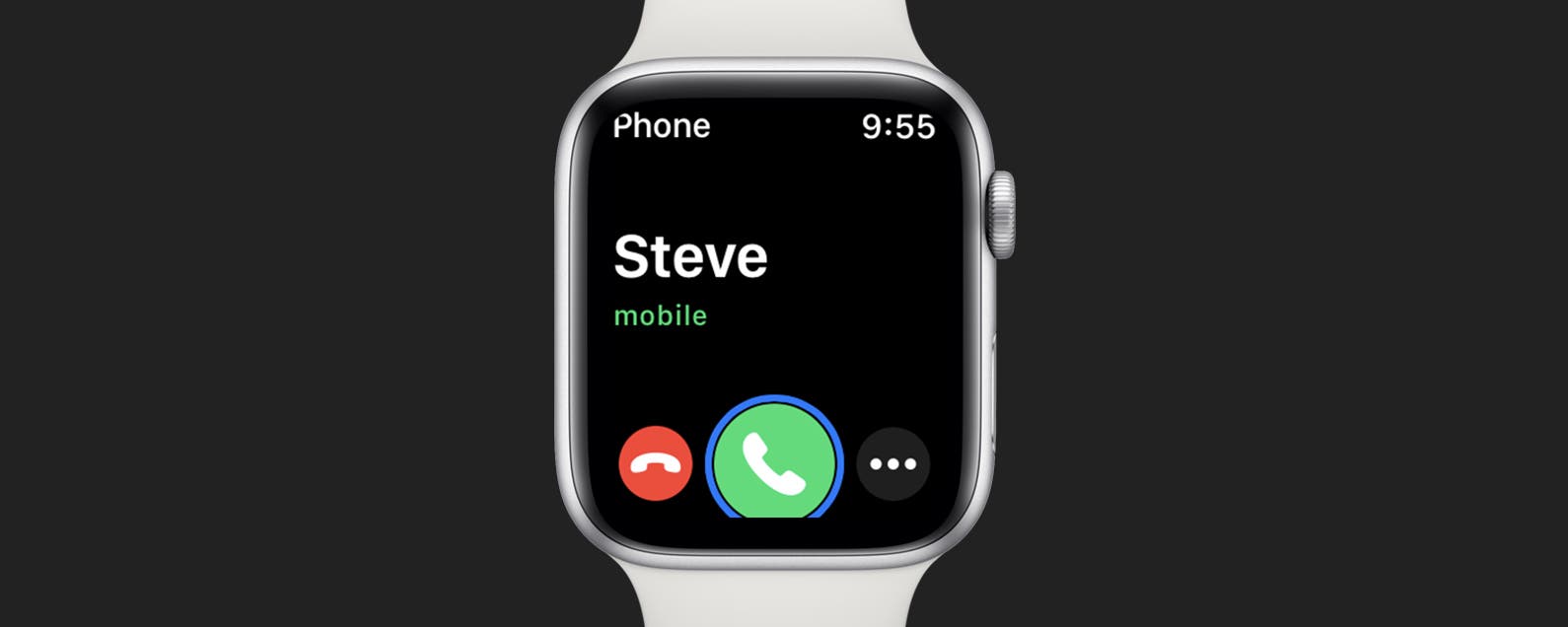
* When receiving a phone call, pinch twice to answer. A notification on your Apple Watch will also let you know how to answer the phone.
* To end a call you've started, pinch twice to hang up.
* To decline an incoming call, use a single pinch gesture to move your selection from the answer call button to the decline call button. The red decline button will have a gray outline.
* Clench your first once to confirm your selection, which will decline the call.
With AssistiveTouch enabled, you can avoid having to punch buttons on the tiny screen, and can instead control your Apple Watch with hand gestures, allowing for quick and easy navigation. Also, if you often use your Apple Watch to track your daily step count, you might want to learn how to enable this hidden setting so you can see steps on your Apple Watch face.
How-ToApple WatchAccessibilityCommunicationMaster your iPhone in one minute a day: Sign up here to get our FREE Tip of the Day delivered right to your inbox.
http://dlvr.it/ScxnFr
Latest Cell phone i-Phone,Samsung, Nokia, Motorolla, T-Mobile Sprint Latest Models info and News
Friday, November 18, 2022
Samsung Further Develops Bixby, Introducing a New Language and Setting a Foundation for Future Growth
Samsung Electronics today announced that Bixby and its Artificial Intelligence (AI) voice assistant, now supports Latin American Spanish as a language option.
http://dlvr.it/ScxmtK
Thursday, November 17, 2022
USB-C vs. Lightning Cable: Which Cable Does What?
USB-C cable vs. Lightning cable: both cables charge, transfer data, and connect devices, but how are they different? Which is better, Lightning or USB-C? And which cable is set to become the industry standard? We've got the answers to all your questions.
Jump To:
* What Is a USB-C Cable & What Is a Lightning Cable?
* USB-C vs. Lightning Cable Overview
* Which Cable Will Become the Standard?
What Is a USB-C Cable & What Is a Lightning Cable?
Let's start with the similarities. Both USB-C and Lightning cables can be used to charge your iPhone, iPad, and other Apple devices and accessories, but that's not all. You can use your USB-C or Lightning connector to transfer photos, videos, files, and more between devices. For more great Apple charger cord and adapter articles, check out our free Tip of the Day.
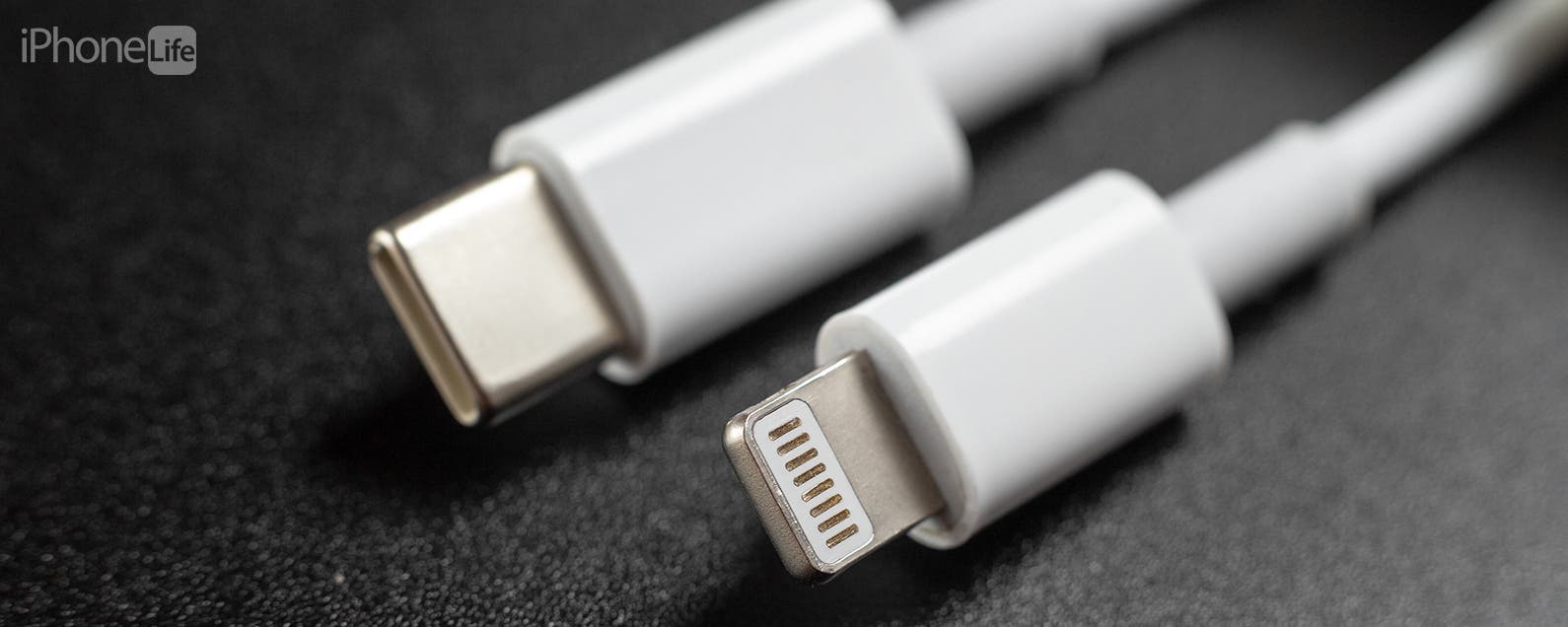
So, what are the differences between the two cables? A Lightning cable is an Apple proprietary cable that has a Lightning connector at one end, which fits, of course, into a Lightning port. The Lightning connector has eight pins and can be inserted into the port face up or face down. The other end of the cable can have a USB or USB-C connector, or an alternate connector, depending on the purpose.
A USB-C cable has a USB-C connector on one end, which fits into a USB-C port. This connector can also be inserted face up or down and has 24 pins arranged around the interior of an oval-shaped plug. As with the Lightning cable, a USB-C cable can have a USB or USB-C connector at the other end, but can also have a Lightning connector or other connector, depending on its purpose.
Beyond differences in shape, the USB-C cable performs all the functions a Lightning cable does as well or better. Let's go over why the USB-C cable is set to become the industry standard.
Related: Phone Battery Myths, Fast Charging, Charger Cable Safety & More
USB-C vs. Lightning Cable Overview
Here are the differences between USB-C and Lightning cables at a glance.
USB-C Cable
Lightning Cable
Charging Speed
100 W/3 A up to 250 W/5 A
12 W/2.4 A and higher
USB Support
USB4
USB2
Data Transfer Speed
up to 40 Gbps
up to 480 Mbps
Lightning & USB-C Power Delivery
As mentioned before, both Apple's Lightning cable and the USB-C cable can power your device. The difference is that Lightning cables support a maximum current of 2.4 amps, while USB-C cables carry 3 amps with support for up to 5 amps. So, USB-C cables are able to charge your devices faster and support Apple's fast charge feature.
To fast charge your iPhone, you'll need an iPhone 8 or later and a USB-C to Lightning cable with a USB-C power adapter that delivers between 8 and 140 W. The fast charge feature can recharge your iPhone's battery up to 50 percent in only half an hour!
Lightning & USB-C Data Transfer
Sorry, Lightning cable, the USB-C beats you in upload and download speeds, as well! The USB-C cable supports USB4 specification, the latest update that enables the highest USB bandwidth to date, and offers up to 40 Gbps of data transfer speed. While Apple hasn't released the exact technical specifications for the Lightning cable, it performs at a USB2 standard speed and transfers data at up to 480 Mbps.
Lightning & USB-C Cable Compatibility
Here's where the Lightning cable really loses out to the USB-C. Apple's Lightning cable compatibility is far more limited than USB-C, extending only to most (but not all) iPhones, iPads, and iPods released since 2012, as well as adapters and Lightning-compatible accessories.
Meanwhile, the USB-C connector is becoming universal and is supported by newer PCs and Android phones, as well as the Xbox series X, Nintendo Switch, the PS5, and even the third-generation iPad Pro and later, and the latest iPad, iPad Air, and iPad mini.
Which Cable Will Become the Standard?
The European Union passed a law in October 2022 that makes the USB-C cable the universal charging standard for personal electronics by the end of 2024. This means that manufacturers, including Apple, will need to make separate electronics for the European market or standardize their charging ports to USB-C on all their devices. With Apple's move to USB-C ports on its latest iPads, I think it's pretty much inevitable that the USB-C cable will become the new industry standard, at least until there's an even more powerful option on the market!
Top image credit: Ivan_Shenets / Shutterstock.com
Cables & AdaptersChargingDevice ManagementMaster your iPhone in one minute a day: Sign up here to get our FREE Tip of the Day delivered right to your inbox.
http://dlvr.it/ScxLcG
Samsung Wins 46 CES 2023 Innovation Awards From the Consumer Technology Association
Samsung Electronics, a global leader in technology, announced today that 46 of its new products and service innovations have received CES® 2023
http://dlvr.it/ScvL2x
Wednesday, November 16, 2022
Samsung Electronics Announces Exciting New Ways To Experience Game Streaming
Samsung Electronics announced exciting new ways for gamers to experience game streaming with the addition of new partners and the introduction of game
http://dlvr.it/SctHJQ
Tuesday, November 15, 2022
How to Fix: iPhone 14 Pro Always-On Display Stays Bright While Charging
The iPhone Always-On Display is a new feature of the iPhone 14 Pro and iPhone 14 Pro Max. This setting displays useful information on the Lock Screen while keeping it dim, but you may have noticed that it stays annoyingly bright when charging. If this issue is bothering you, we'll show you how to deal with it by enabling Sleep Focus mode!
How to Dim iPhone 14 Pro with Always-On Display While Charging Wirelessly
Always-On Display uses a low-power mode to limit power consumption while still showing useful information on your Lock Screen. You'll notice, however, that the screen may still be brighter than you want when charging, especially if you're trying to sleep. Fortunately, you can make your iPhone 14 Pro or Pro Max darken even with Always-On Display by using the Sleep Focus mode, and we'll show you how. For more information on this useful feature, check out our general guide on how to use Focus mode, and be sure to sign up for our free Tip of the Day newsletter for more information on new features like the Always-On Display.
Of course, if you find that Always-On Display simply isn't worth the trouble to you, another option is to simply disable Always-On Display completely, and we'll show you where you can turn it off at the end of the article.
* If you'd like to dim the screen temporarily while charging your phone, start by swiping from the upper right corner of the screen toward the center. This will open the Control Center and can be done from just about any screen, including your Lock Screen.
* In the Control Center, there is a button labeled Focus. Tap it to open a menu of Focus options.
* One of the default Focus Modes is simply called Sleep. Tap it to dim your screen and set other options to keep you from being disturbed while resting.
* When you're done and ready to turn off the Sleep Focus, you can do so by tapping Sleep at the bottom of the Lock Screen. This will open the Focus mode menu again, where you can tap tap the highlighted Sleep focus to turn it off.
When your Sleep Focus is on, your screen should be darker than usual, and this may dim it enough to let you sleep comfortably. If not, keep reading to find out how to turn off Always-On Display entirely.
How to Disable Always-On Display
Sleep Focus not enough to let you sleep at night? Luckily, you can disable Always-On entirely. Here's how:
* If you'd like to simply disable Always-On Display, the option to do so is in the Settings app.
* In Settings, find and tap the Display & Brightness option.
* Here you'll find a toggle labeled Always On. By default, this will be enabled (green), but you can tap it to turn it off (gray).
After this, the Always-On Display feature of your iPhone 14 Pro or iPhone 14 Pro Max will be disabled. You can turn it back on at any time from the same setting if you decide you want to use it again.
How-ToiPhoneDisplay & BrightnessFocusSleep ModeLifestyleMaster your iPhone in one minute a day: Sign up here to get our FREE Tip of the Day delivered right to your inbox.
http://dlvr.it/ScmrSh
Thursday, November 10, 2022
Samsung Electronics Launches Newsroom in the Philippines
Samsung Electronics today announces the launch of Samsung Newsroom Philippines, which will serve as the official news source of Samsung Electronics for local
http://dlvr.it/ScXHFy
A Leveled-Up Gaming Experience: Gamers Around the World Meet Odyssey Ark
In August, Samsung Electronics unveiled the Odyssey Ark, surprising the world with its groundbreaking curved gaming screen and providing an innovative and
http://dlvr.it/ScXH41
Monday, November 7, 2022
[Voices of Galaxy] Meet the Man Turning Ocean-Bound Plastic Waste Into a Positive With Plant Pots
In 2020, Ally Mitchell, a longtime commercial diver, was asked to join a salvage operation for a cargo ship that had been wrecked near his home in
http://dlvr.it/ScMs6r
Samsung Electronics Begins Mass Production of 8th-Gen Vertical NAND With Industry’s Highest Bit Density
Samsung Electronics, the world leader in advanced memory technology, as promised at Flash Memory Summit 2022 and Samsung Memory Tech Day 2022, announced today
http://dlvr.it/ScLv8D
The Freestyle Selected as One of Oprah’s Favorite Things
Samsung Electronics announced that The Freestyle is included in 2022’s Oprah’s Favorite Things holiday gift list featured on OprahDaily.com and in the Winter
http://dlvr.it/ScLTXx
Thursday, November 3, 2022
Samsung Electronics’ Brand Value Makes Double-Digit Increase, Taking a Spot in the List of Top Five Best Global Brands 2022
Samsung Electronics today was recognized by Interbrand, a global brand consultancy, as one of the top five in the Best Global Brands 2022. Each year,
http://dlvr.it/Sc8D86
Wednesday, November 2, 2022
Installing iPadOS 16, the Case for the iPad Pro & Why No One’s Using iOS 16 Messaging Features
It’s time to update to iPadOS 16 and macOS Ventura! In Episode 193, David and Donna discuss Apple’s new OS releases and unveil which iPad Donna decided to buy thanks to listener feedback. They also take a look at why nobody seems to be using new iOS 16 messaging features like marking as unread, editing, and unsending.
Click here to listen and subscribe. If you like what you hear, be sure to leave a review. And remember to tune in every other week to hear our editors share with you the latest Apple news, best apps, iPhone tricks, and coolest accessories.
Limited time offer! Claim 30% off your subscription to iPhone Life Insider when you visit iPhoneLife.com/PodcastDiscount.
This episode was brought to you by:
Jamf
Effortlessly set up and manage all of your Apple devices with Jamf Now! This cloud-based device management software allows you to remotely configure the devices your team uses on a daily basis (such as iPads, iPhones, Mac computers, and more), giving you the ability to set up new equipment, add apps, manage security features, and much more. With Jamf Now, one person can do in a day what a small team of people could do in a week. Start with three devices for free and add more for just $2 per device, paid monthly.
Question of the week:
Does your iPad hold a charge when you’re not using it? What are your thoughts on iPadOS 16 Stage Manager? Let us know at podcast@iphonelife.com.
Articles & gear referred to in this episode:
* Apple’s iPad Comparison Chart
* How to Mark iMessage as Unread on iPhone (iOS 16)
* How to Edit Text Messages on iPhone after Sending (iOS 16)
* How to Unsend iMessage After You've Sent It (iOS 16)
* STM Dux 16L Slim Backpack: ($229.95)
* STM Dux Messenger Bag ($249.95)
* Youtube TV ($64.99/month)
* The Verge - In Defense of the Voice Message
Useful links:
* Join the iPhone Life Facebook Group
* Insider walk-through: get a sneak peek of members-only benefits
* Get the Insider discount for Podcast Listeners
* Sign up for the free Tip of the Day Newsletter
* Email the Podcast
* Subscribe to iPhone Life magazine
NewsiPhoneApple EventsApple StoreEducationMaster your iPhone in one minute a day: Sign up here to get our FREE Tip of the Day delivered right to your inbox.
http://dlvr.it/Sc5CGt
Tuesday, November 1, 2022
How to Turn On Battery Percentage in iOS 16
A few years ago, Apple made the decision to remove the ability to see the battery percentage in the battery icon on the iPhone. This decision was widely contested, and as of iOS 16, Apple has returned this extremely useful feature to iPhone users. While the battery display is not exactly the same as it used to be, it's pretty comparable and the best part is that it is so much easier to view your iPhone's percentage of battery at a quick glance.
Related: Can You Allow Paste in All Apps for Items Copied to the Clipboard in iOS 16?
Jump To:
* How to Show Battery Percentage on Battery Icon
* Which iPhones are Compatible with Battery Percentage Icon?
How to Show Battery Percentage on Battery Icon
Whether it's important to you to be able to see exactly what percentage your iPhone's battery is on at any given moment, or you're attempting to track and preserve your iPhone's battery usage, showing the battery percentage in the battery icon can be super helpful. For more tips and tricks about how to use your apple devices, be sure to sign up for our free Tip of the Day!
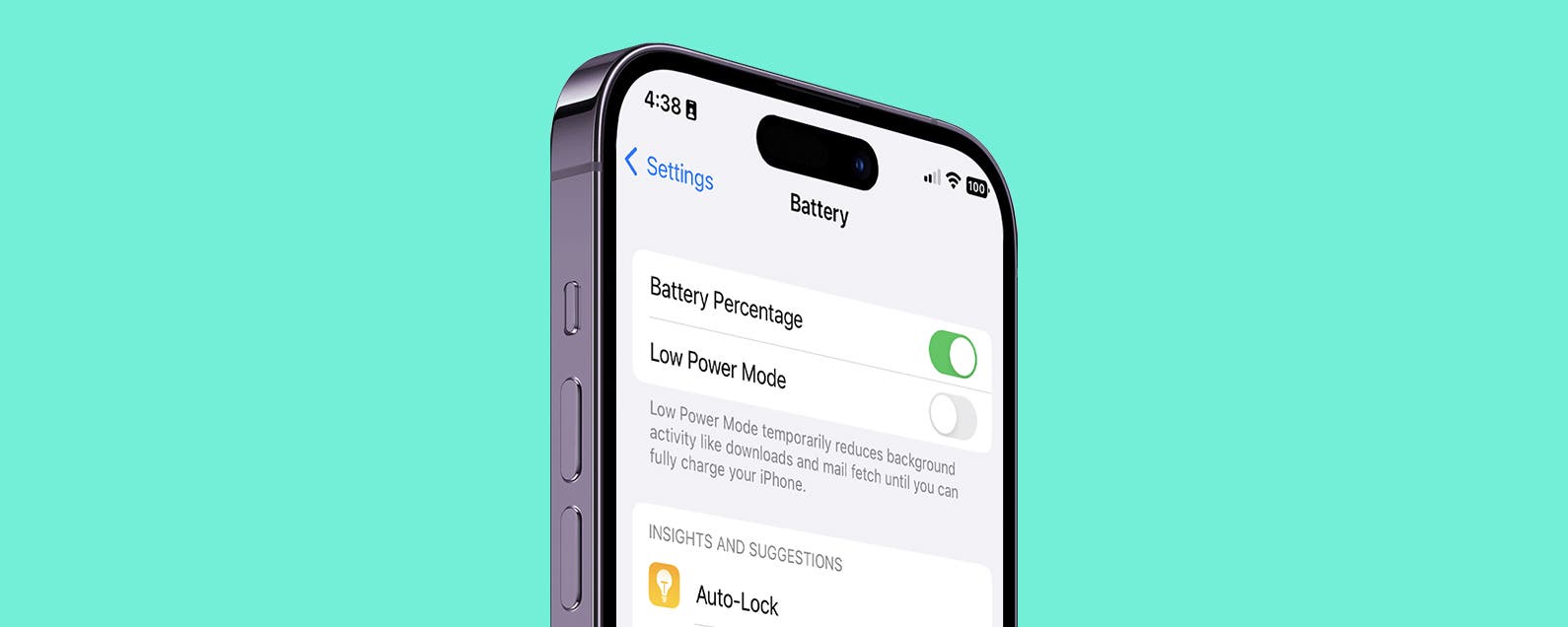
* To turn on the battery percentage in the battery icon, go to Settings on your iPhone.
* Tap Battery.
* Toggle Battery Percentage to on. It will be green when enabled.
Which iPhones are Compatible with Battery Percentage Icon?
Unfortunately, not all iPhones are compatible with the new feature. It appears to be because these iPhones don't have the graphics display capabilities for the feature, either because they are too old or too small to live up to Apple's readability standards.
The five iPhones that are not compatible with this feature are as follows:
* iPhone XR
* iPhone 11
* iPhone 12 mini
* iPhone 13 mini
This means that the supported iPhones that can display the battery percentage within the battery icon on the home screen are as follows:
* iPhone 14 Pro Max
* iPhone 14 Pro
* iPhone 14 Plus
* iPhone 14
* iPhone 13 Pro Max
* iPhone 13 Pro
* iPhone 13
* iPhone 12 Pro Max
* iPhone 12 Pro
* iPhone 12
* iPhone 11 Pro Max
* iPhone 11 Pro
* iPhone XS Max
* iPhone XS
* iPhone X
Now, you should be able to see the percent of your iPhone battery. As a long-time Apple user, I am extremely grateful to have this feature back, as it helps me better gauge my iPhone's battery life and quickly discern if I should take a portable charging bank with me if I'm on the go. This super quick and easy fix will hopefully make your life just a little bit easier too!
How-ToiPhoneBatteryMaster your iPhone in one minute a day: Sign up here to get our FREE Tip of the Day delivered right to your inbox.
http://dlvr.it/Sc2G67
Subscribe to:
Posts (Atom)